



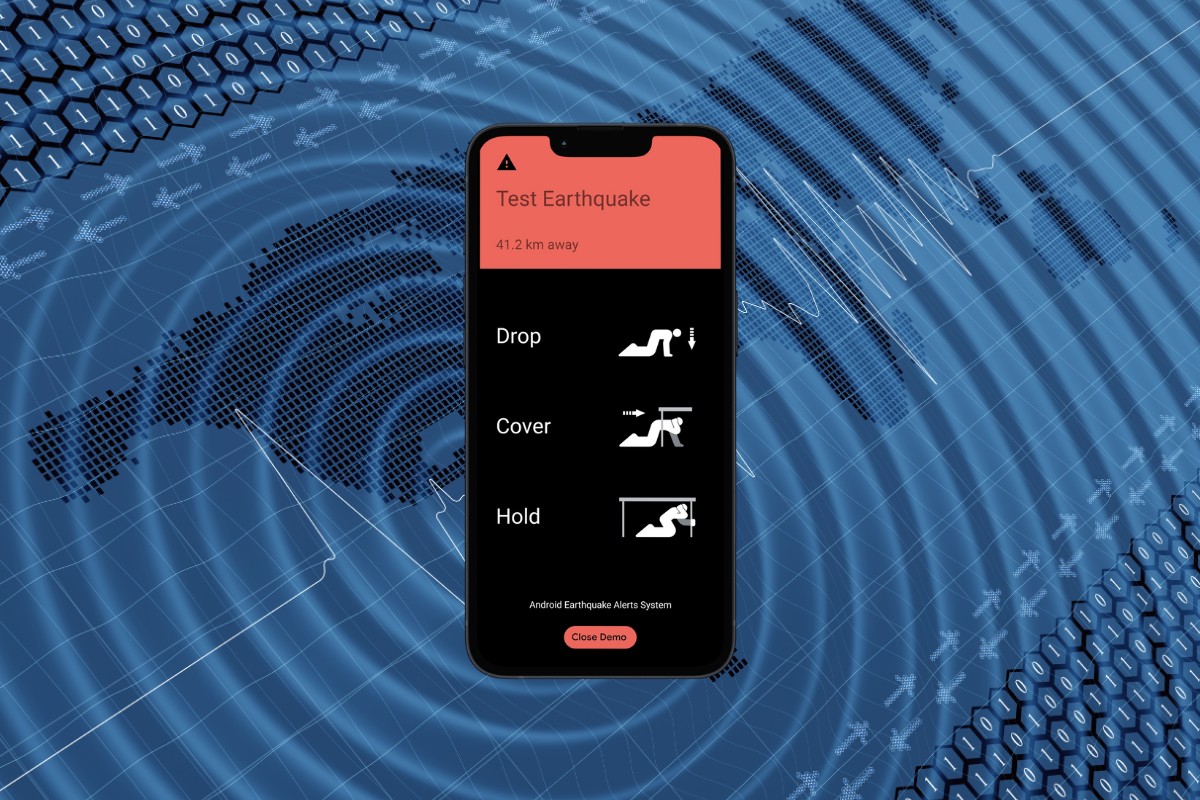
Earthquakes can be really scary, but do you know that your Android phone has built-in earthquake alerts that can warn you seconds before the shaking starts?
The Android earthquake alert system is powered by your phone’s accelerometer and Google’s seismic detection network. The feature is free, doesn’t drain your battery, and gives you precious seconds of advance warning before strong shaking occurs – sufficient time to perform the drop, cover and hold technique.
I’ve had the alert go off on my own phone during a tremor, and it gave me enough time to go under a table for safety. That small head start is crucial when you’re living in a country along the Pacific Ring of Fire.
The Android earthquake alert feature is buried in your phone’s settings and isn’t turned on by default on every device. This guide will walk you through exactly where to find it on your Android phone and answer the most common questions about how the system actually works.
Table of Contents
Why Earthquake Alerts on Android Can Save Your Life
The technology behind Android’s earthquake alert system is called ShakeAlert. Unlike weather alerts, your phone doesn’t receive a signal from a government sensor network. Instead, the accelerometers in millions of Android phones act as a collective seismograph. When a critical mass of devices in one area detect the same unusual motion at the same time, Google’s servers triangulate the data in real time and push an alert to everyone nearby before the seismic wave travels farther.
When the alert fires, your screen lights up with a full-page warning showing the estimated intensity and how far away the epicenter is. Your phone emits a loud alert sound even if it’s on silent mode. For stronger earthquakes, you get more warning time – sometimes 10 to 20 seconds before shaking occurs. For moderate ones, it might only be a few seconds, but that’s often enough to get under a sturdy table.
How to Enable Earthquake Alerts on Android
The steps to enable earthquake alerts are nearly identical on Samsung and Realme – two Android devices I personally tested. On Samsung, it lives under Safety and Emergency. On Realme and other Android phones, you’ll likely find it under Location settings.
Follow these steps to enable earthquake alerts on Android:
- Open the Settings app on your Android phone.
- On Samsung phones, tap Safety and Emergency. On Realme (and most other Android phones running stock Android), tap Location.
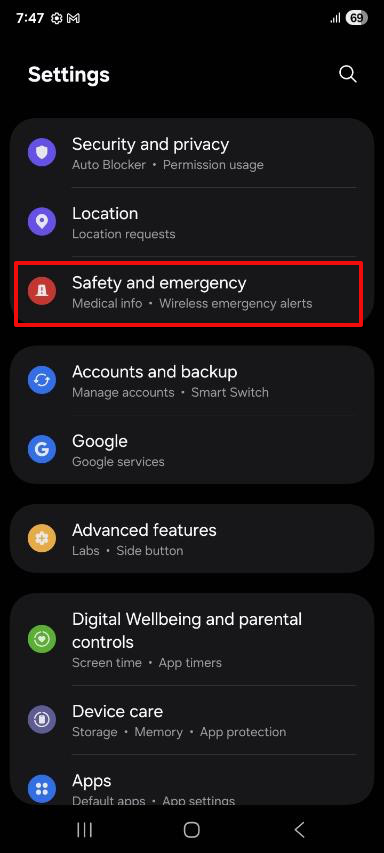
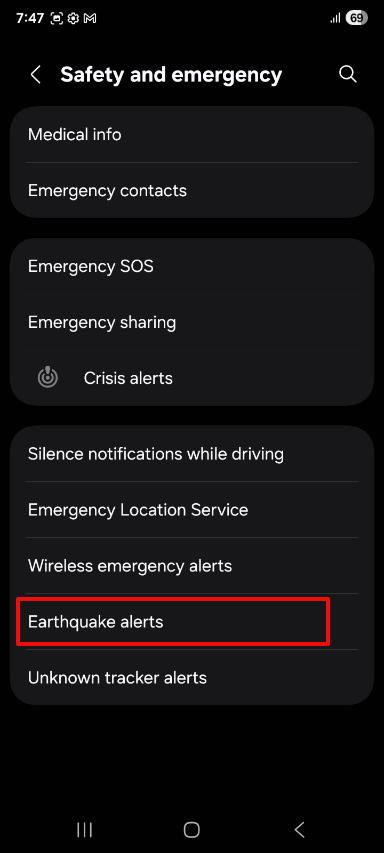
- Scroll down and tap Earthquake Alerts.
- Toggle the Earthquake alerts switch to On.
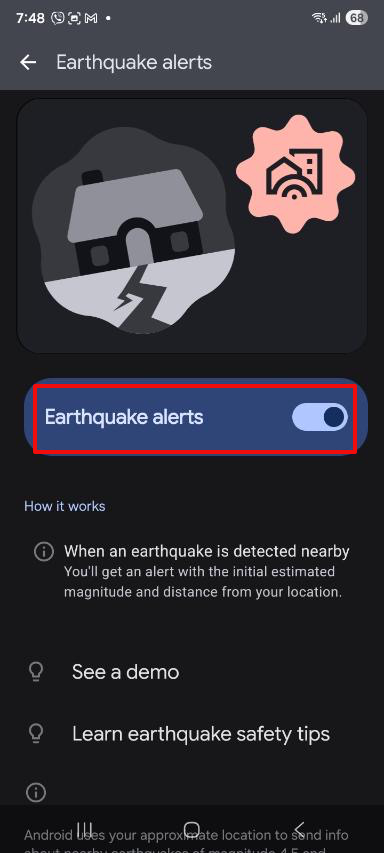
- You’ll see an optional button that says “See a demo”. Select it to experience what the alert looks and sounds like before a real earthquake triggers it. I recommend doing this so that you don’t mistake the alarm for a spam notification.
- Press the back button to save your changes.
- Earthquake alert is now activated on your Android phone. The feature runs silently in the background and doesn’t require any app to be open.
Note: If you see a warning that says: “Earthquake alerts aren’t available. Location switch is off”, just tap the Turn on location button and enable location for your device.
What to Do If You Can’t Find the Setting
A few Android devices, particularly older budget phones or units bought from overseas, may not show the Earthquake Alerts option at all. This usually happens for one of three reasons:
Your region isn’t supported yet. While the Philippines is covered, some specific locales or carrier configurations may not fully support the feature. Go to Settings > Location and make sure location services are on and set to High accuracy mode, not Battery saving.
Your Google Play Services is outdated. If you don’t see Earthquake Alerts in Location or Safety and Emergency, your device may be running an older version of Google Play Services. Go to the Google Play Store, search for “Google Play Services”, and update it. The earthquake alert feature was added to Google Play Services version 21.15 and newer.
Your phone runs a heavily customized Android skin. Some brands like Xiaomi and OPPO bury or rename the setting. Try searching “earthquake” directly in the Settings search bar.
How Accurate Are Android Earthquake Alerts?
You might be wondering how accurate are Android earthquake alerts, and the honest answer is: accurate enough to matter, but not perfect.
The system works best for earthquakes of magnitude 4.5 and above. Below that threshold, the alert may not trigger, or you might only receive a lower-priority notification rather than the full-screen warning.
The warning time you receive depends entirely on how close you are to the epicenter. If you’re directly on top of the fault line, you might get one or two seconds at best. If you’re more than 50 kilometers away from the source, you could get 15 to 20 seconds of advance notice.
False alerts are rare; out of 1,279 alerts issued globally between 2021 and 2024, only three were false alarms, all triggered by unusual events like thunderstorms and a mass phone notification that caused millions of devices to vibrate simultaneously. That said, the false alarm rate is low enough that every alert should be treated as real until proven otherwise. The alternative – ignoring a genuine warning – isn’t worth it.
It’s not a perfect system, but it’s the best free, always-on option on Android right now. Paired with the drop-cover-hold technique, it adds a meaningful layer of protection and gives you peace of mind.
What to Do When the Alert Goes Off
If you receive an earthquake alert or notification, you only have a few seconds to act. Don’t spend that time looking at your phone. Follow the standard drop, cover, and hold on protocol:
- Drop to your hands and knees immediately.
- Cover your head and neck with your arms, or get under a sturdy desk or table.
- Hold on until the shaking stops completely.
Do not run outside during shaking – this is one of the most dangerous things you can do. Most earthquake injuries happen from falling objects and broken glass, not from the ground movement itself. Stay away from windows. If you’re in bed, stay there and protect your head with a pillow.
After the shaking stops, watch out for aftershocks. The Android alert system will continue monitoring the situation and will send follow-up alerts if aftershocks are detected in your area.
Frequently Asked Questions
Does the earthquake alert work if my phone has no Internet connection?
No. The earthquake alert system needs an active Internet connection to receive Google’s push notification warnings. In areas with weak or spotty signal, the alert may be delayed or skip your phone entirely.
Will the alert sound even if my phone is on silent mode?
Yes, and it will do so loudly. Earthquake alerts use the emergency alert channel, which ignores your ringer and Do Not Disturb settings completely. It’s the same channel the NDRRMC uses for government emergency broadcasts, so there’s no way to accidentally mute it during normal use.
Does turning this on drain my battery?
Yes, but only negligibly. The feature relies on passive monitoring by Google Play Services, which is already running in the background on every Android phone.
Can I get alerts for earthquakes in other regions, like if my family is in Mindanao but I’m in Metro Manila?
The Android earthquake alert system is location-based. It only alerts you for earthquakes that are predicted to cause shaking at your current GPS location. It won’t notify you about earthquakes far from where you are.
Does this work on iPhones?
No. Apple doesn’t have an equivalent built-in earthquake alert feature as of this writing. iPhone users in the Philippines rely on NDRRMC emergency alerts pushed through the mobile carrier network (the loud government alert your phone receives automatically).
Wrapping It Up
Enabling earthquake alerts on your Android phone takes about 30 seconds and could genuinely save your life. After that recent Mindanao earthquake, I’ve been reminding everyone I know to turn this feature on, and to actually tap the demo button so they know what to expect when a real alert arrives.
Share this article with your friends and family members who might not know that this life-saving feature exists. And if you’ve already had the alert go off on your phone during an actual earthquake, I’d love to hear about it in the comments.