



Losing important files on a Windows PC can happen at any time. Many users accidentally delete documents, photos, videos, or work files without realizing it. Sometimes files disappear after formatting a hard drive, reinstalling Windows, or resetting a computer. In other cases, system crashes, partition problems, virus attacks, malware infections, or sudden power failures can make valuable data inaccessible. When data loss occurs, many people think their files are gone forever. Fortunately, that is not always true. Modern recovery tools can help restore deleted or lost files from different storage devices. The key is to stop using the affected drive as soon as possible and start the recovery process quickly. If you need a reliable solution, iToolab RecoverGo is a good option for recovering lost files on Windows computers.
Why Data Loss Happens on Windows PCs
Data loss can happen unexpectedly, even on modern Windows PCs. Files may disappear because of user mistakes, hardware issues, software failures, or security threats. Understanding the common causes can help you act quickly and improve your chances of successful recovery.
Accidental Deletion
People often delete files by mistake while cleaning folders or organizing data. Emptying the Recycle Bin can make recovery more difficult, but recovery software may still find the deleted files.
Hard Drive Formatting
Formatting a hard drive, SSD, USB drive, or memory card removes stored data. Many users accidentally format the wrong drive and lose important files.
System Crashes
Windows crashes, blue screen errors, and operating system problems can make files inaccessible or cause data loss.
Partition Loss
A damaged or deleted partition can make an entire section of a drive disappear. This issue may result from disk errors, incorrect partition management, or software problems.
Virus and Malware Attacks
Malicious software can delete, hide, encrypt, or damage files stored on a computer.
Power Failures
Unexpected power outages during file transfers, updates, or disk operations can lead to file corruption and data loss. Because these situations happen frequently, many users look for the best data recovery software for Windows to restore their files safely.
Part 2: iToolab RecoverGo Windows Data Recovery
iToolab RecoverGo Windows Data Recovery is a professional recovery tool designed to help users restore deleted, formatted, or lost files from Windows computers and storage devices.
The software supports recovery from various devices, including:
- Windows PCs and laptops
- HDDs and SSDs
- USB flash drives
- Memory cards
- External hard drives
Key Features
Recover Multiple File Types
RecoverGo can restore many file formats, including:
- Documents
- Photos
- Videos
- Audio files
- Emails
- Archives
Support for Different Data Loss Scenarios
The software helps recover data from:
- Accidental deletion
- Formatted drives
- Lost partitions
- System crashes
- Virus attacks
- Recycle Bin recovery
- External storage devices
Deep Scan Technology
RecoverGo performs both quick scans and deep scans to locate recoverable files that standard recovery methods may miss.
Preview Before Recovery
Users can preview recoverable files before restoring them. This feature helps confirm that the correct files are selected.
User-Friendly Interface
The software provides a simple layout that allows users to complete the recovery process with only a few clicks. For users searching for the best data recovery software for Windows, RecoverGo offers a practical solution for common data loss situations.
Part 3: How to Recover Lost Files with RecoverGo
Step 1: Install and Open RecoverGo
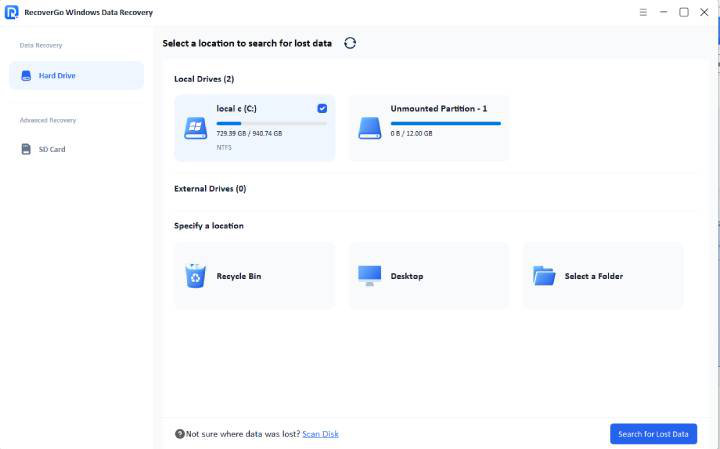
Download and install RecoverGo Windows Data Recovery on your computer. Launch the software and select the drive or storage device where your files were lost. This can be a local drive, external hard drive, USB flash drive, or memory card. Click Scan to continue.
Step 2: Select the Location and Start Scanning
Choose the location that contained the lost files and begin the scan. RecoverGo will first perform a quick scan and then automatically switch to a deeper scan if additional recoverable files are detected.
Step 3: Wait for the Scan to Complete
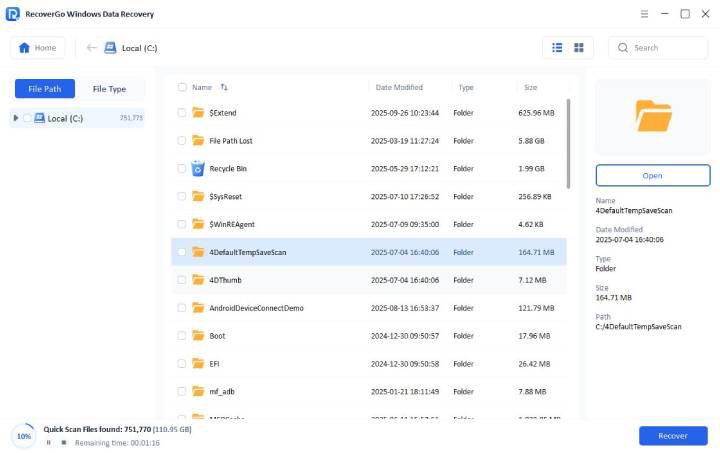
The scan time depends on the size of the drive and the amount of data stored on it. During the process, recovered files will appear in real time. You can browse results by file type, file path, or use the search feature to find specific files.
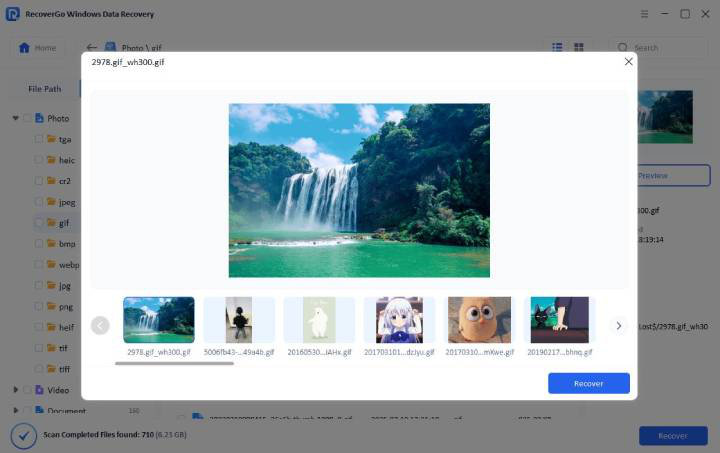
Step 4: Preview Recoverable Files
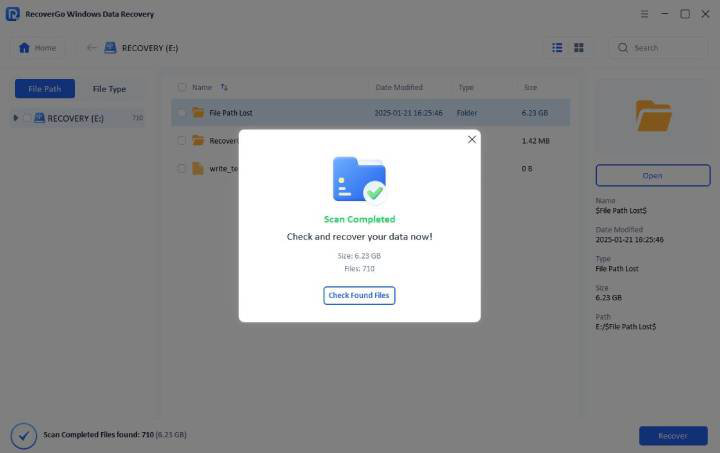
After the scan is finished, review the list of recoverable files. RecoverGo allows you to preview supported file formats before recovery, helping you confirm that the correct files have been found.
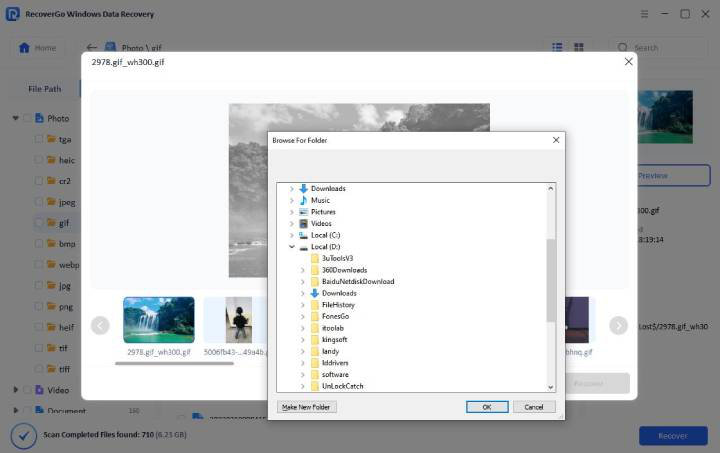
Step 5: Recover and Save Your Files
Select the files you want to restore and click Recover. Choose a different drive or storage location to save the recovered files. This helps prevent overwriting data and improves recovery success.
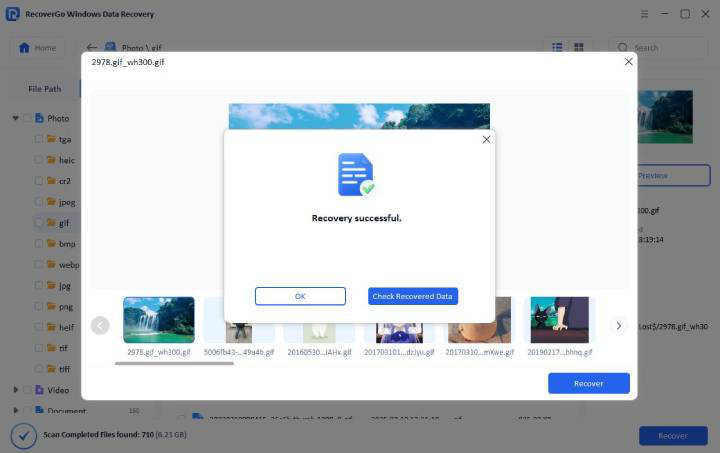
Step 6: Access Your Restored Data
Once the recovery process is complete, open the destination folder to verify that your files have been restored successfully. You can now access and use your recovered documents, photos, videos, and other files as normal.
Can You Recover Files After a Factory Reset?
Many users ask whether it is possible to recover files after factory reset PC operations.
The answer depends on several factors:
- How much new data has been written after the reset
- The type of reset performed
- The condition of the storage drive
In many cases, recovery software can still locate recoverable files if the original data has not been completely overwritten. Therefore, it is important to stop using the computer immediately after discovering data loss and start the recovery process as soon as possible. RecoverGo supports recovery from factory-reset systems and other advanced data loss situations, giving users a better chance of restoring important files.
Tips to Avoid Future Data Loss
Although recovery software can help, prevention remains important. Consider these tips:
- Back up important files regularly.
- Use cloud storage for important documents.
- Keep antivirus software updated.
- Avoid sudden system shutdowns.
- Check storage device health periodically.
- Create system restore points.
- Verify drives before formatting them.
These simple practices can reduce the risk of losing important data in the future.
Conclusion
Data loss on a Windows PC is a common problem. Files can disappear because of accidental deletion, formatting, system crashes, partition loss, malware attacks, or power failures. The good news is that data recovery is often possible when you use the right tool. iToolab RecoverGo provides a simple and effective way to recover documents, photos, videos, and other important files from Windows computers and storage devices. Its easy interface, multiple recovery options, and support for different data loss situations make it a useful choice for Windows users. Download RecoverGo today and recover your valuable files in just a few clicks. 30% OFF Discount Code: PLAB30S