



Messaging apps are no longer just phone utilities. For remote teams, freelancers, online sellers and support staff, they often sit alongside spreadsheets, browser dashboards, product files and client documents for most of the working day.
That is especially true across Asia, where one conversation may happen in English and the next in Traditional Chinese. A professional in the Philippines may be coordinating with a client in Hong Kong, while a Taiwan-based ecommerce operator is exchanging files with suppliers in another market. In those situations, desktop messaging is less about convenience and more about keeping communication inside the same workspace as the rest of the job.
A good setup is not complicated, but it does require a few deliberate choices: which desktop client to use, how to handle language preferences, where downloads are stored, which notifications deserve attention and how account sessions are secured. Getting those basics right makes the computer easier to work from and reduces the temptation to keep switching back to a phone.
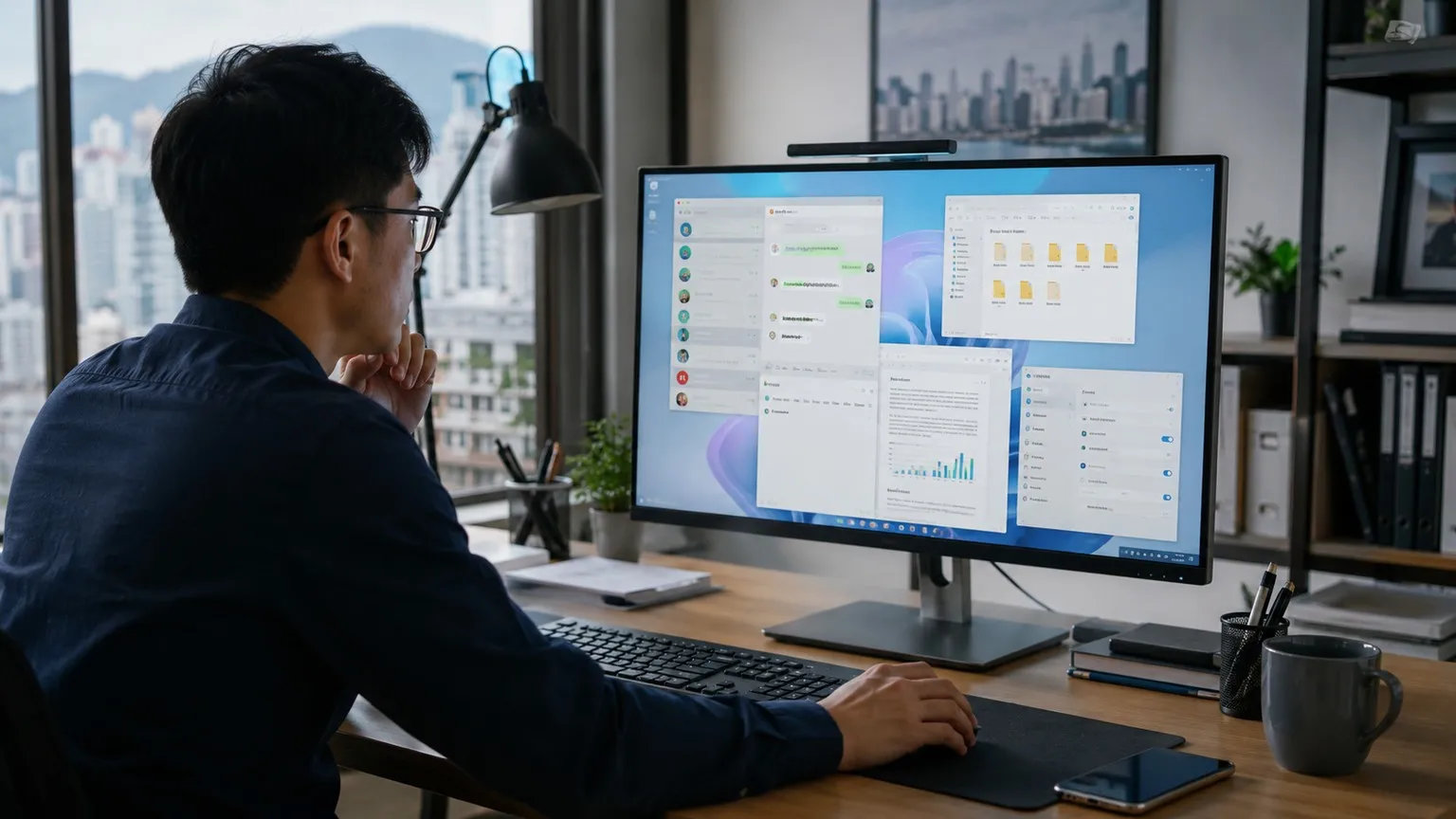
Why Desktop Messaging Still Earns a Place on the Work Computer
Phones are ideal for quick replies. They are less comfortable when a conversation involves a spreadsheet, several images, a long client brief or information that needs to be copied into another system.
Take a customer support specialist who is answering messages while checking order records in a browser. Reading the message on a phone is easy; moving order numbers, screenshots and notes between devices is not. The same friction shows up when a designer sends a large asset, an ecommerce operator checks an inventory issue or a virtual assistant needs to compare a client’s instructions with a document.
A desktop client removes some of that friction because messages, files and work applications can stay on the same screen. The gains are ordinary but useful: longer replies are faster on a physical keyboard, shared files are easier to organize, and conversations can remain visible while another task is open.
The point is not that desktop messaging is inherently better than mobile. It is that the desktop is often the better place for work that already requires a desktop.
Decide What the App Is For Before You Install It
The most reliable setups start with the job, not the feature list. Before adding another messaging application to a Windows PC, define how it will be used and what information it will handle.
- Is the account mainly personal, work-related, or a mixture of both?
- Will the user regularly exchange PDFs, product images, spreadsheets or ZIP files?
- Does the person move between a work PC, a personal laptop and a phone?
- Will Traditional Chinese or another interface language be needed?
- Is the computer private, company-managed or shared with other people?
Those questions influence almost every setting that follows. A private laptop used by one freelancer has different risks from a shared office computer. A team that mostly exchanges short messages does not need the same file-management routine as one that sends creative assets all day.
It is also worth checking the operating-system version, available storage and any company device policies before installation. That sounds basic, but it is much easier to solve compatibility or access problems before a messaging account becomes part of a daily workflow.
Language Settings Matter More in Cross-Border Work
Language is not only an interface preference. It affects onboarding, help searches and the terms people use when they are trying to solve a problem.
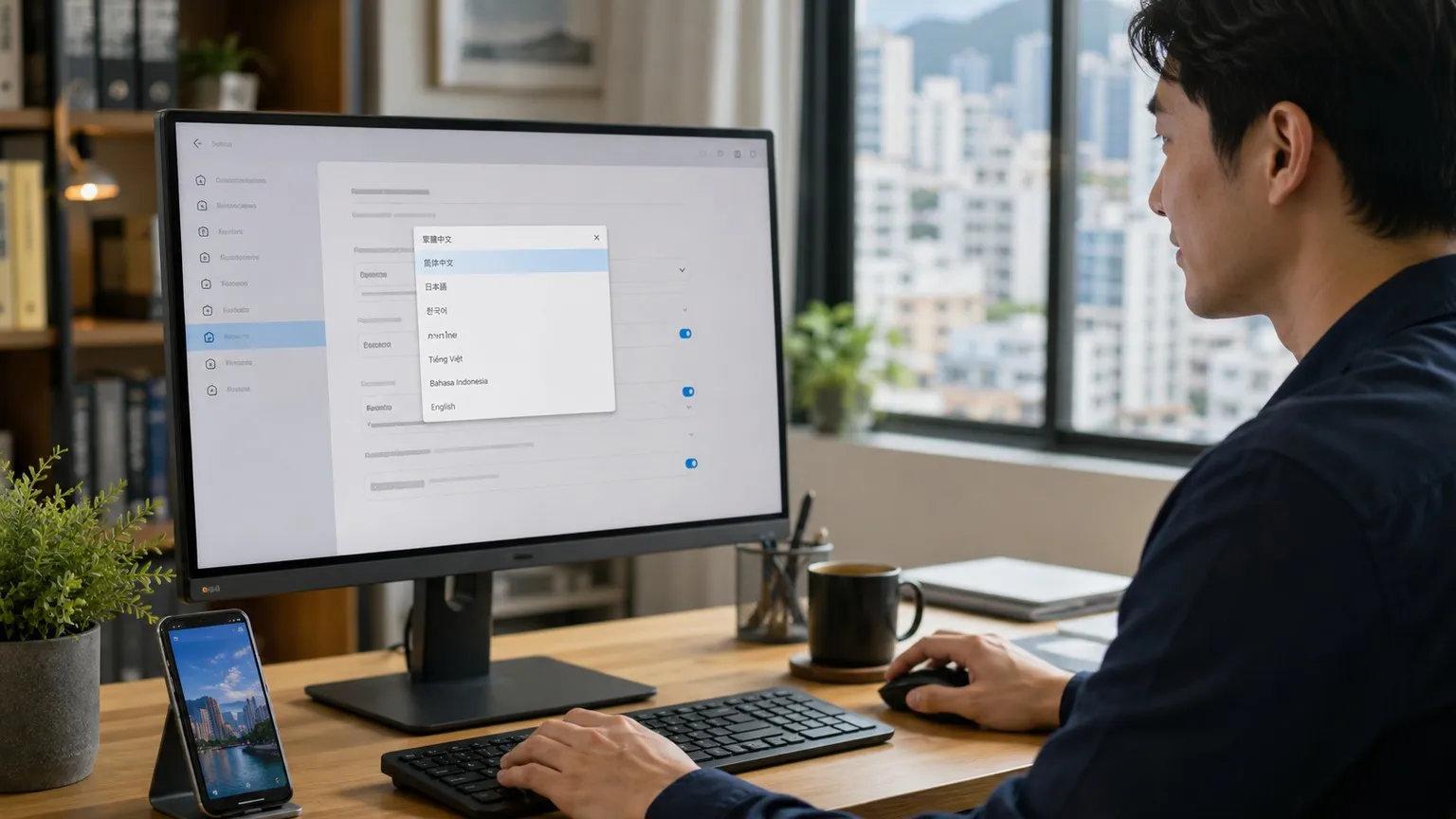
Hong Kong users often move between English and Traditional Chinese, while Taiwan users may search for a product name in English but describe the task itself in Chinese. That is why two people looking for the same desktop client can use very different queries.
For example, someone looking for a localized Telegram Desktop setup on Windows may search for telegram 電腦版中文 while checking desktop compatibility, Chinese-language options and installation steps. The query is specific, but the underlying need is broader: the user wants a desktop setup that feels usable in the language they work in.
When setting up a multilingual work computer, check more than the visible menu language. Confirm where the application stores files, how notifications appear in Windows, whether sessions sync cleanly across devices, and whether system prompts remain understandable after the interface language changes.
For a team, a short internal setup note can be surprisingly useful. It might specify the preferred desktop version, interface language, download folder and notification defaults. That gives new staff a consistent starting point instead of asking them to reconstruct the setup from old chat messages.
Keep Desktop and Mobile Sessions Under Control
Cross-device access is one of the reasons messaging apps are useful, but it also creates a habit many people overlook: leaving old sessions active.
A single account may remain signed in on a work desktop, a personal laptop, a phone and an older machine that has not been used for months. For casual conversations that may be an inconvenience. For anyone handling customer details, supplier pricing or client files, it is an avoidable security gap.
Review active sessions periodically and remove devices that are no longer needed. On Windows, basic device hygiene matters just as much as app settings: use a strong login PIN or password, enable automatic screen locking, keep security updates current and avoid leaving a work account open on a shared machine.
The practical rule is simple: treat access to the computer as part of access to the messaging account. Strong app settings cannot compensate for an unlocked workstation.
Make Downloaded Files Easy to Find Later
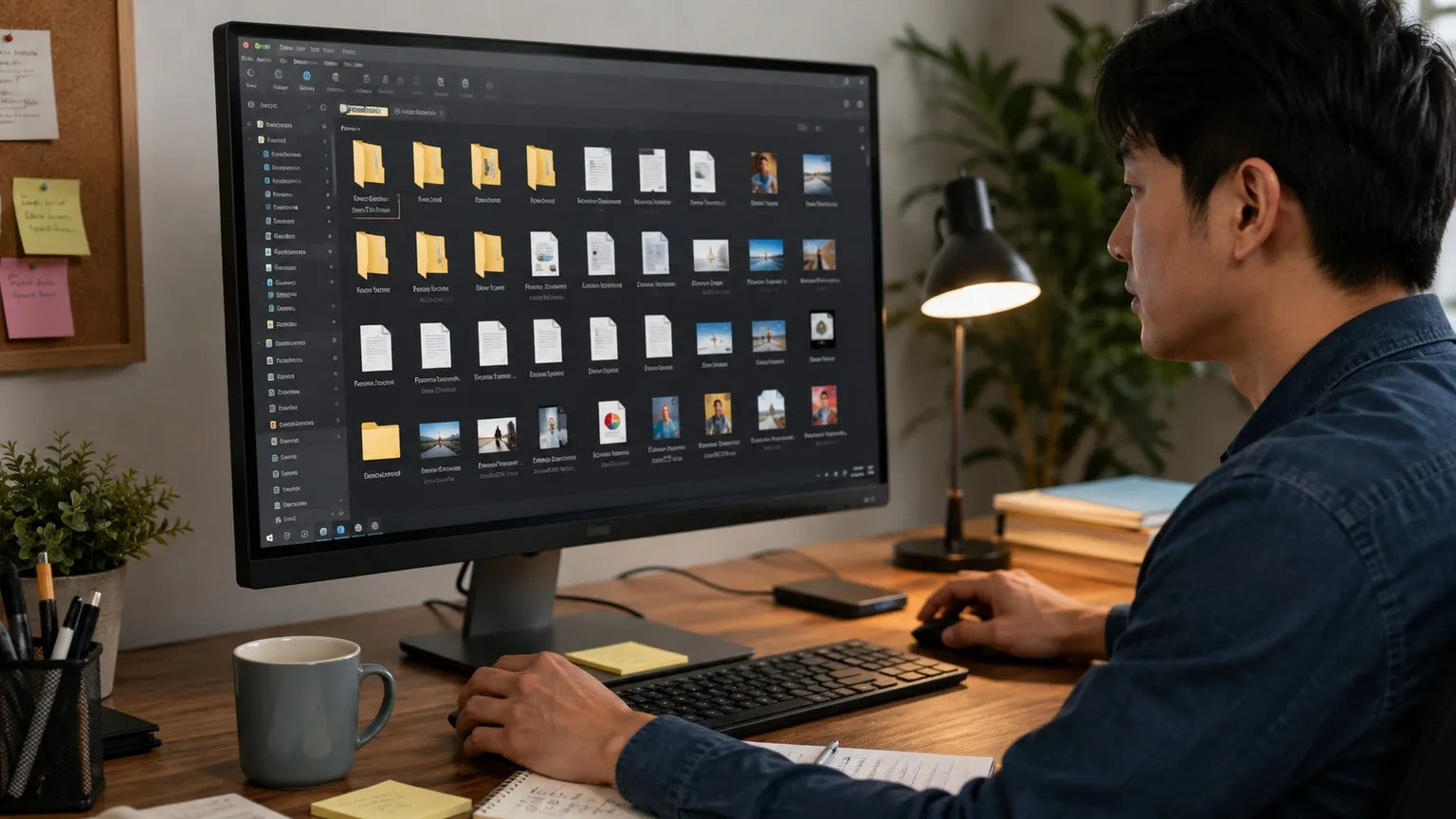
Desktop messaging makes file exchange painless, which is exactly why the Downloads folder can become a mess. Product photos, PDFs, invoices, screenshots and compressed archives often arrive from several conversations in the same day.
The problem usually appears later, when someone needs the approved version of a file and discovers three nearly identical copies with names such as final.pdf, final-new.pdf and final-new2.pdf.
A small amount of structure prevents that. Keep messaging downloads in a dedicated folder, separate temporary chat files from documents that need to be retained, and use filenames that identify the market, project, date or version.
For example:
Taiwan_Product_Catalog_2026-08_v3.pdf
HK_Campaign_Banner_Approved_2026-08-25.jpg
Users comparing localized installers or trying to confirm which package fits their system can consult a Telegram 中文版下載指南 before completing the setup. The useful part is not the act of downloading itself; it is understanding which version is being installed and how that installation will behave on the computer.
Once an important file has been approved, move it to the team’s normal storage system rather than relying on chat history as an archive. Messaging is good at moving files quickly. It is not a substitute for version control or document management.
Tune Notifications for the Way You Actually Work
Desktop notifications are useful until every group, channel and direct message gets the same level of urgency. At that point the alerts stop helping and start training users to ignore them.
A better approach is to decide which conversations can interrupt focused work. Direct client messages, urgent fulfillment problems or time-sensitive project updates may justify immediate alerts. Community groups, general announcements and routine team discussion can usually wait until the next planned check.
Check both layers of notification control: the messaging application’s own settings and Windows notification settings. It is common to change one and forget the other.
For teams working across time zones, this is also a boundary issue. Hong Kong, Taiwan and the Philippines have convenient overlap, but international clients or suppliers may not. Muting low-priority conversations outside working hours can be more effective than trying to remain permanently available.
Do Not Let Chat Become the Company’s Filing Cabinet
Searchable chat history is useful, but it becomes unreliable when people start treating it as permanent storage. A supplier may send an updated specification, a marketer may post a revised banner and a client may approve one of several drafts. Weeks later, the conversation still exists, but the team may not know which file is authoritative.
Move approved documents to the system that is meant to hold them: a shared drive, cloud storage, a project workspace or a document management platform. The chat should preserve the conversation around the decision, not serve as the only home of the final file.
This also makes staff changes less disruptive. Important business material should not become difficult to locate simply because the person who originally received it has left the project.
Be Cautious With Shared PCs and Unofficial Downloads
Shared computers deserve stricter handling. Avoid saving credentials unnecessarily, sign out when the session is finished and do not assume a browser session is safer than an installed desktop client. If several people genuinely need access to the same business communication channel, create an approved process rather than circulating one person’s credentials.
Download sources deserve the same skepticism. Popular messaging tools attract copied download pages, modified installers and advertisements designed to resemble official buttons. Red flags include requests to disable security software, bundled applications that have nothing to do with the messaging client, and pages that ask for verification codes before a download begins.
A few checks are worth making every time:
- Confirm the operating system and version you actually need.
- Check the source and filename before opening an installer.
- Keep Windows security features enabled.
- Avoid modified or ‘unlocked’ packages from unfamiliar sites.
- Never give a login or verification code to a download page.
These are ordinary precautions, but ordinary precautions prevent a large share of avoidable problems.
Make the Setup Work Across Markets
A multilingual desktop workspace should reflect how people really communicate. A remote professional in the Philippines may use English with an international client while receiving Traditional Chinese product material from Hong Kong. A Taiwan ecommerce operator may use the same PC for local customer communication, overseas suppliers and global marketing tools.
There is no need to force every conversation into one language or one platform. The goal is to remove unnecessary friction: choose the appropriate desktop client, set a language the user understands, keep downloads organized, limit notification noise and know which devices can access the account.
That is also why localized search terms matter. Queries such as Telegram Desktop, Telegram Windows, Telegram 電腦版 and Chinese-language download terms can describe slightly different stages of the same user journey: choosing a desktop version, installing it, localizing the interface and then fitting it into everyday work.
Review the Setup When the Work Changes
Desktop setups are not permanent. People replace computers, join new projects, change clients and accumulate old sessions and downloads. A configuration that was tidy six months ago can quietly become cluttered.
A quick review every few months is usually enough: remove unused sessions, clear obsolete downloads, check notification rules, install current application updates and confirm that important documents have been moved to permanent storage.
For business users, this fits naturally into a broader device-maintenance routine. It does not need to become another formal process.
Final Thoughts
A useful desktop messaging setup is not the one with the most features. It is the one that disappears into the workflow.
For people working across Hong Kong, Taiwan, the Philippines and other Asian markets, that usually means getting a handful of details right: a suitable Windows desktop client, understandable language settings, sensible download handling, quieter notifications and disciplined session security.
Those choices are small enough to overlook, but they are what make desktop messaging easier to live with over time. Configure them once with some thought, revisit them occasionally, and the messaging app can support the work instead of competing for attention.