



Now that Google Pay is already available in the Philippines, it’s time to put it to good use. Google Pay allows you to pay using your Android mobile phone without the need to take out your credit cards, making it a safer and more convenient option for the modern generation.
Most of us are not yet familiar with Google Pay, considering that it’s newly available in the country. So it’s quite understandable if we don’t know how to use it yet. Nevertheless, it’s easy to set up and use Google Pay, especially if you’re already familiar with digital wallets like GCash.
Wondering how to get started with Google Pay? This guide will walk you through the entire process, from downloading the Google Wallet app to inputting your card info to making your first payment.
Google Pay vs. Google Wallet
First, let’s understand the difference between Google Pay and Google Wallet:
- Google Wallet – This is the app on your Android smartphone. It’s a digital wallet that stores your card details securely.
- Google Pay – This is the service that powers the payment. It’s the underlying system that securely processes your transactions with the bank.
In short, you will use the Google Wallet app to make Google Pay transactions.
What You’ll Need
Before you can use Google Pay for online and in-store payments, make sure that you have:
- An Android smartphone with NFC (Near Field Communication) enabled.
- The Google Wallet app installed from Google Play.
- A supported Visa or MasterCard debit/credit card.
How to Add a Card to Google Pay
Here’s a step-by-step guide on how to add your debit or credit card to Google Pay via the Google Wallet app:
- Open the Google Wallet app. If you don’t have the app, you can install it from Google Play.
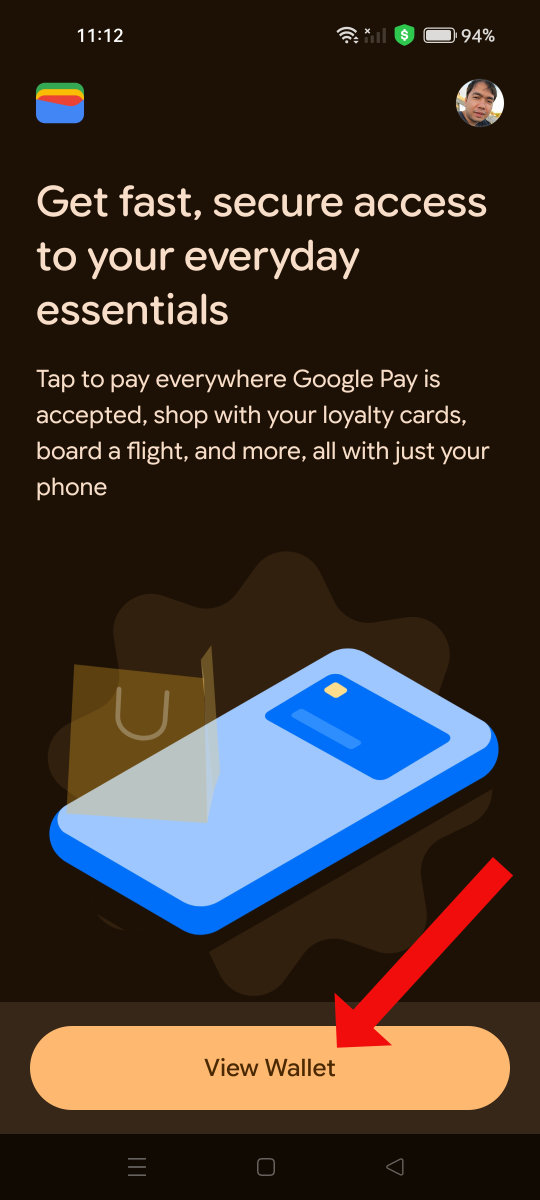
- Tap the “View Wallet” button at the bottom.
- Tap the “Add payment card” button (or the floating “+” icon in the corner).

- Select “New credit or debit card.” If you already have a card saved in your Google account or Google Play, you can select that, too.

- You can either use your phone’s camera to scan your physical card or tap “Enter details manually.” Scanning is fast and accurate.
- If entering manually, type your card number, expiry date (MM/YY), and security code (CVV/CVC). Press “Save and continue.”
- Read the issuer terms and tap “Accept.”
- Your bank needs to verify it’s you. You can choose to verify via SMS or a phone call.
- If you selected SMS verification, enter the one-time password (OTP) you received via text message.
- Congratulations! Your card is now ready to tap to pay.
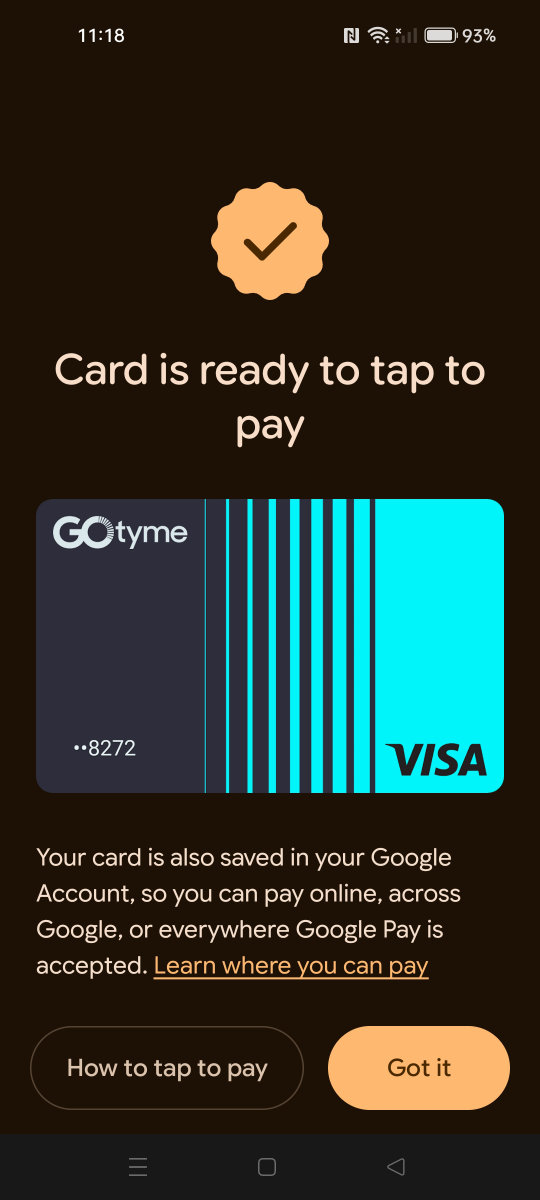
Your card is also saved in your Google account, so you can pay online, across Google, or everywhere Google Pay is accepted.
How to Use Google Pay for In-Store Payments (“Tap to Pay”)
Google Pay offers a quick, easy and convenient way to pay for your purchases in stores, by simply tapping your phone on a contactless payment terminal. It replaces your credit or debit card (so you can leave them at home or in your wallet).
Here’s a quick guide on how to make an in-store payment via Google Pay.
Prerequisite: Make sure that NFC is turned ON in your phone’s quick settings (swipe down from the top of your phone’s screen).
- Unlock your phone. You don’t need to open the Google Wallet app.
- Hold the back of your phone near the store’s contactless payment terminal (the device where you’d tap a physical card).
- Wait a second or two. Your phone screen will then show a blue checkmark to confirm the payment is successful.
That’s it! You can use Google Pay at any terminal that displays the contactless “wave” symbol.
How to Use Google Pay for Online Payments
Do you know that you can also use Google Pay for secure and fast online payments on websites and apps? Yes, you don’t have to enter your card details each time you make a purchase; simply select Google Pay as your payment method and you’re good to go!
Here’s how to do it:
- When shopping on a website (like Shopee) or in an app, proceed to the payment page.
- Look for the “Buy with GPay” or the “Google Pay” logo.
- Select it, confirm which of your saved cards you wish to use, and complete the payment.
Easy, isn’t it? Since your card details are already saved in your Google Pay account, you don’t have to enter them manually.
Is Google Pay Secure?
Yes, Google Pay is extremely safe and secure. It boasts of multiple layers of security, making it safer and more secure than using your physical card.
- Tokenization – When you add your card, Google Pay creates a virtual account number (a “token”) for it. Your real card number is never stored on the device or shared with the merchant during a transaction.
- Device Lock – Payments can’t be made unless your phone is unlocked. This means your PIN, biometrics or fingerprint is required, which adds a layer of security your physical wallet doesn’t have.
Which Philippine Banks and Cards Are Supported?
Google Wallet has launched with broad support. While the list is always growing, it works with Visa and Mastercard cards from many major banks and e-wallets such as:
- China Bank: MasterCard credit cards, Visa credit and debit cards
- EastWest Bank: Visa credit cards, MasterCard credit cards
- GCash: MasterCard debit cards
- GoTyme Bank: Visa debit cards
- Maya: Visa credit cards
- RCBC: Visa credit cards, MasterCard credit cards
- UnionBank: Visa cards
- Wise: Visa prepaid cards
- ZED: MasterCard credit cards
Wrapping Up
Google Pay brings a new level of ease and convenience to payments in the Philippines. I hope that by following the steps in this guide, you can easily link your cards and start using your phone to pay in stores and online. Leave your cards behind and start using Google Pay now!