




Email migration often seems straightforward until an old mailbox needs to be opened in a different application. A collection of emails saved over several years can become difficult to access when the new email client does not support the original file format.
This is a common concern when moving from Thunderbird or Apple Mail to Microsoft Outlook, or when trying to access Gmail messages exported through Google Takeout. The archive may contain important conversations, attachments, invoices, and work-related records that need to remain accessible after the move.
Stellar Converter for MBOX is designed to help with these situations by converting supported mailbox files into Outlook-compatible PST files and other available formats. It offers both desktop software and an online converter, so the process can be handled in different ways depending on the size of the archive and the required output.
The important questions are whether the software supports the source file, which version makes sense, what problems might arise during conversion, and how to check the final result. This review covers those points to help users make an informed decision before converting their email archives.
What Does Stellar Converter for MBOX Do?
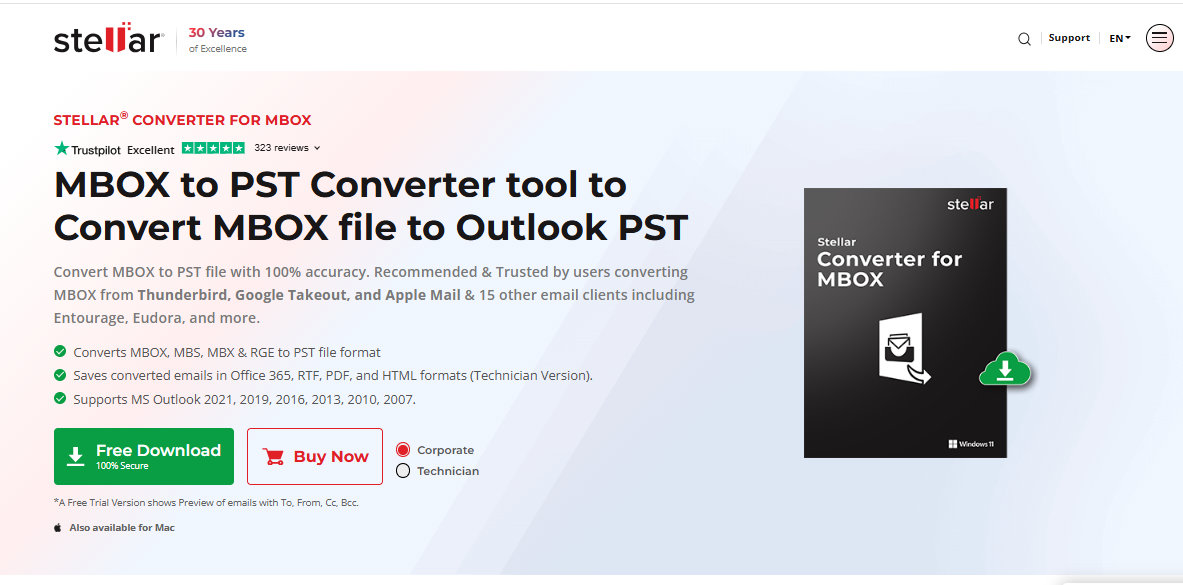
Stellar Converter for MBOX is an email conversion tool that helps users move mailbox data from supported MBOX-based email applications to Microsoft Outlook and other supported destinations.
MBOX is a mailbox format used by email applications such as Mozilla Thunderbird and Apple Mail. Gmail data exported through Google Takeout can also contain MBOX files. Microsoft Outlook does not directly open these archives as standard Outlook data files, so conversion to PST may be necessary before the data can be imported.
Stellar provides two main options:
- Online MBOX to PST Converter: A browser-based service for converting MBOX files to PST without installing desktop software.
- Desktop Stellar Converter for MBOX: A Windows application with additional file-selection, preview, filtering, and export capabilities depending on the license.
The online version focuses on a straightforward upload, conversion, preview, and download process. The desktop version offers more options for users who need to handle local mailbox files, save individual email items, or export to additional destinations like PST, MSG, EML, RTF, PDF & export to the Office 365.
Why Do Users Need an MBOX to PST Converter?
MBOX files are used by email clients such as Thunderbird and Apple Mail, but Microsoft Outlook does not directly open them as standard PST files. Users switching to Outlook may need to convert their email archives to retain access to old messages and attachments.
Stellar Converter for MBOX helps users convert supported MBOX files to PST and other formats, depending on the edition. It can be useful for email migration, platform changes, and accessing archived emails in Outlook.
Moving from Thunderbird to Outlook
A Thunderbird user may have years of messages saved in MBOX files. When switching to Outlook, those files cannot simply be opened like a standard PST file. Converting the archive can make the messages available for import into Outlook.
Migrating Apple Mail to Windows
Someone moving from a Mac to a Windows computer may want to retain email history from Apple Mail. A supported MBOX archive can be converted into PST before being opened in Outlook.
Accessing Gmail exports
Google Takeout allows users to export their Gmail data. If the exported email is stored in MBOX format, conversion may be needed before those messages can be imported into Outlook.
Preserving old email archives
Old email accounts sometimes contain invoices, customer conversations, project updates, and attachments that users need to keep. Converting the archive into a more accessible format can make future searches and retrieval easier.
Moving email into Microsoft 365
Some users need to transfer MBOX data directly into a Microsoft 365 account rather than creating a local PST file first. Stellar lists direct Office 365 export as a feature of its Technician edition.
Each situation has different requirements. The right approach depends on the source file, destination application, archive size, and whether the user needs a local file or a direct migration.
Stellar Converter for MBOX: Key Features
Support for multiple mailbox formats
The desktop software lists support for MBOX, MBX, MBS, and RGE files, with compatibility depending on the source and product version. It also supports archives from several email clients, including Thunderbird, Apple Mail, and Google Takeout.
This can be helpful when the original email application is no longer installed, but its exported mailbox file is available.
Conversion to PST and other formats
PST is the primary output for users who want to import email into Outlook. The desktop corporate edition also lists MSG and EML output, while Technician includes additional formats such as RTF, PDF, and HTML.
These alternatives can be useful when users need to save selected email items separately rather than move an entire mailbox.
Mailbox preview
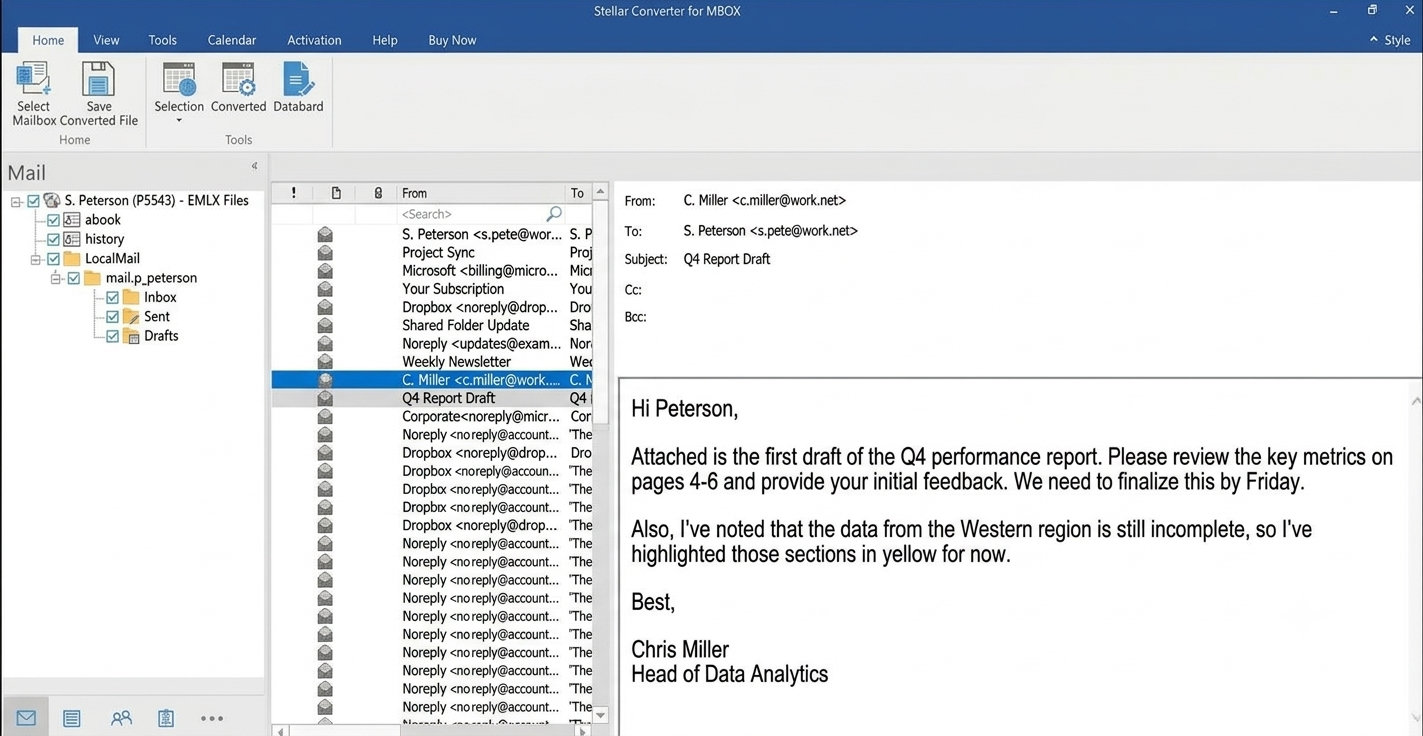
The desktop application provides a preview of converted mailbox items before saving. This helps users inspect the folder tree, message list, and selected email content.
The online converter also offers an HTML preview. Users can review the available mailbox structure and messages before downloading the resulting PST.
Previewing the data is a useful check, but it should not replace verification of the final saved file.
Advanced filtering options
Stellar lists desktop filtering options for including or excluding messages within a date range and excluding messages from specified senders.
This may be useful when only part of an archive is needed. For example, a user might want to retain work emails from a particular period rather than convert every message in a large mailbox.
Options for larger PST files
The desktop product documents an Auto Split feature for dividing large PST output into smaller files. This can make large archives easier to manage, although the appropriate file size depends on the destination environment and the user’s requirements.
Direct Microsoft 365 export
The Technician edition lists direct export to Office 365, along with additional saving options. This may suit IT professionals who need a more direct migration workflow.
Users should confirm current licensing, authentication requirements, and destination permissions before starting a business migration.
Problems Users May Face Before and During Conversion
Even with a dedicated conversion tool, the process can raise practical challenges. Understanding them beforehand can reduce the risk of an incomplete migration.
1. The MBOX file cannot be found
Mailbox files may be stored in application profile folders, backup directories, or external drives. Users who have not exported their mail manually may be unsure where the archive is located.
What to do: Search for the exported MBOX file or check the original email application’s export and profile locations. If the desktop software’s file-search feature is available in the selected edition, it may help locate supported mailbox files.
2. The file is too large for online conversion
Large archives may exceed the online service’s file-size limit or take a long time to upload. An interrupted upload can add further delays.
What to do: Check the file size before starting. Stellar’s online pricing page lists a free limit of 100 MB and a Premium limit of up to 5 GB per file. If the archive is larger, consider the desktop edition and confirm its current license terms.
3. The source file is damaged or incomplete
An incomplete export, interrupted backup, or damaged archive can prevent successful processing. Even if a file opens, some messages may already be missing from the source.
What to do: Keep the original file untouched. If possible, export the mailbox again from the original email application or use a healthy backup. Try a small, known-good file to distinguish a source-file problem from a broader workflow issue.
Conversion should not be treated as a guarantee that missing or severely damaged data can be recovered.
4. Some emails or folders are missing
A converted mailbox may appear incomplete if the wrong source file was selected, the source archive was incomplete, or the destination import did not finish properly.
What to do: Compare the original and converted mailbox using folder names, message counts, and representative conversations. Check archived folders as well as the Inbox. Keep the source archive until the result has been verified.
5. Attachments do not appear correctly
An email may be visible while an important attachment is missing, incomplete, or unable to open. This matters when the archive contains invoices, contracts, reports, or customer files.
What to do: Inspect several emails that contain different types of attachments. After conversion, open the output in the destination environment and verify that the files can be accessed.
6. Email formatting or message details look different
Users may need sender and recipient information, timestamps, message formatting, and folder organization to remain accessible.
What to do: Check a sample of old and recent messages, including emails with long threads, unusual formatting, or non-English text where relevant. Do not rely on a general feature description as proof that every message has been preserved exactly.
7. The converted PST does not open in Outlook
A PST file may be created but encounter problems when opened or imported into Outlook. The cause could be an incomplete output, insufficient disk space, or an issue with the destination application’s setup.
What to do: Confirm that conversion completed, check the output file size, save it to a suitable local location, and follow Outlook’s supported import or open procedure. Test a small archive before repeating the process with a larger file.
8. The user needs to migrate only selected emails
Converting an entire archive may be unnecessary if only emails from a specific period or sender are required.
What to do: Check whether the desktop edition provides the required date-range or sender filters. Review the settings before export and verify that the resulting mailbox includes the intended messages.
9. The user is migrating from Mac to Windows
A Mac user may have an Apple Mail archive but no Windows-compatible mailbox file ready for Outlook.
What to do: Export or locate the supported MBOX archive and select the appropriate conversion route. The online service can be accessed through a browser on Mac, Windows, or Linux. The desktop product is listed for supported Windows systems.
10. The user is concerned about privacy
Email archives can contain personal information, financial details, and confidential business correspondence. Uploading a mailbox to an online service may not be appropriate for every organization.
What to do: Review the service’s current privacy policy and your organization’s data-handling requirements before uploading. For sensitive archives, consider whether local processing is preferable. Keep backups in a secure location.
11. The online download link expires
The online service lists a 24-hour download window for Free and 48 hours for Premium. Users who delay downloading the output may need to repeat the conversion.
What to do: Make sure the destination computer has enough storage and download the converted file promptly. Open or import the file and verify it before relying on it.
12. The user is unsure which edition to purchase
Not every user needs advanced export options. Someone who wants to convert a small archive to PST may not need the same license as an IT professional migrating data to Microsoft 365.
What to do: Identify the required output, number of files, archive size, and destination before buying. Compare the current edition details and make sure the required feature is included.
How to Use Stellar Converter for MBOX: Desktop Version
The desktop workflow is useful when the mailbox is stored locally or when additional conversion options are required.
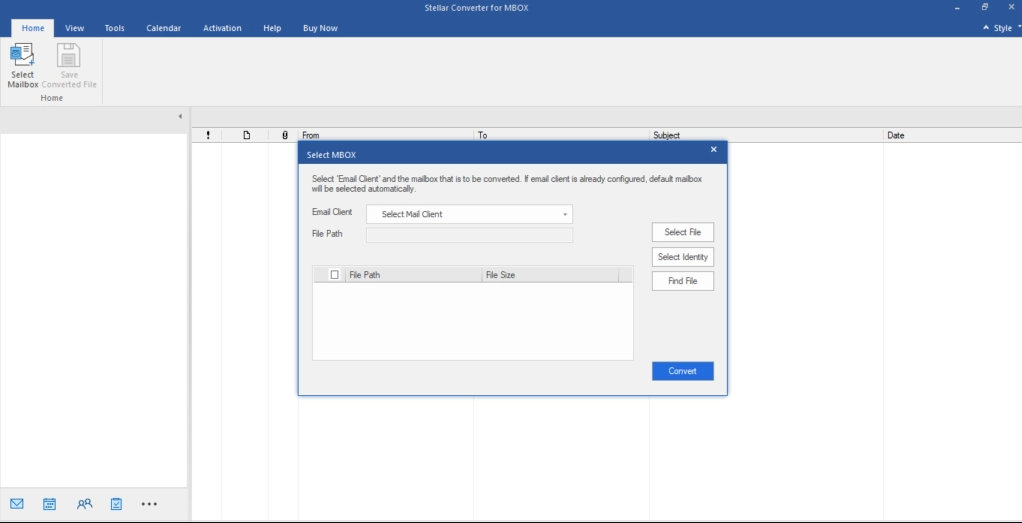
Step 1: Install and launch the software
Download the desktop software from Stellar’s official website and install it on a supported Windows computer. Check the system requirements and available disk space before beginning.
Step 2: Select the source mailbox
Choose the relevant email client or browse to the location of the MBOX file. If the file is difficult to find, check the original email application’s export folder or profile directory.
Confirm that the selected file is the intended mailbox rather than a temporary index or unrelated file.
Step 3: Start processing
Select the required mailbox file or identity folder and start the processing operation. Wait for the software to finish examining the source.
The time required can depend on the archive size and condition. Avoid interrupting the process unnecessarily.
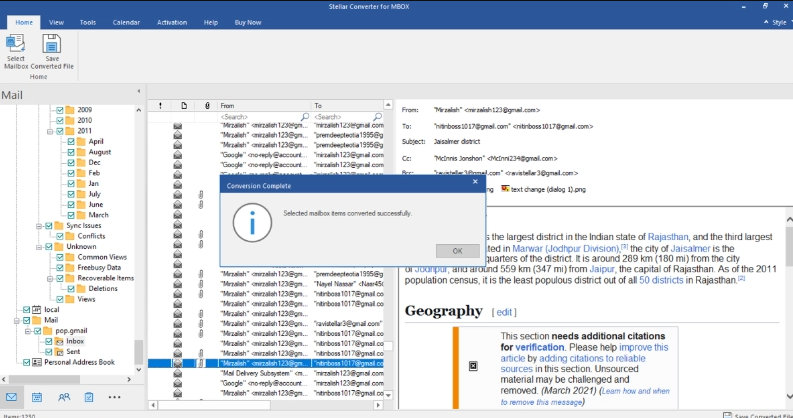
Step 4: Preview the mailbox
Review the available folder tree, message list, and individual email content. Check the folders and messages that matter most before saving the output.
Pay attention to older messages and emails containing attachments.
Step 5: Apply filters if required
If the selected edition provides the necessary filtering options, choose a date range or exclude messages from specified senders.
Review the filter settings carefully. An incorrect date range or email address may exclude messages that should have been retained.
Step 6: Select the output format
Choose PST if the goal is to use the converted mailbox in Outlook. Depending on the edition, other options may include MSG, EML, RTF, PDF, HTML, or direct Office 365 export.
Select a destination with enough available storage. If the archive is large, consider whether splitting the output into smaller PST files is appropriate.
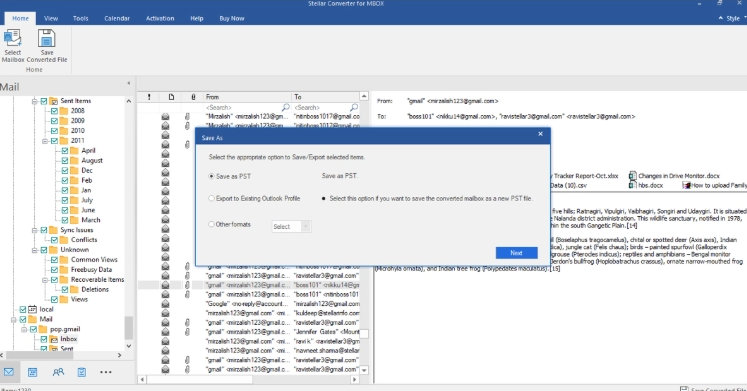
Step 7: Save and verify the output
Complete the export and wait for the software to report the result. Then open or import the converted data using the destination application’s supported workflow.
Check the folder structure, representative emails, attachments, and message details. Retain the original MBOX archive until the converted mailbox has been verified and backed up.
How to Use Stellar Online MBOX Converter
The online version offers a shorter workflow and does not require a desktop installation.
Step 1: Open the online converter
Visit the browser based MBOX to PST Converter by Stellar. Review the file-size limits and privacy information before uploading the archive.
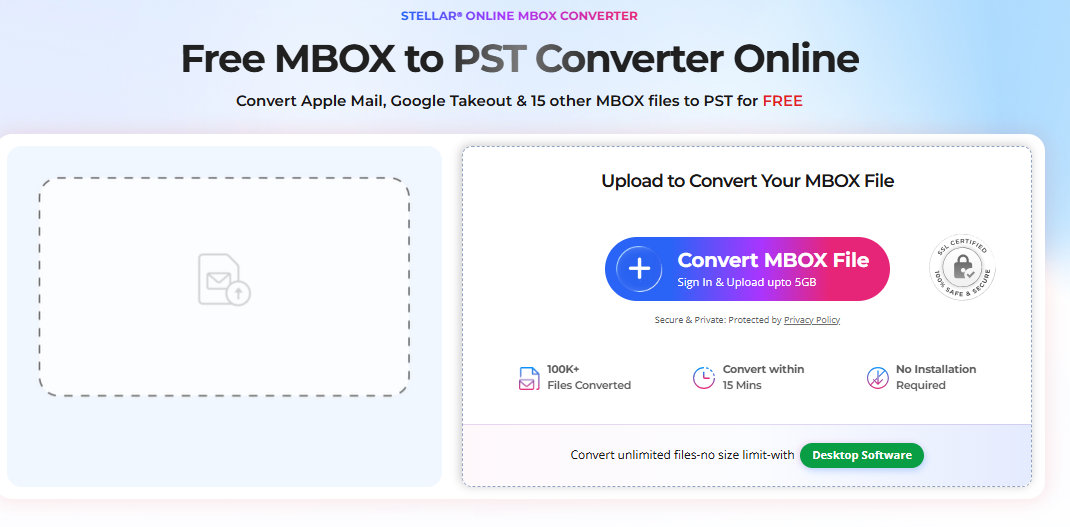
Step 2: Upload the MBOX file
Select the mailbox file from the computer and confirm that it is within the selected plan’s limit. The published limits are up to 100 MB for Free and up to 5 GB per file for Premium.
Large uploads may take longer depending on internet speed.
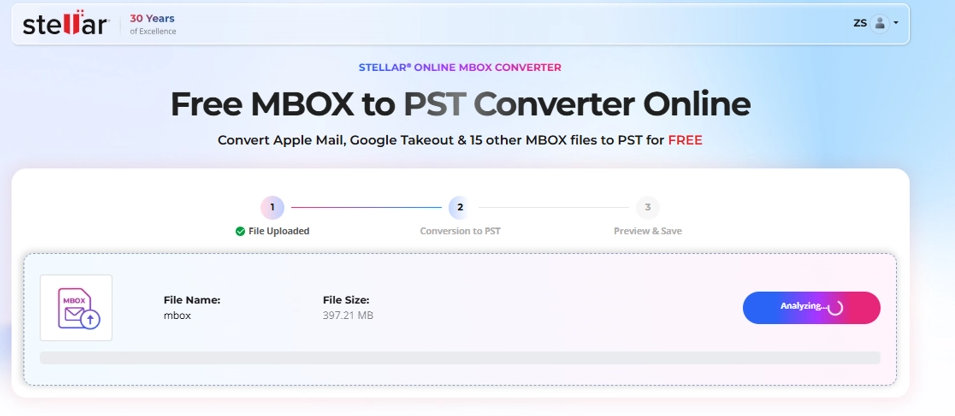
Step 3: Convert and preview
Start the conversion and monitor the progress shown in the browser. When processing finishes, inspect the available HTML preview.
Review the folders, messages, and attachments that are important to the migration. A preview is useful for checking the data, but the downloaded file should still be verified.
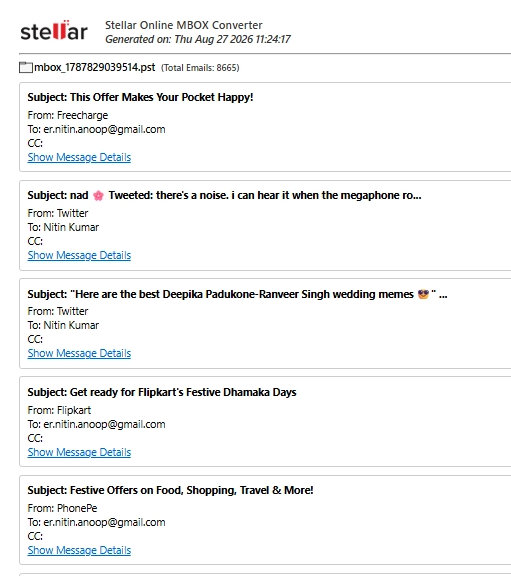
Step 4: Download and check the PST
Download the converted PST file to a suitable location. The published download windows are 24 hours for Free and 48 hours for Premium.
If the aim is to use the mailbox in Outlook, open or import the PST using the supported Outlook workflow. Check the resulting mailbox before relying on it.
Stellar Converter for MBOX: Online vs. Desktop
| Feature | Online converter | Desktop Corporate | Desktop Technician |
| Installation | Not required | Required | Required |
| Main output | PST | PST, MSG, EML | PST, MSG, EML and additional formats |
| File-size limits | Free: up to 100 MB; Premium: up to 5 GB per file | Advertised without a fixed file-size limit | Advertised without a fixed file-size limit |
| Multiple-file conversion | Free: one file; Premium: up to five | Current license limits should be checked | Current license limits should be checked |
| Outlook required | Not for online conversion | Yes, for saving to PST | Yes, for saving to PST |
| Direct Office 365 export | Not listed as an online feature | Not listed as a Corporate feature | Listed |
| Where output is stored | Downloaded from online service | Saved locally | Saved locally |
| Best suited to | Smaller, straightforward conversions | Local conversion needs | More advanced export requirements |
The online version is convenient when installation is not practical and the archive fits within the limit. The desktop software is better suited for users who need multiple output formats, advanced conversion options, and greater control over the conversion process.
Confirm the current feature list and license restrictions before purchasing, as capabilities can vary by edition.
Pricing: How Much Does Stellar Converter for MBOX Cost?
Stellar’s published pages list the following prices:
| Version | Listed price | Main allowance |
| Online Free | $0 | One MBOX file up to 100 MB |
| Online Premium | $19.99 | Up to five files, each up to 5 GB |
| Desktop Corporate | $39 | Desktop conversion with the edition’s supported output options |
| Desktop Technician | $99 promotional price | Additional export features, including Office 365 and other formats |
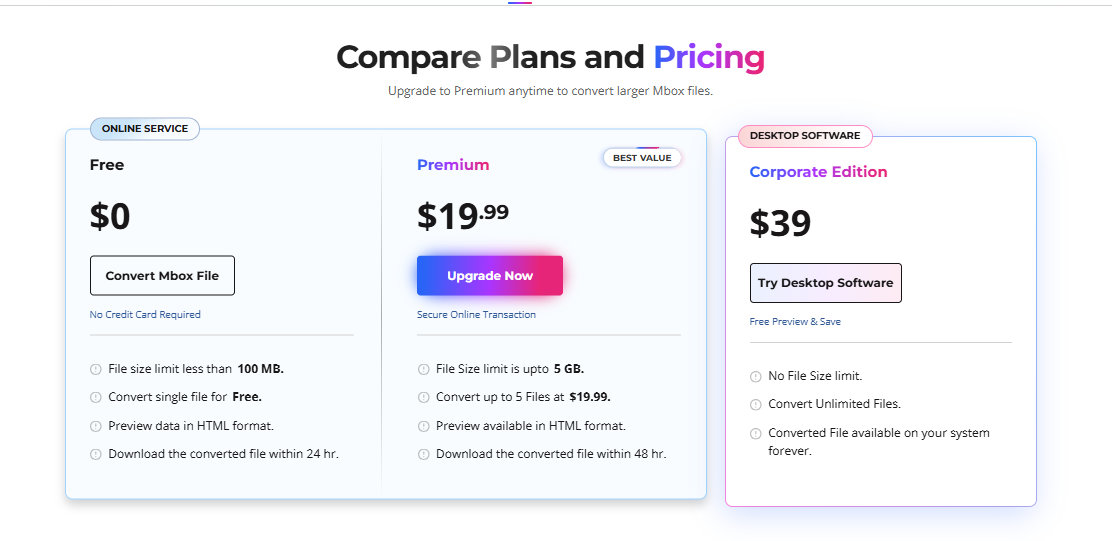
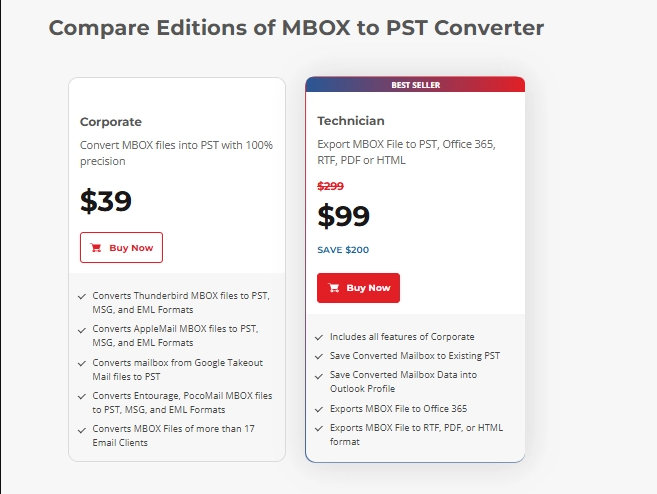
Prices, promotional offers, and license terms can change. Confirm the final details on the official online converter page and desktop product page before publishing or purchasing.
Which version is worth considering?
The free MBOX to PST online option is a sensible starting point for a small archive that needs to be converted to PST. It lets users try the process without paying for a larger conversion.
Premium is worth comparing when multiple files need to be converted or the archive exceeds the free limit but remains within the online size restriction.
The desktop Corporate edition is a better candidate when local processing or its supported output formats are required. Technician is more relevant when direct Office 365 export or additional formats are necessary.
The most expensive option is not automatically the best one. The right choice depends on the user’s actual migration requirements.
What Works Well?
Choice of online and desktop workflows
The two versions give users flexibility. A small one-time conversion may not require desktop installation, while a more involved migration may benefit from the desktop application’s additional options.
Support for several email sources
The product lists support for MBOX files from Thunderbird, Apple Mail, Google Takeout, and other email clients. This can help users who have archives from different applications.
Preview before saving
The preview feature gives users an opportunity to inspect mailbox contents before relying on the converted data. It is a useful checkpoint for identifying unexpected or missing information.
Additional export choices
The desktop editions offer more than one output format, with additional options in Technician. This may help users who need to save individual messages or migrate data into a supported destination.
Filtering options for desktop users
Date-range and sender filters may help reduce unnecessary output when only selected email data is required.
What Could Be Better?
Online file-size limits
The free online allowance may be too small for a mailbox accumulated over several years. Premium supports larger files but still has a stated maximum size.
Upload and download dependency
The online workflow requires a reliable connection. Uploading a large archive can take time, and the download window means the converted output must be saved promptly.
Conversion is not the same as migration
Creating a PST does not guarantee that the mailbox has been imported successfully into Outlook. Users still need to complete the destination workflow and verify the result.
Source-file problems can affect results
A damaged or incomplete MBOX archive may produce incomplete output. Users should maintain an original backup and investigate source problems before relying on conversion.
Edition differences require attention
Some export features are only listed for Technician. Buyers should confirm that the selected edition supports the required workflow rather than discovering a missing feature after purchase.
Preview does not replace final validation
A preview is helpful, but users should also inspect the downloaded or saved output. Important attachments, folders, and message details should be checked before deleting the original archive.
Who Should Consider a Stellar Converter for MBOX?
| User type | Recommendation |
| Someone with one small MBOX file | Consider trying the online free plan |
| Thunderbird user switching to Outlook | Compare online and desktop conversion based on file size and requirements |
| Apple Mail user moving to Windows | Check the source archive and choose a supported conversion workflow |
| Gmail user with a Google Takeout archive | Consider converting the MBOX file to PST and then checking the Outlook import |
| IT professional migrating several mailboxes | Review the Technician edition and destination requirements |
| User with a damaged MBOX file | Preserve the original and investigate the source problem first |
| User handling confidential business email | Review online privacy terms and consider whether local processing is more appropriate |
Frequently Asked Questions
Can Stellar Converter for MBOX convert Thunderbird emails to Outlook?
The product lists support for Thunderbird MBOX files and conversion to PST. The resulting PST can then be opened or imported into Outlook, after which the user should verify that the expected messages and attachments are present.
Can it convert Apple Mail and Gmail data?
Stellar lists Apple Mail and Google Takeout among its supported sources. Users should locate the correct MBOX archive, convert it, and check the output before relying on it.
Can MBOX be converted to PST without installing Outlook?
The online converter does not require Outlook to perform the conversion. For the desktop version, check the current system requirements because Stellar documents Outlook as required for its PST-saving workflow.
What is the maximum online file size?
The published online limits are up to 100 MB for Free and up to 5 GB per file for Premium.
Can it convert a damaged MBOX file?
A damaged or incomplete archive may fail to process or may produce incomplete output. Keep a backup and use a healthy source where possible. Conversion should not be treated as guaranteed repair for every damaged file.
Will attachments and folder structure be preserved?
Stellar states that its converter retains mailbox structure and converts email data and attachments. Users should still verify important folders, messages, and attachments in the actual output.
Can it export MBOX data directly to Microsoft 365?
Stellar lists direct Office 365 export as a Technician-edition feature. Check current license terms, authentication requirements, and destination permissions before beginning.
Is the online converter free?
The published free plan supports one file up to 100 MB. Larger files or multiple-file conversions may require Premium.
How long does conversion take?
The time depends on the size and condition of the archive, internet speed for online conversion, and system resources for desktop processing. Large mailboxes should be given enough time for both conversion and verification.
What should be done if the converted PST appears empty?
Check whether the source file contains mailbox data and whether the correct archive was selected. Review the preview and conversion status, then try a healthy source file if available. If the problem continues, contact Stellar support and retain the original archive.
Final Verdict: Is Stellar Converter for MBOX Worth Considering?
Stellar Converter for MBOX is worth considering for users who need to make MBOX-based email archives accessible in Outlook or another supported destination. The online converter offers a straightforward solution for smaller files, while the desktop editions provide greater flexibility for users with additional export requirements.
One of its main advantages is the availability of different conversion options to suit various migration needs. However, users should consider the online file-size limits, differences between the desktop editions, the condition of the original archive, and the need to verify the converted data.
For a small mailbox, starting with the free online option may be sufficient. For larger archives or migrations requiring additional export capabilities, comparing the desktop editions can help users identify the most suitable option.
Regardless of the method chosen, it is important to verify the converted mailbox before relying on it. Check the folder structure, email content, and attachments, and keep a backup of the original archive until the migration is complete.