



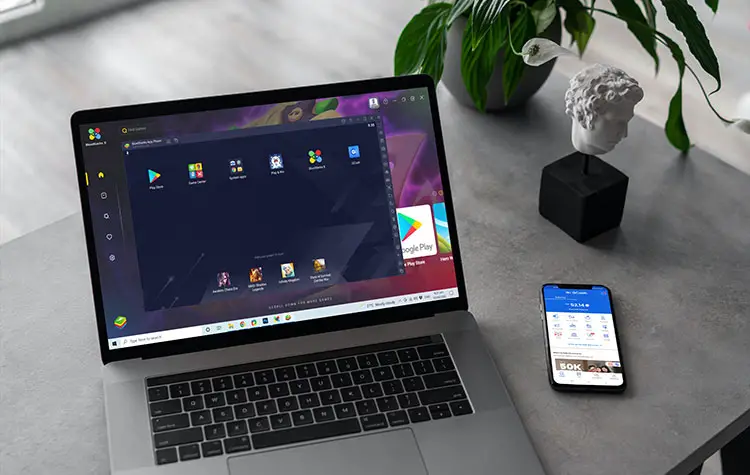
GCash is the Philippines’ number one mobile wallet that lets you perform cashless transactions using only your smartphone. But do you know that you can use your computer or laptop to login to GCash and send money, pay bills and shop online just like you would on a mobile phone? Yes, you can login to GCash on your PC and I’ll teach you how in this article!
There are several reasons why you might want to use GCash on your computer instead of your mobile phone. Maybe your work revolves around computers and you don’t want to waste precious seconds just to buy cellphone load for your friend. Or perhaps your work or business requires you to use GCash many times a day. In both cases, it makes more sense to install GCash on your PC to save time and energy.
So instead of grabbing your phone and logging in to GCash every time you want to send money, why not install GCash on your computer and enjoy the extra ease and convenience? You can perform your work on your computer while keeping the GCash app running in the background. Once GCash is installed on your PC, you can easily launch it by clicking the GCash icon on your desktop.
But then you might ask, how do you install a mobile app on a computer? Thanks to Android emulators such as BlueStacks, anybody can install and run mobile apps on a Windows PC. It’s like having a virtual smartphone on your computer. You can play popular mobile games such as Clash of Clans, open social media apps like TikTok, and login to your GCash wallet – just like you normally do on your smartphone.
Without further ado, let’s go through the steps in installing and using GCash on your PC via BlueStacks. Make sure that you already have an active and working GCash account.
What is BlueStacks?
BlueStacks is an Android emulator that allows you to run mobile apps from Google Play on your Windows computer. It creates an Android Virtual Device (AVD) on your PC, where you can install and run any Android application, just like what a real Android device does.
Android emulators are commonly used by developers to test their mobile apps, as well as by gamers who want to enjoy a bigger screen and better accuracy with keyboard and mouse controls. BlueStacks is arguably the most popular Android emulator in the market and is trusted by millions of users.
Before you install BlueStacks, make sure that you meet the minimum system requirements for your computer:
- Operating System: Microsoft Windows 7 and above
- Processor: Intel or AMD processor
- RAM: At least 4GB of RAM
- HDD: At least 5GB of free disk space
Additionally, you must be an administrator of your PC or have the required permissions to install applications.
How to Install GCash on Your PC
You will soon realize how easy it is to login to GCash on your PC. Follow these steps to install an Android emulator and run the GCash app on your computer or laptop.
Step 1: Install and run BlueStacks
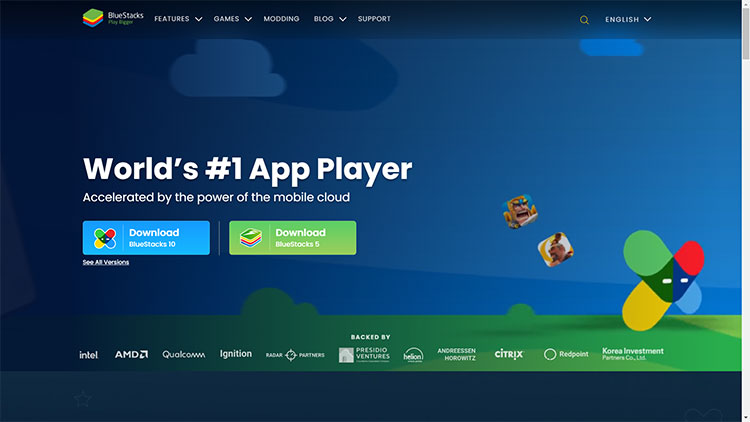
Open the BlueStacks website and download the latest version of BlueStacks (aka BlueStacks X). To avoid compromising your computer, make sure that you download the installation package from the official Bluestacks website. Do not download Bluestacks from non-official sources and third-party sites.
Click “Install now” to start the installation process.
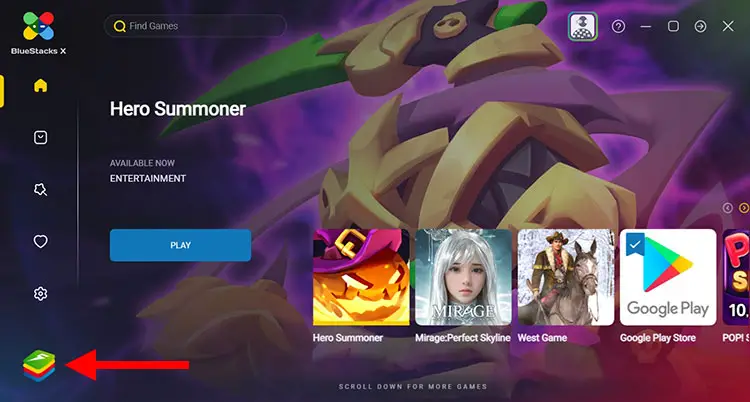
Once BlueStacks is installed on your computer, the BlueStacks X application will automatically open. Click the BlueStacks App Player icon as indicated by the screenshot below.
Step 2: Sign in to Google Play
The next step is to open Google Play and login to your Google account.
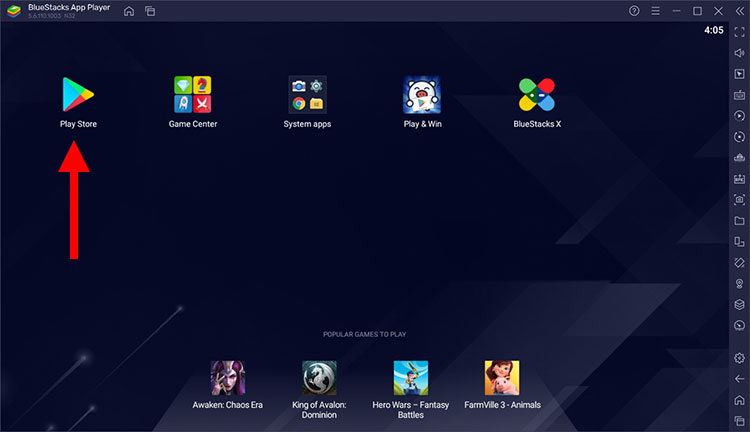
Click the “Play Store” icon. This will launch Google Play in the BlueStacks App Player.
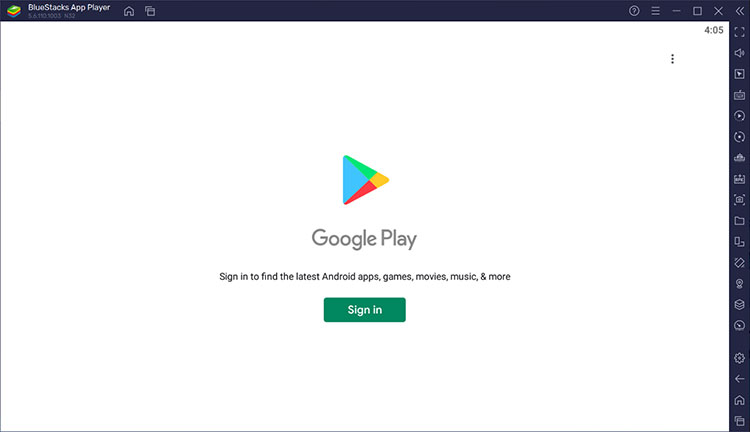
After launching Google Play, click the “Sign in” button to login to your Google account. Enter your Google email and password to sign in to Google Play.
Step 3: Search for GCash in Google Play
Now that you’re signed in to Google Play, it’s time to download and install GCash. But first, you have to search for the GCash app in Google Play.
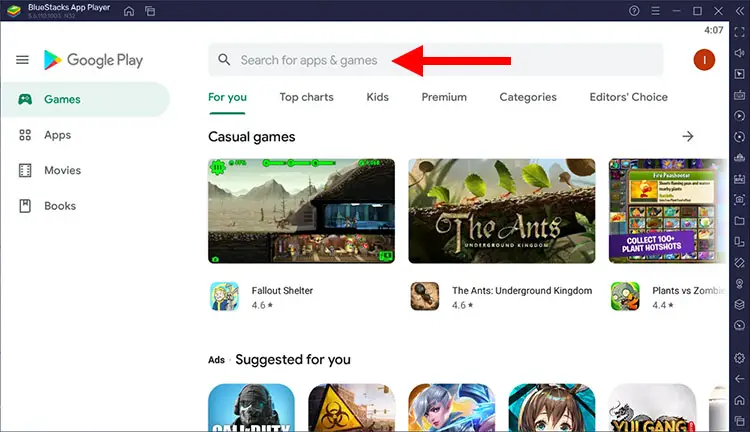
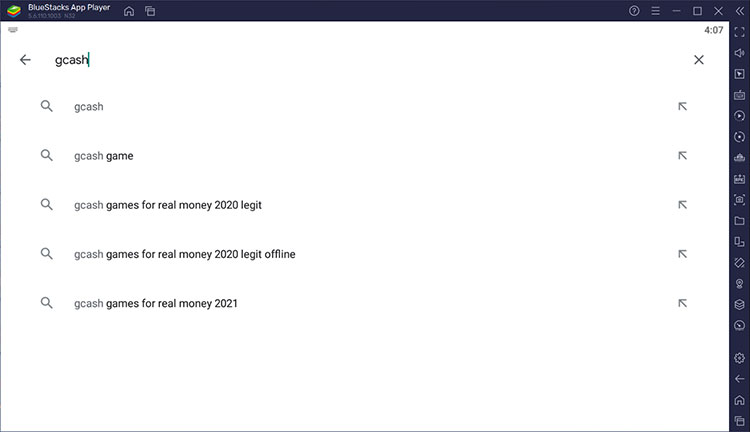
Click the Search bar (“Search for apps & games”) and type “GCash.”
Hit “Enter” to continue. You’ll immediately be taken to the official GCash listing in Google Play.
Step 4: Install GCash
Make sure that you’re in the official GCash page in Google Play. Click “Install” to start installing the GCash app in BlueStacks.
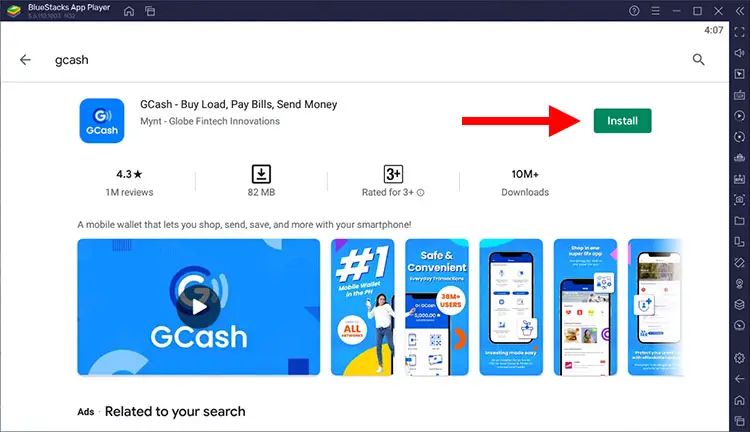
After installing GCash, click the “Open” button to launch the GCash app in BlueStacks.
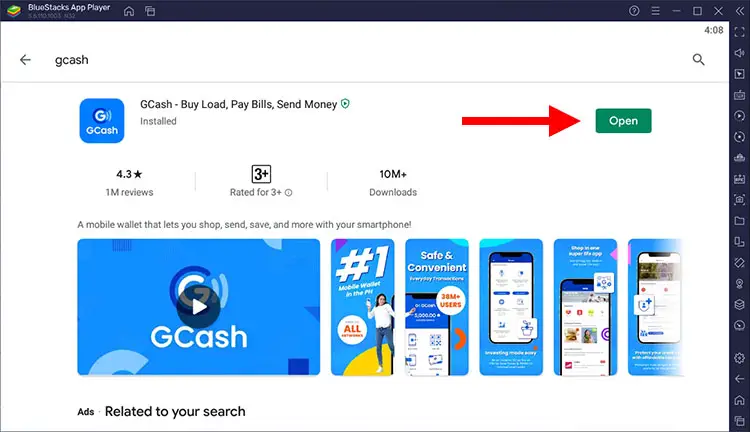
Step 5: Login to your GCash account
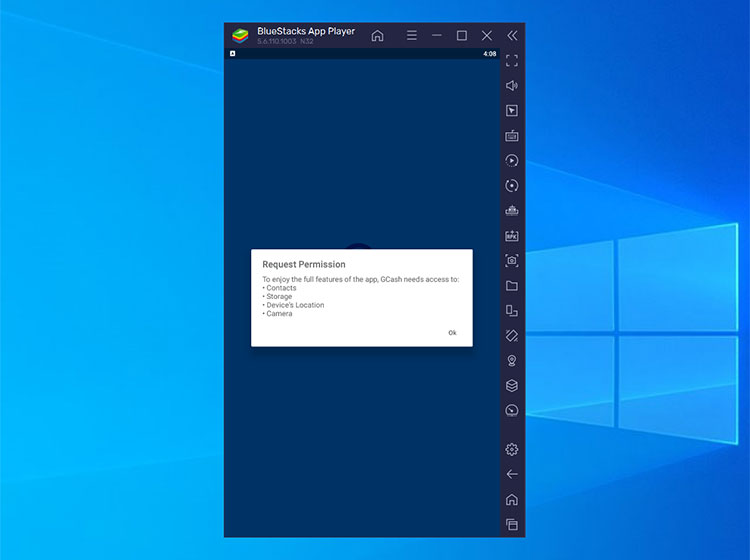
GCash will first request permission to access your contacts, storage, device location and camera. Click “OK” and then click “Allow” on the next five permission requests.
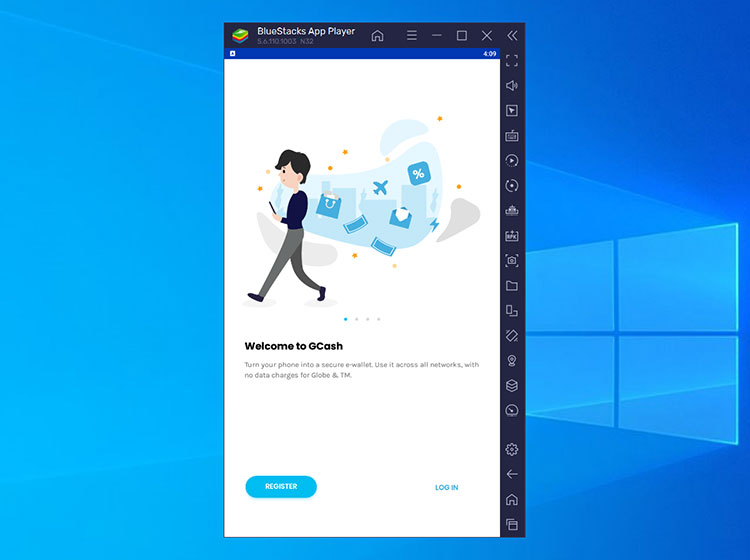
Once you’re in the “Welcome to GCash” screen, click “LOG IN.”
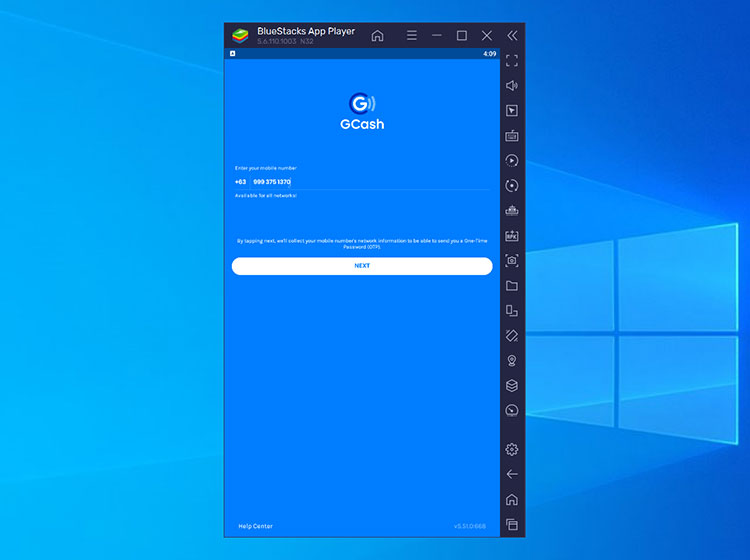
Enter your GCash account number by typing it on your keyboard. Click “NEXT” to proceed.
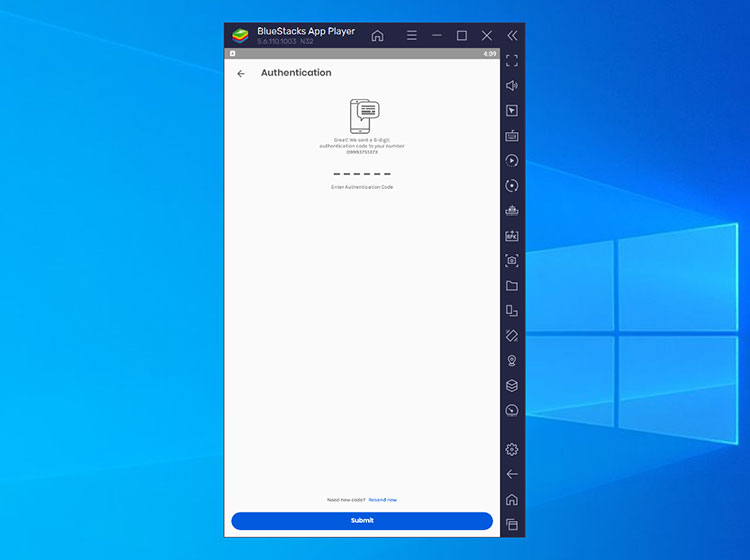
A 6-digit authentication code will be sent to your GCash number. If you didn’t receive a code, click “Resend now.”
Enter the code and click “Submit.”
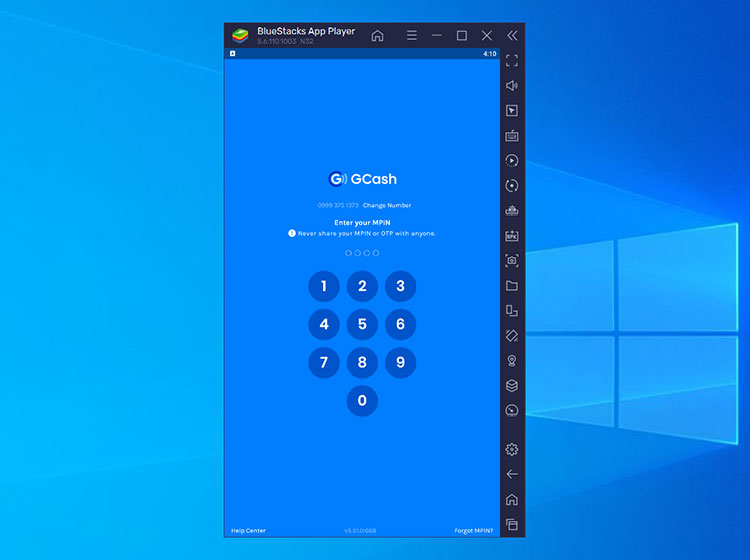
Finally, login to your GCash account by entering your 4-digit MPIN. If you forgot your MPIN, click “Forgot MPIN?” at the bottom-right corner.
Step 6: Start using GCash
That’s it! You’ve learned how to install BlueStacks and login to GCash on your PC or laptop.
If you have the time, make sure to familiarize yourself with the controls of the BlueStacks App Player. For example, clicking the “X” icon will close the application and pressing F11 will enter full-screen mode.
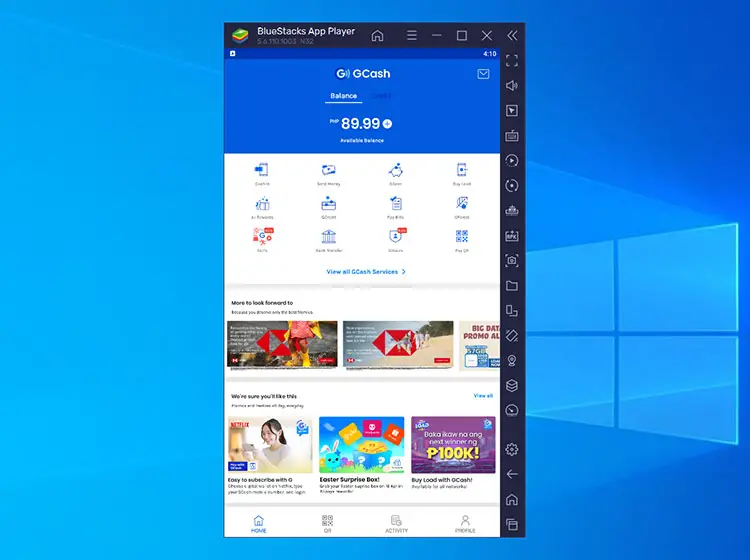
If you want to open the GCash app on your computer the next time around, simply click the GCash icon on your desktop. You can also launch BlueStacks X and open GCash from “My Games.”
Frequently Asked Questions
Is it safe to install BlueStacks?
Yes, it’s generally safe to install and use BlueStacks. It’s also safe to login to Google on BlueStacks. As an additional security measure, be sure to have the latest antivirus software installed on your computer.
Is it safe to install GCash on my PC?
As long as you installed GCash from Google Play, then your GCash account is safe. Avoid downloading GCash from an external source as your security is not guaranteed and it could be riddled with viruses and malware. Download and install the official GCash app on Google Play only.
Can I install Bluestacks on my Mac computer or MacBook?
Yes, Bluestacks is available for installation on MacOS devices such as MacBook. Make sure that you select the MacOS version.
Can I login to GCash on both my PC and mobile phone at the same time?
Yes, you can login to GCash on your PC and smartphone simultaneously. Unlike other apps, GCash will not log you out if it detects that you are using two or more devices at the same time.
Can I use a different Android emulator aside from BlueStacks?
Absolutely! If you prefer a different Android emulator, you can use it to install GCash, too. Popular alternatives include NoxPlayer and LDPlayer.
Why am I suddenly logged out of GCash?
You will be automatically logged out of GCash if there is no activity for 5 minutes. Just enter your MPIN to log back in again.
Can I run multiple instances of GCash on my computer?
It’s possible to open and run multiple instances of GCash using the BlueStacks Multi-Instance Manager. Setup is fairly technical so be sure to read this article on how to create and manage multiple instances.
How do I uninstall GCash?
To uninstall GCash on your PC, open BlueStacks X and go to “My Games.” Hover your cursor over the GCash icon and click the ellipsis icon (three horizontal dots). Click “Uninstall” to remove GCash from BlueStacks.
How do I uninstall BlueStacks?
You can uninstall BlueStacks by clicking “Start,” going to “Settings” and then clicking “Apps.” Find BlueStacks X and then click “Uninstall.”
Wrapping Up
It’s really unfortunate that there’s no desktop version of GCash for computer and laptop users. Fortunately, you can easily login to GCash on your PC, thanks to Android emulators like BlueStacks.
With the GCash app installed on your computer, you can open your GCash account while you work or study, and you don’t even have to pick up your phone. Busy people will definitely appreciate the extra ease and convenience of having GCash on their computer.