




My computer was dying. At least, that’s what it felt like.
Every morning, I had to hit the power button and wait. The loading screen would hang for what felt like forever. Apps took ages to open, and Chrome felt like it was loading through wet concrete. I kept thinking I needed a new PC, but I could never justify the cost.
Then I started digging. What I found surprised me, and fixing it took less than an hour – especially after I realized I needed a reliable driver updater to pinpoint hidden issues.

Background: The Problem Was Invisible
Okay, so here’s the weird thing. My PC was showing no obvious signs of having problems. I didn’t see any viruses. I didn’t have any obviously corrupted files. My disk space wasn’t even full. Everything looked fine on the surface.
But I did some digging and found two problems were hiding in plain sight:
- Outdated chipset drivers.
- Old device data littering up my system.
The crazy part is that neither of those things came up as giant red flags in my initial scans. That’s why they stumped me.
Issue 1: Chipset Drivers Were Bogging Things Down
Most people know how to update their graphics drivers when they need something sorted on their PC.
But you rarely hear about chipset drivers. And that’s a problem.
Here’s why. Chipset drivers are responsible for communications between your CPU and every other component on the motherboard. That means RAM, storage drives, USB peripherals, or anything that sends or receives data to your CPU.
When your chipset drivers are outdated, all of your component communications run slower than they should. Suddenly, your PC is working harder to do basic tasks.
My chipset drivers were more than three years out of date. I installed them when I built my PC and apparently just never looked at them again. During that time, my processor updated drivers twice, my SSD got two firmware updates, and I somehow managed to complete Windows major version updates without keeping my chipset drivers current.
Imagine trying to run modern programs on a five-year-old smartphone you never updated. Windows would crawl, and everything would be irritatingly sluggish.
Simply updating my chipset drivers helped tons with my computer’s multitasking speed. I wasn’t getting random app freezes when I had multiple windows open.
Issue 2: I Needed To Dig Through My Device Graveyard
Okay, brace yourself. I didn’t believe it at first either.
When you plug in a new device to your PC, Windows keeps data on it for future reference. Everything from your USB mouse to old USB hard drives to that printer you hooked up months ago.
Your computer literally has a record of every piece of hardware you’ve ever used with it.
Scroll through the list of devices connected to my PC, and I was amazed – no, horrified. By random devices I hadn’t used in years. Or plastic cups I’d accidentally plugged into USB ports.
Your computer doesn’t care if you still own the device or not. Once you plug it in, it adds it to the list.
Crazy as it sounds, I needed to dig through my device graveyard and clean up old, unused hardware I didn’t need Windows hanging onto.
Think of it kind of like digital hoarding. Those old devices aren’t overtly causing issues. But they’re taking up unnecessary space in your registry and slowing system scans. Every time your PC boots up, it has to scan through all of your device information.
Then it spends extra time reconciling “these devices should be here” with “these are the devices currently available.” Cleaning that stuff out meant one less thing Windows had to do at startup.
How I Fixed Both Problems (And Didn’t Have To Wipe My PC)
Look, I’m not kidding when I say I didn’t see these problems.
I was 100% sure I was going to have to do a dreaded factory reset at this point. But I didn’t want to reinstall everything.
I had my shortcuts set up just how I liked them, my file directories organized just so, and my apps configured with weeks of tinkering.
I didn’t want to have to rebuild my paradise from scratch.
Instead, I found a tool called Driver Booster that could handle both of my problems. Someone recommended it to me in a forum, and I figured I’d give it a shot before wiping my PC.
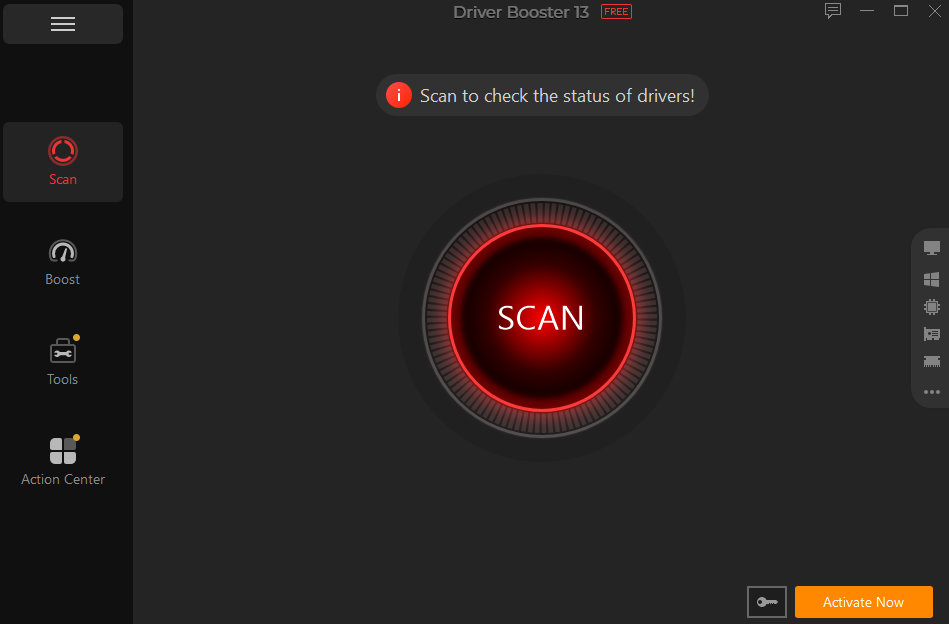
It took about three minutes to scan my PC for outdated drivers and loose device files. Then it recommended I update 23 drivers:
- Chipset drivers, obviously.
- My network adapter
- Audio drivers, I didn’t realize I could update.
- Surprisingly, some of my video drivers.
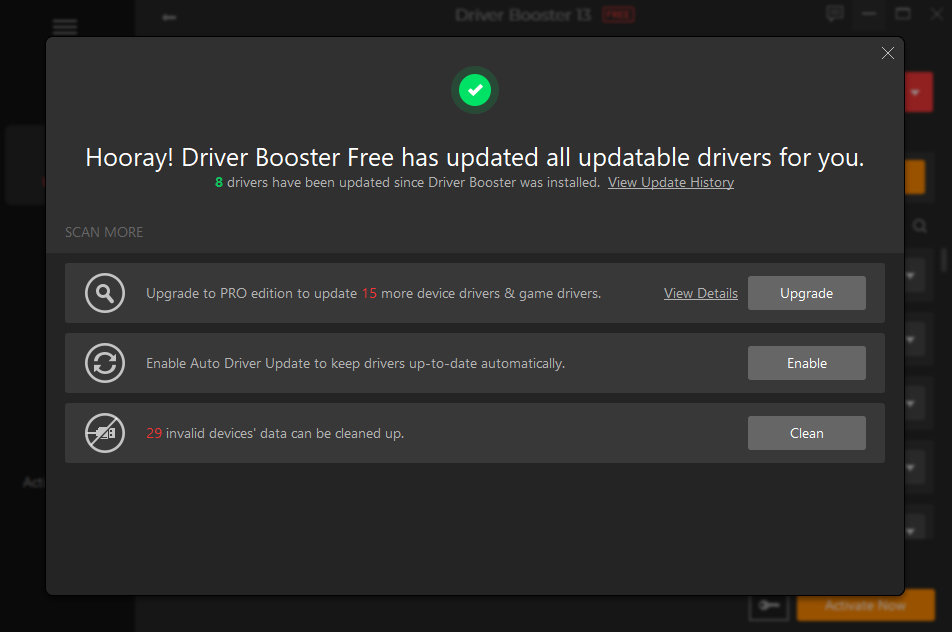
It also found all of the useless device information I didn’t know I was bogging my system down with.
The update/install process took about 40 minutes from start to finish. Again, most of that was download time. Driver Booster located every driver I needed, made sure I had the version that matched my hardware, and installed it without me doing anything.
I restarted my PC.
Results After 3 to 4 Days Of Regular PC Use
I’m not going to lie to you. I almost wrote this article immediately after restarting.
But I wanted to actually use my PC like normal first. Here’s what I noticed after two to three days:
- My PC booted up about 30 seconds faster. Before, it felt like it took two minutes to get from clicking the power button to actually loading my desktop. Now it’s consistently under a minute and a half.
- Launch times for applications are noticeably quicker. Chrome takes two seconds to open. Microsoft Edge launches immediately. Photoshop, which used to take almost a full minute, now pops open in about half the time.
- Multitasking is way smoother. I can keep between 15 and 20 browser tabs open alongside a graphic design program without my PC complaining.
- So far, no new bluescreens or issues are cropping up. Admittedly, I was worried about this. Updating drivers could cause problems if an update went wrong or if something wasn’t compatible. Touch wood, I’ll never have to deal with that.
- Everything still isn’t blazing fast. My PC’s performance after troubleshooting isn’t mind-blowingly better than before. As I mentioned, it didn’t suddenly feel like I upgraded to a new PC overnight. But it does feel like everything is running as smoothly as it’s supposed to. That annoying background sluggishness is gone.
Would I recommend giving this a shot? Absolutely.
If you’re reading this and you have a PC that’s two or more years old, I highly suggest you check your drivers. It’s crazy how many people ignore this simple maintenance because it feels too technical.
Sure, empty your downloads folder. Uninstall apps you don’t use. Run Disk Cleanup if you’re feeling spicy.
But visit your device manager every few months. Keep those drivers in tip-top shape, and don’t let your computer become a device graveyard.