



If you are a law student, or have studied law in the past, you might already be familiar with the section symbol (§). However, you may not know how to type the section symbol on your computer or mobile phone since the character is absent from most traditional keyboards. We are here to help you in this regard.
The section symbol (§) or section sign is a character that is frequently used to indicate the numbered sections of a legal document. It is also used to refer to specific sections of a law. For instance, in order to cite “Title 3 of the United States Code Section 11,” you may write “3 U.S.C. § 11.” To cite two or more sections, the section symbol may be duplicated. For example, “Sections 14-20” may be written as “§§ 14-20.”
Just like other less commonly used symbols such as the copyright symbol, the section symbol doesn’t exist in conventional computer keyboards and often requires special keyboard shortcuts to type it in your documents. If you use the section sign regularly as part of your work or studies, you may need to remember and use these shortcuts to save time.
Word processing software, such as Microsoft Word and Google Docs, have built-in character insertion tools that let you insert the section symbol with just a few clicks. There are also desktop applications, such as the Character Map, that allow you to conveniently insert the section sign without the need to memorize keyboard shortcuts.
Whatever method you choose, it’s good to know that it’s not that difficult to type or insert the section symbol in all your legal documents and papers. So the next time you are required to use the section sign, just type the symbol using the keyboard shortcut or insert it using your application’s character insertion tool.
Type the Section Symbol on the Windows Keyboard
The quickest way to type the section symbol in any Windows application is to use a combination of keys or what we call a keyboard shortcut.
The keyboard shortcut or alt code for the section symbol is Alt + 0167 or Alt + 21.
Follow these steps to insert the section sign using the Windows keyboard shortcut:
- Activate the numeric keypad by tapping the Num Lock key.
- Place the text cursor where the section symbol will be inserted in the document.
- While pressing the Alt key, type 0167 on the numeric keypad in quick succession.
- Check that the symbol has been inserted successfully.
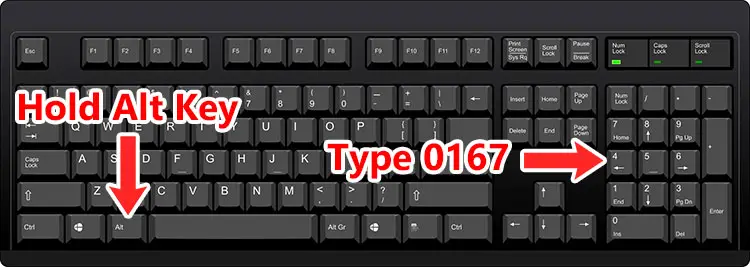
Note: The numeric keypad or number pad is a separate set of keys usually located at the right part of the standard computer keyboard.
Type the Section Symbol on the Mac Keyboard
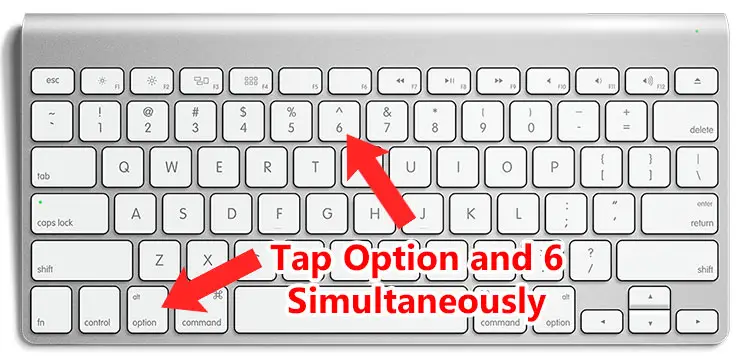
Mac users can type the section symbol by using the keyboard shortcut Option + 6.
Follow these steps to insert the section sign using the Mac keyboard shortcut:
- Place the text cursor where you want the section symbol to be inserted.
- Press the Option and 6 keys at the same time.
- Confirm that the symbol has been inserted into your document or application.
Insert the Section Symbol in Microsoft Word
The Windows and Mac keyboard shortcuts will work with most computer applications such as Microsoft Word. But if you prefer not to use shortcut keys, you can choose from a catalogue of symbols and special characters in Word and insert your selected characters into your document.
Start by clicking the Insert tab on the Word menu bar.
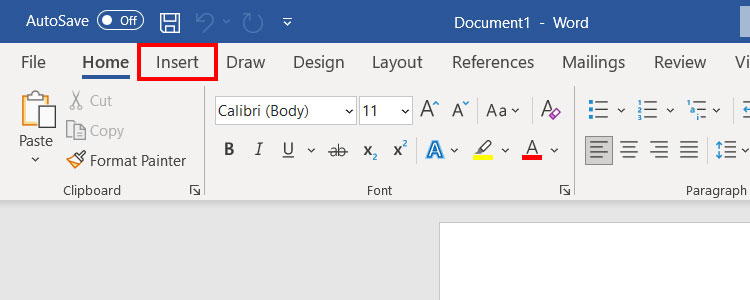
Next, click the Symbol button on the right side of the toolbar, and on the dropdown menu, select More Symbols.
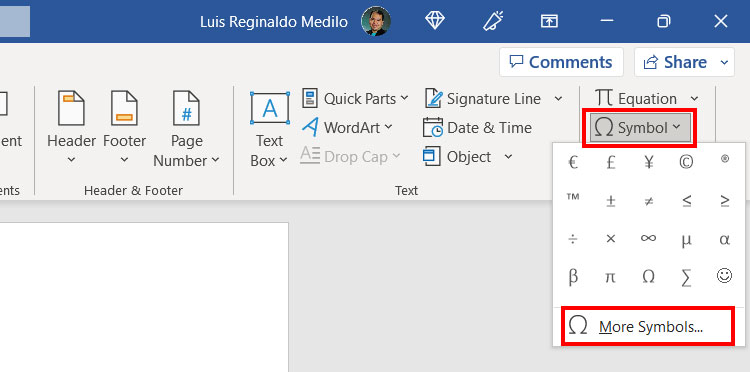
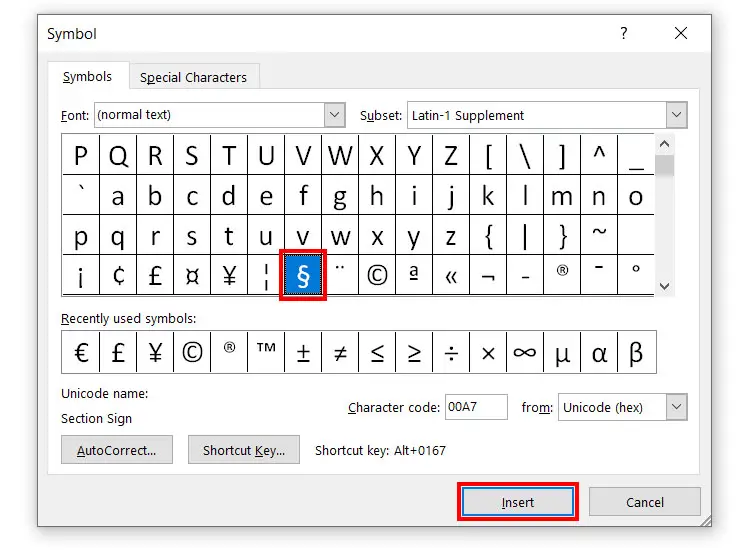
The Symbol dialog will now appear with a catalogue of symbols and special characters that can be inserted into your Word document.
Find the § symbol and then click it to highlight it (it’s under the “Latin-1 Supplement” subset). Afterwards, click Insert to place it in your document.
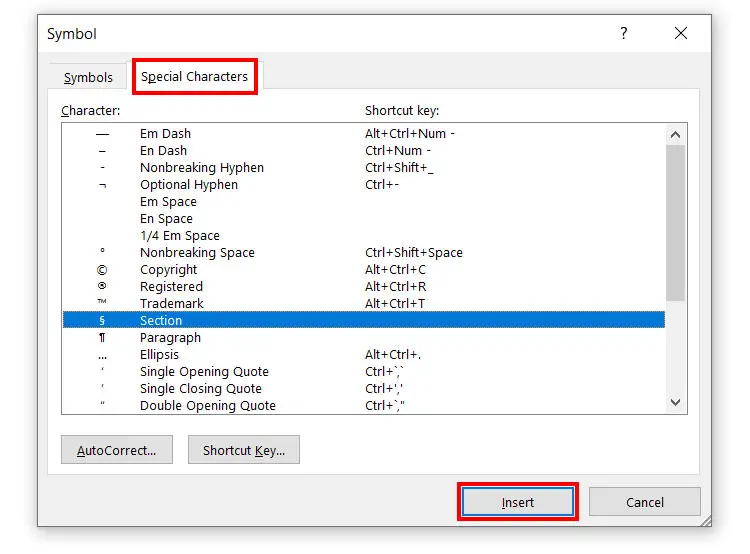
Alternatively, you can click the Special Characters tab and then select the Section character. Click Insert to place it in your document.
Insert the Section Symbol in Google Docs
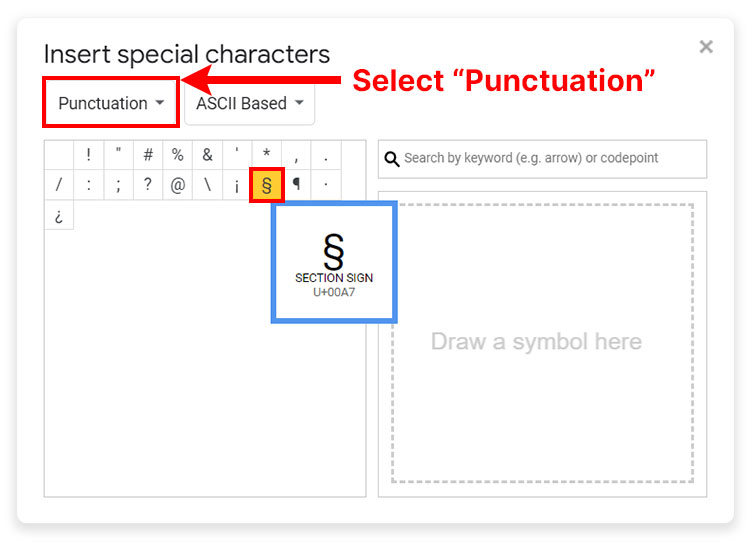
If you use Google Docs to write your documents, you can easily insert the section symbol with just a few clicks. Start by clicking Insert on the toolbar. On the dropdown menu, click Special characters.
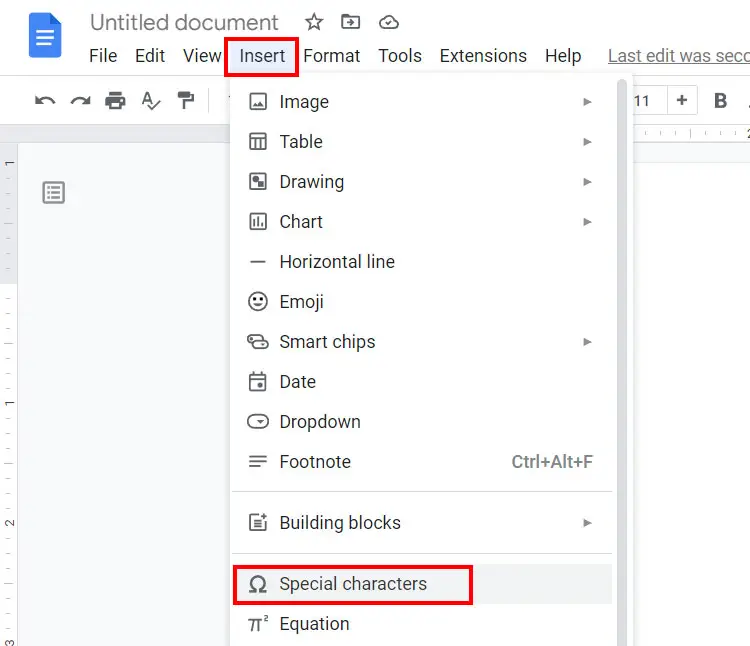
You can now insert any symbol or special character that you want. To quickly find the section symbol, select Punctuation on the dropdown field. Click the § symbol to insert it in your document.
You can also search for the symbol by typing “Section” in the search box on the right.
Insert the Section Sign Using Character Map
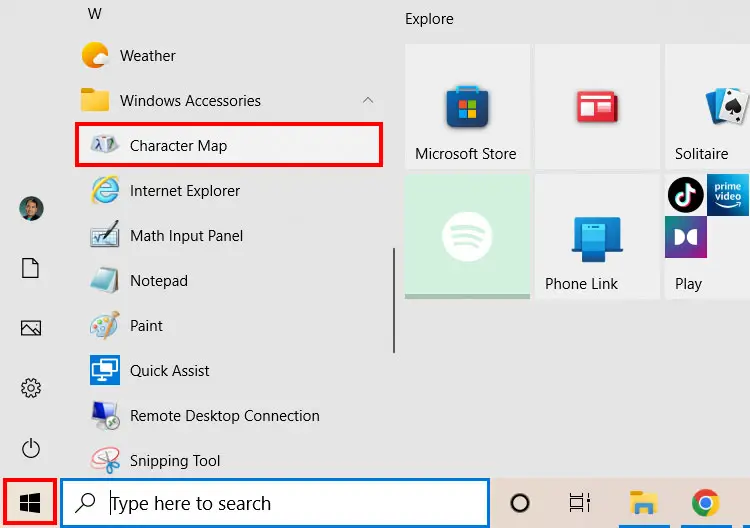
If your application doesn’t have the option to insert the section symbol, or if you can’t use the keyboard shortcuts due to the lack of a numeric keypad, then you can use the Character Map instead. The Character Map is a small Windows application that lets you search and copy any symbol and special character that is available in your computer.
Launch the Character Map application by clicking the Windows Start button at the bottom-left corner of the screen. Go to Windows Accessories and then select Character Map.
Click the section sign (§) to highlight it, and then click the Select button. Click the Copy button to copy the symbol to the clipboard, ready for pasting into your document.
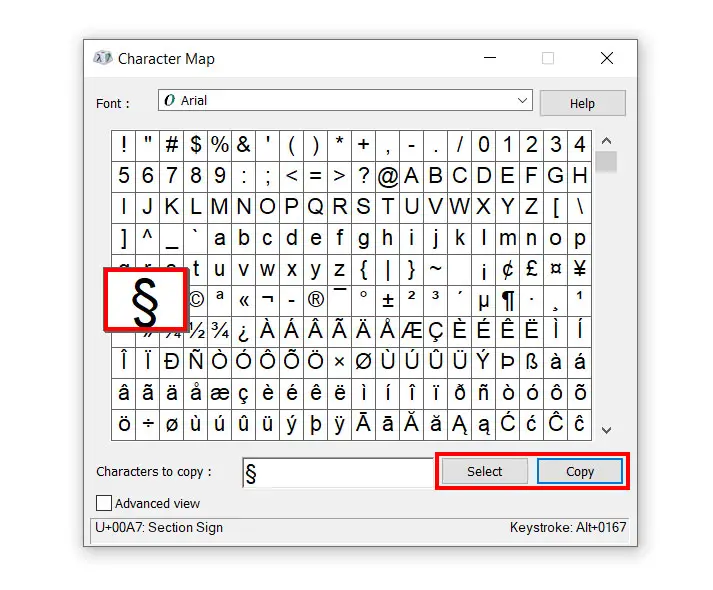
If you have difficulty finding the section sign, you may search for it by checking Advanced view, and then typing “Section” in the search box.
Type the Section Symbol in Android
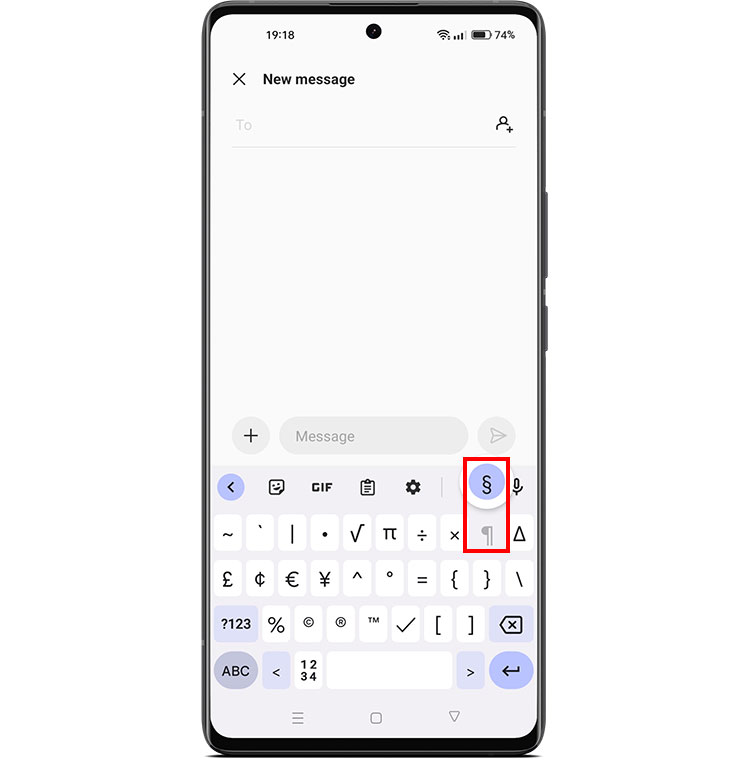
Fortunately for smartphone users, the section symbol is available in most Android keyboards including Gboard, so you don’t have to copy it from somewhere else.
Follow these steps to insert the section sign using the Android default keyboard Gboard:
- Place the text cursor where you want to the section sign to appear.
- On the Android keyboard, tap ?123.
- Tap the =\< key.
- Long press the pilcrow (¶) key.
- Tap the section symbol (§) to insert it.
Type the Section Symbol on the iPhone
iPhone and iPad users can easily insert the section symbol using the iOS keyboard. Here’s how to insert the symbol on the iPhone or iPad:
- Place the text cursor where you want to the section sign to appear.
- On the iOS keyboard, tap the 123 key.
- Long press the ampersand (&) key.
- Tap the section symbol (§) to insert it.

Insert the Section Sign as HTML
Do you want to use the section sign in your website? Web developers and programmers can type the symbol as HTML code in webpages. The HTML code for the section symbol is §.
§Section Symbol Copy and Paste
If you simply want to copy the section symbol (§) without any hassle, just click the button below. It will be automatically copied to the clipboard, ready for pasting to any document or application.
To paste the copied symbol to your document or application, right-click on your mouse and select Paste (or type Ctrl + V). Mobile users can paste the symbol by long-pressing and then selecting Paste.
Wrapping Up
Now that you already know how to type or insert the section symbol, drafting and writing your legal documents will be so much easier. Be sure to memorize the keyboard shortcuts if you use this symbol a lot, which can be particularly useful if your application doesn’t have a built-in symbol insertion feature.
If you still have trouble remembering the shortcut keys, you can simply copy the symbol from this page and paste it in your document by pressing Ctrl + V on your keyboard.