




Trying to type an “i” with an accent mark on a standard US keyboard is bound to lead to at least some minor frustration. The result you’re looking for is so close and yet so far away!
Those accent marks are also called “diacritics.” While your readers will, in many cases, be able to understand what you were aiming for (even if you neglect to insert the correct diacritic), accent marks represent much more than a cosmetic change. Diacritics can indicate a change in pitch, differentiate between homophones, or signal the need for a different pronunciation.
The most common accent marks you’ll see on the letter “i” are the acute accent (í), the grave accent (ì), the circumflex accent (î), and the diaeresis or umlaut (ï). However, less common accents added to the “I” include the caron (ǐ) and the tilde (ĩ).
The languages these diacritics are commonly used in include Spanish, Portuguese, Catalan, Italian, Vietnamese, and Turkish. If you’re trying to type an “i” with one of these accent marks, you may be determined to spell someone’s name correctly or get a term right.
However, you may also need to type a letter “i” with accent marks if you are transliterating words from one script to another. Diacritics play a critical role in the International Phonetics Alphabet, which ensures that pronunciation can accurately be conveyed even in a different writing system.
How do you get the result you’re after and correctly type an “i” with the relevant diacritic? You could choose the “i” with the accent mark you’re looking for from the list above, copy and paste it, and call it a day. That won’t work if you’ll need to type “i” with accent marks on a regular basis, though!
This guide explores the best ways to generate these special characters on your keyboard, no matter what operating system you use!
Type I with an Accent Mark on a Windows Keyboard
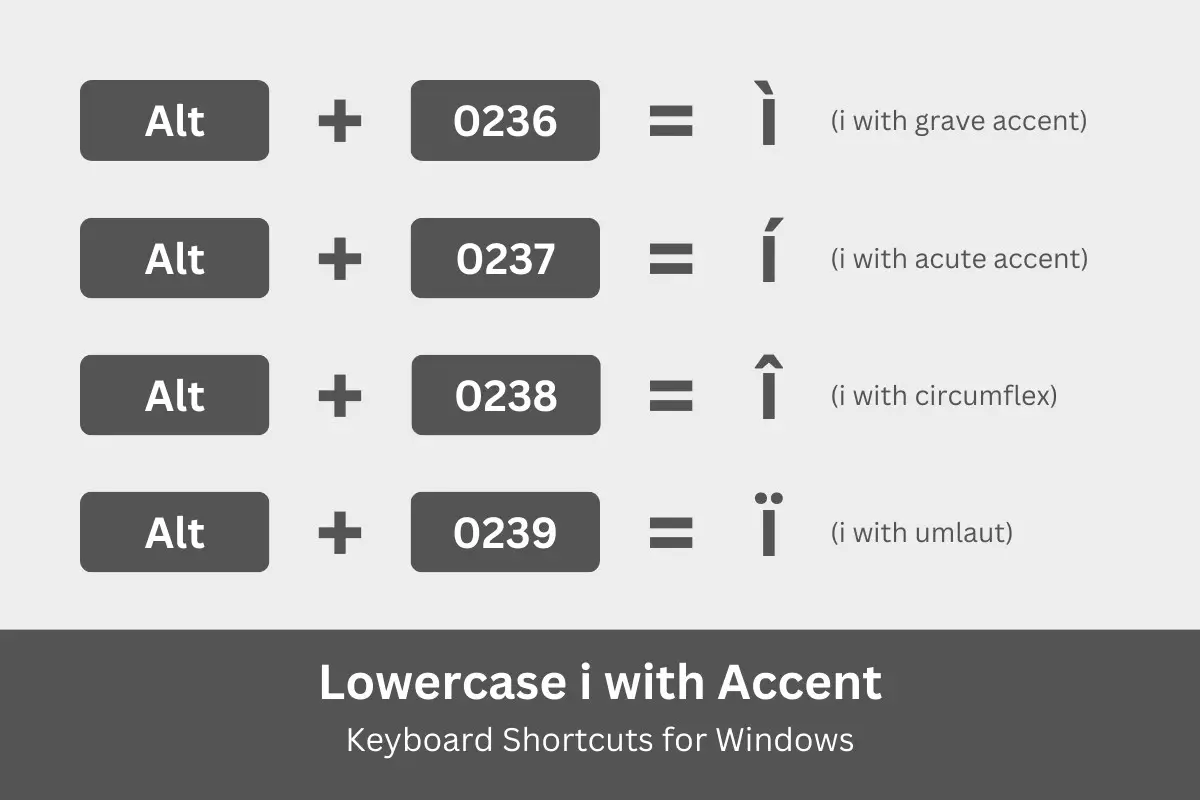
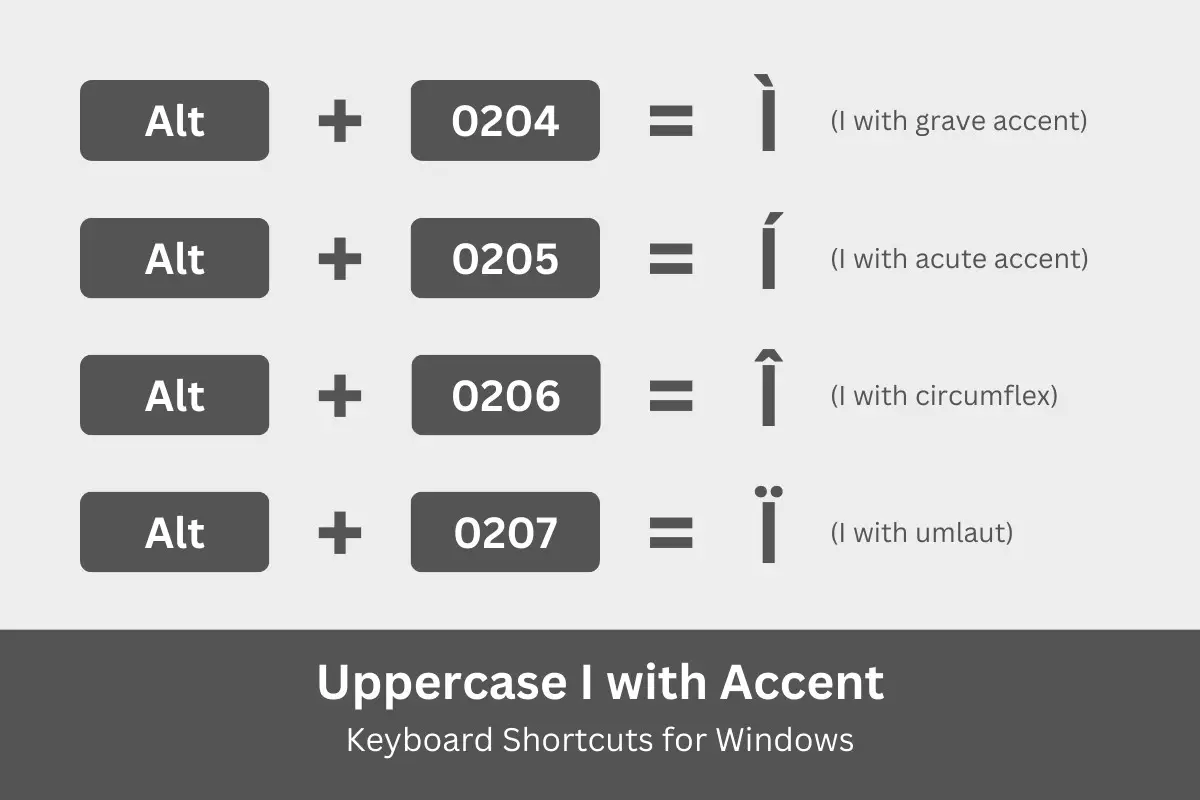
For Windows PC and laptop users, typing letters with diacritics can be done using a combination of keystrokes or what we call keyboard shortcuts. Sometimes called alt codes, these shortcuts involve pressing the Alt key and then a series of numbers on the numeric keypad to produce the desired result.
For example, to type ì (i with grave), you will have to use the alt code Alt + 0236.
Check out the table below for the various accented “i” characters along with their corresponding keyboard shortcuts or alt codes.
| Character | Name | Alt Code |
|---|---|---|
| ì | Small i with grave | Alt + 0236 |
| Ì | Capital I with grave | Alt + 0204 |
| í | Small i with acute | Alt + 0237 |
| Í | Capital I with acute | Alt + 0205 |
| î | Small i with circumflex | Alt + 0238 |
| Î | Capital I with circumflex | Alt + 0206 |
| ï | Small i with umlaut or diaeresis | Alt + 0239 |
| Ï | Capital I with umlaut or diaeresis | Alt + 0207 |
Follow these steps to quickly type or insert the letter “i” with an accent mark using your Windows keyboard:
- On your document or application, place the cursor or insertion point where you want the letter to appear.
- Activate the numeric keypad by tapping the Num Lock key. The numeric keypad is usually located on the right portion of the Windows keyboard.
- Press and hold the Alt key.
- While pressing the Alt key, tap the alt code on the numeric keypad. For example, to type í (i with acute), tap 0237.
- Release the Alt key and check that the correct letter has been inserted into your document.
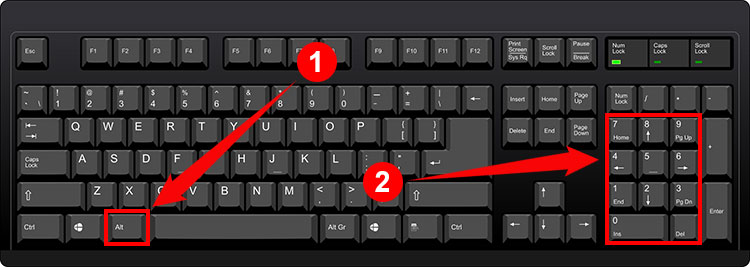
That’s basically how keyboard shortcuts work for characters with diacritics. Make sure that the numeric keypad (or number pad) was activated before attempting the aforementioned steps. Most Windows keyboards have a LED indicator that shows whether the numeric keypad is active or inactive.
If your keyboard doesn’t have a numeric keypad, don’t worry because you can still type letters with diacritical marks. You can either use your word processor’s symbol insertion tool, or you can open Character Map to copy and paste your desired symbol or character.
Type I with an Accent Mark on a Mac Keyboard
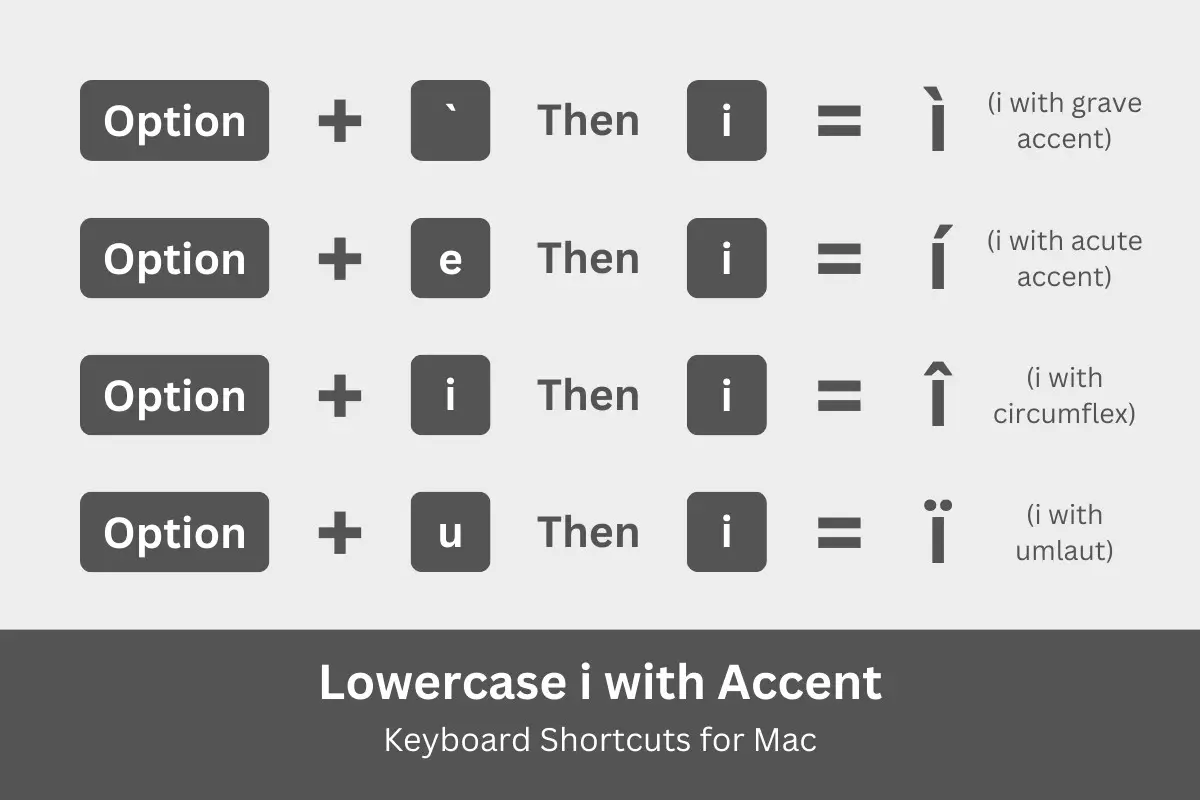
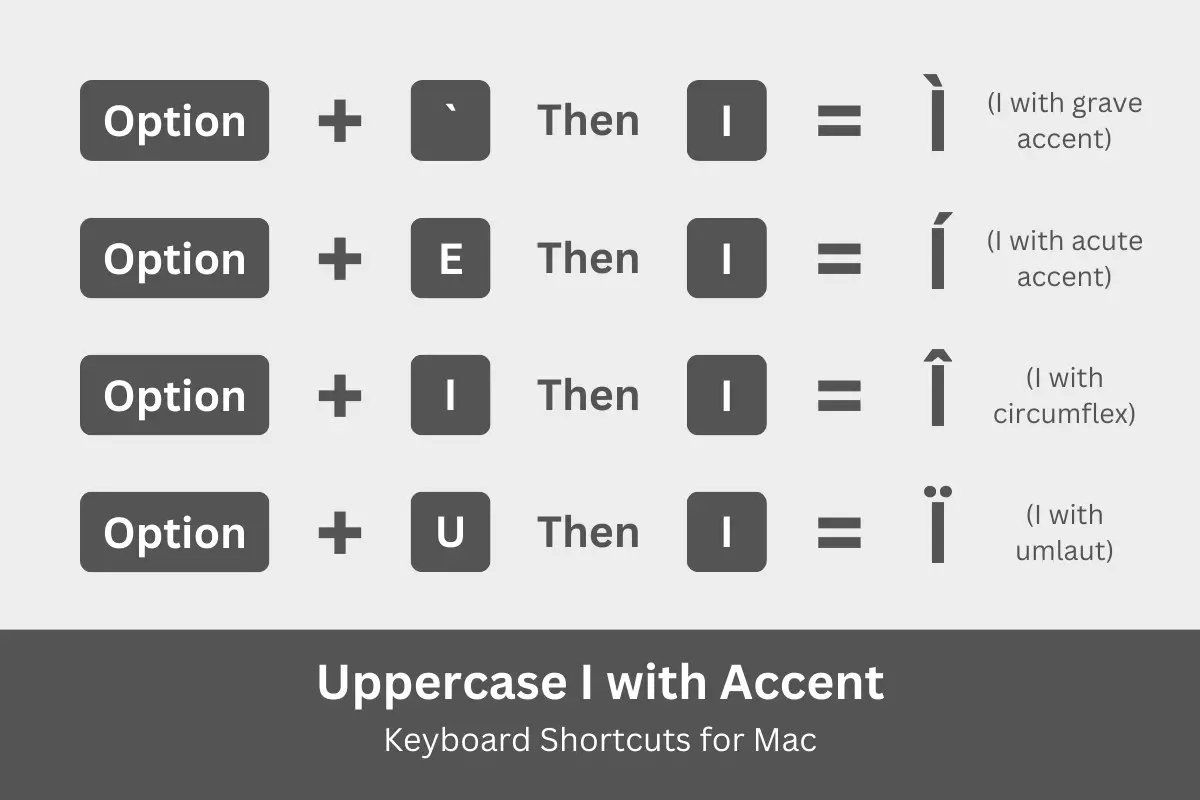
Since Mac is totally different from Windows, the Mac keyboard shortcuts for letters with diacritical marks are also different. Instead of alt codes with numbers, the keyboard shortcuts for Mac are comprised of the Option key along with another key (such as “e” or “u”), plus the “i” key.
Here’s a table of Mac keyboard shortcuts for the letter “i” with diacritical marks:
| Character | Name | Keyboard Shortcut |
|---|---|---|
| ì | Small i with grave | Option + ` then i |
| Ì | Capital I with grave | Option + ` then I |
| í | Small i with acute | Option + e then i |
| Í | Capital I with acute | Option + E then I |
| î | Small i with circumflex | Option + i then i |
| Î | Capital I with circumflex | Option + I then I |
| ï | Small i with umlaut or diaeresis | Option + u then i |
| Ï | Capital I with umlaut or diaeresis | Option + U then I |
Follow these steps to type “i” with an accent mark using your Mac keyboard:
- On your document or application, place the insertion point where you want the letter to appear.
- On your Mac keyboard, press and hold the Option key and then tap any of these keys that correspond to your preferred diacritical mark:
- ` (backtick) to type ì (i with grave)
- E to type í (i with acute)
- I to type î (i with circumflex)
- U to type ï (i with umlaut or diaeresis)
- Release the Option key and tap the letter i key.
- Check that the correct character has been inserted.
Note: To type the uppercase or capital Ì, Í, Î, and Ï, just press the Caps Lock key before performing the aforementioned steps.
Type I with an Accent Mark on a Linux Keyboard
Typing letters with diacritics on a Linux keyboard is pretty much the same as that on Windows or Mac – using keyboard shortcuts. Linux and Ubuntu users can type Ctrl + Shift + U and then the code point number for the particular character.
Here’s a table of accented “i” characters with their corresponding keyboard shortcuts based on the code point number:
| Character | Name | Keyboard Shortcut |
|---|---|---|
| ì | Small i with grave | Ctrl + Shift + U, 00EC |
| Ì | Capital I with grave | Ctrl + Shift + U, 00CC |
| í | Small i with acute | Ctrl + Shift + U, 00ED |
| Í | Capital I with acute | Ctrl + Shift + U, 00CD |
| î | Small i with circumflex | Ctrl + Shift + U, 00EE |
| Î | Capital I with circumflex | Ctrl + Shift + U, 00CE |
| ï | Small i with umlaut or diaeresis | Ctrl + Shift + U, 00EF |
| Ï | Capital I with umlaut or diaeresis | Ctrl + Shift + U, 00CF |
Follow these steps to type the letter “i” with diacritical marks on a Linux or Ubuntu keyboard:
- Open the document you’d like to insert the character.
- Press the Ctrl, Shift and U keys at the same time.
- Release those keys and then type the code point number (refer to the table above). For example, type 00CD to get the capital I with acute (Í).
- Check that the correct character has been inserted.
Insert I with an Accent Mark in Microsoft Word
One of the most powerful features of Microsoft Word is its symbol insertion tool, which allows you to find and insert any symbol and special character supported by your computer. With this tool, you don’t have to memorize keyboard shortcuts; simply choose your preferred character and insert it quickly into your document.
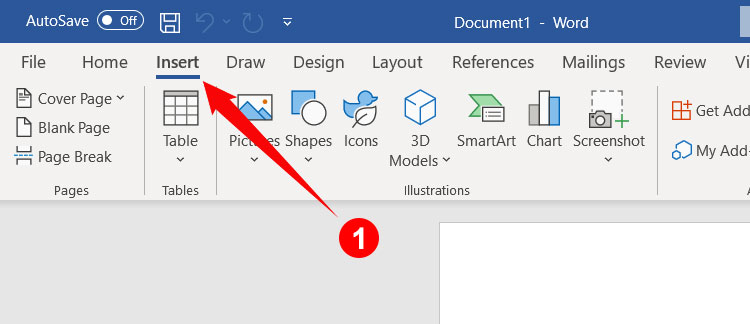
Inserting “i” with diacritical marks in Microsoft Word is so quick and easy. First, click Insert on the menu bar (refer to the screenshot image below for its exact location).
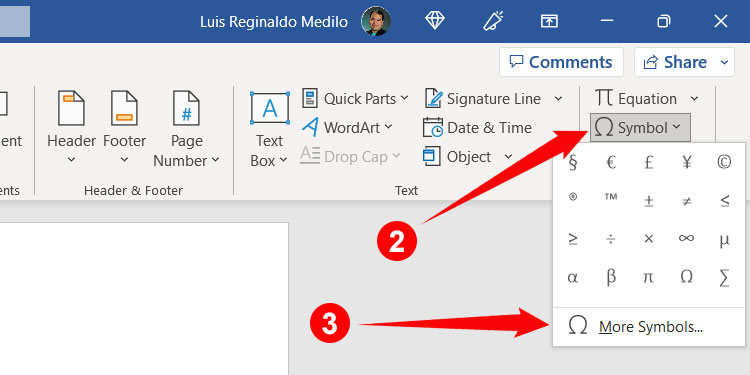
Afterwards, click Symbol on the right side of the toolbar. A dropdown menu will then appear. Click More Symbols.
You can now select the special character that you want to insert into your document. If you have a hard time locating the letter “i” with an accent mark, simply click the “Subset” dropdown field and select “Latin-1 Supplement.”
Once you’ve found the letter or character that you want to insert, click it to highlight it, and then click the Insert button. Check that the correct symbol or character has been inserted into your document.
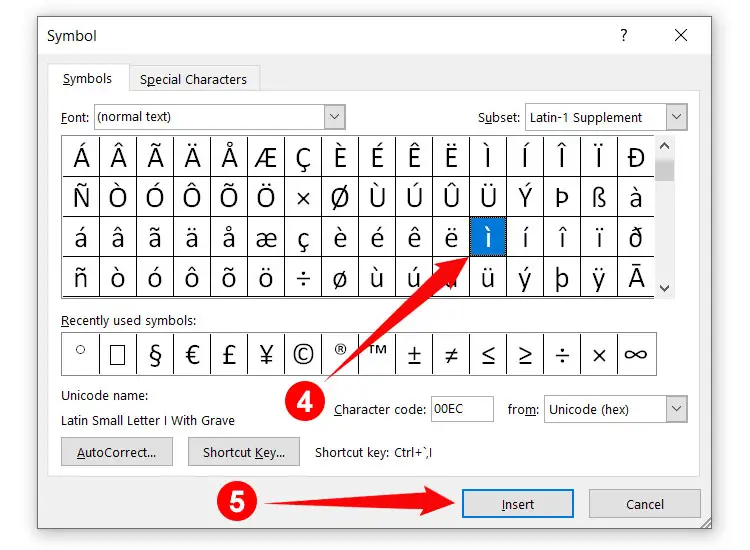
After inserting a symbol or character this way, it will be added to your list of recently used symbols. So the next time you want to type the letter “i” with diacritics in Word, just click Insert and then Symbols. Your recently used symbols will be shown, ready for insertion into your document.
You can also assign a custom shortcut key that works only in Microsoft Word. For example, the default shortcut key for î (i with circumflex) in Word is Ctrl + ^, I. You can change this shortcut by clicking Shortcut Key and then assigning a new shortcut key that you can remember better. Pretty useful if you use a particular symbol or character a lot.
Insert I with an Accent Mark in Google Docs
Many people are starting to use Google Docs to create documents because it’s free and runs on any browser. Although not as powerful and versatile as Microsoft Word, Google Docs still does a pretty decent job particularly when it comes to inserting symbols and characters.
To type the letter “i” with diacritics in Google Docs, start by clicking the Insert on the menu bar. On the subsequent dropdown menu, click Special characters.
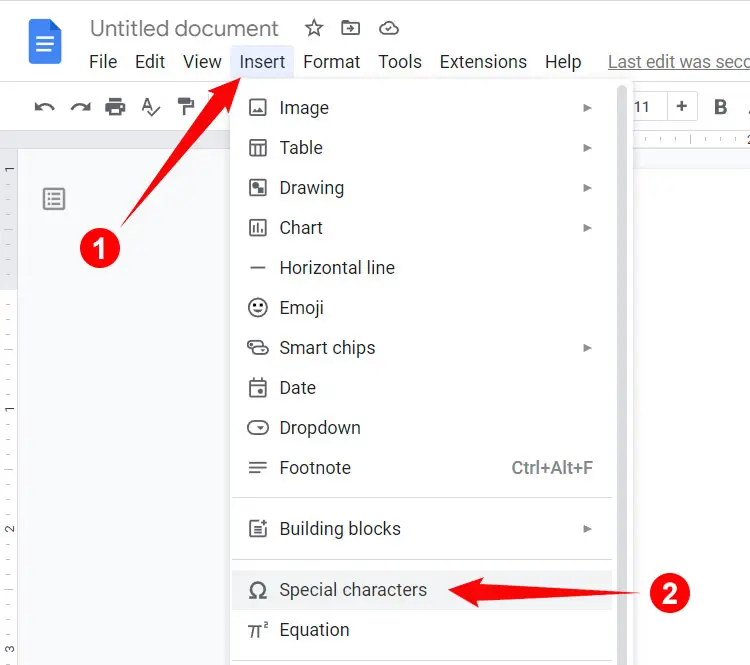
You will now see the “Insert special characters” dialog box with all the symbols and characters that you can insert in Google Docs. To find the letter “i” with an accent mark, click the “Symbol” dropdown field and then select “Latin.”
Finally, click the character (ì, í, î, ï) that you want to type in Google Docs. Be sure to check that correct letter has been inserted into your document.
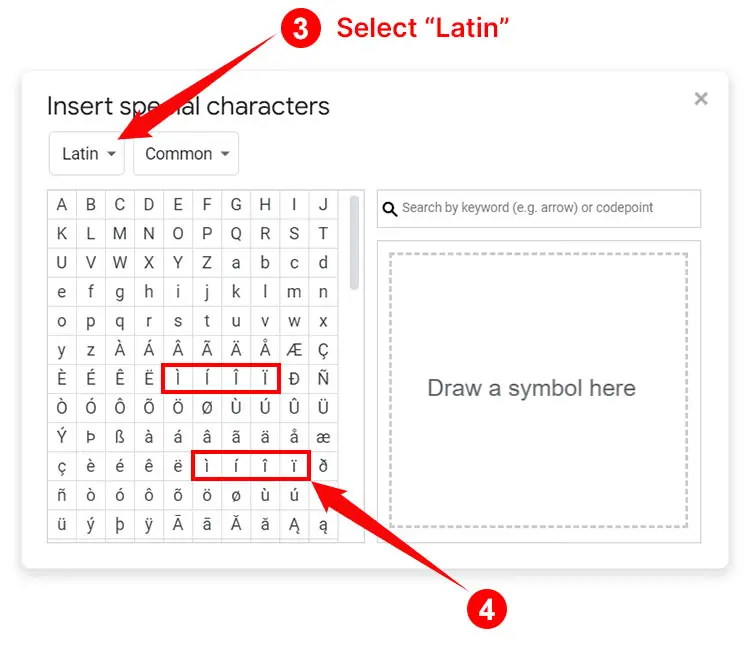
If you have a hard time finding your preferred symbol or character, just type its name in the “Search by keyword” field. For example, to search for ì, just type “i with grave” (don’t type “i with accent” because Google Docs doesn’t recognize it).
Insert I with Diacritics Using Character Map
What if your keyboard doesn’t have a numeric keypad or your application doesn’t have a symbol insertion tool? No worries because you can still insert characters with diacritical marks using the Character Map, a small utility that lets you copy and paste any symbol or character in Windows. This software comes bundled with every Windows computer so you don’t need to download and install it.
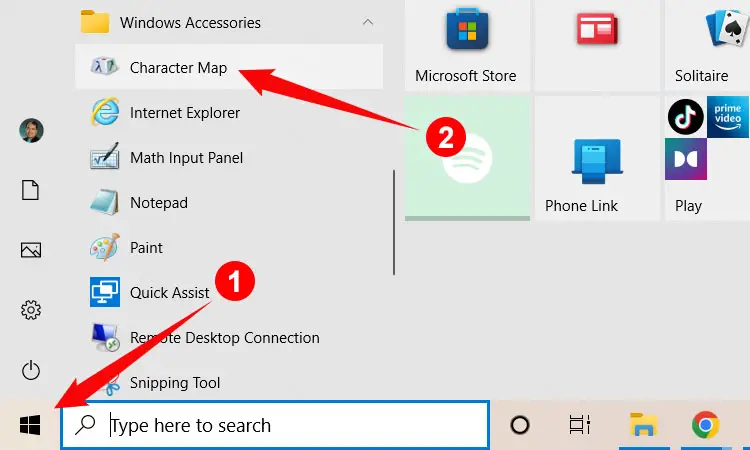
To open the Character Map, start by clicking the Windows Start button (it’s the Windows logo at the bottom-left corner of the screen). On the Windows Start menu, scroll down the list of applications and click Windows Accessories. From there, click Character Map.
Tip: You can quickly launch the Character Map by typing “Character Map” in the Windows search box on the taskbar.
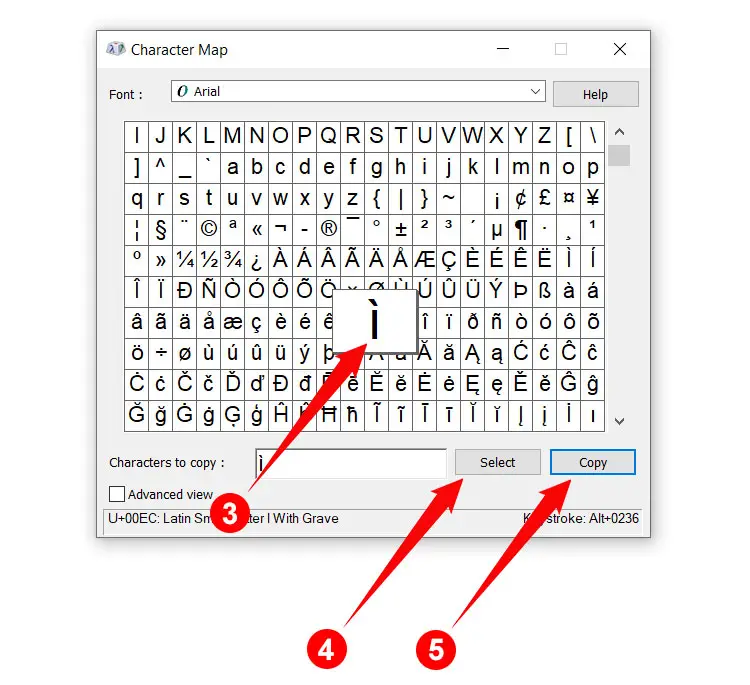
On the Character Map, click the character that you want to copy. Click Select and then click Copy to copy it to your clipboard.
Go back to your document and then paste the copied character by right-clicking with your mouse and selecting Paste, or by typing Ctrl + V.
By the way, if you can’t find the symbol or character that you want to copy, just check “Advanced view” and type the name of the character (e.g. “i with acute”) in the “Search for” field. Click Search and the correct character will be shown for you to copy.
Type I with an Accent Mark on Your Android Phone
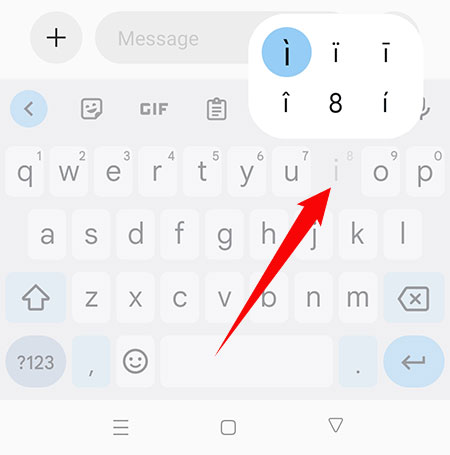
You don’t have to use keyboard shortcuts on your smartphone because most Android keyboards, such as Gboard, support characters with accent marks. There’s no need to install a third-party application either.
To type the letter “i” with diacritical marks on your smartphone, activate the Android keyboard and then long-press the “i” or “I” key. A floating bubble will pop up, showing the available accented “i” characters. Move your finger or stylus over your chosen character (ì, í, î, or ï), and then stop pressing to finally insert it into your document or application.
Type I with an Accent Mark on the iPhone or iPad
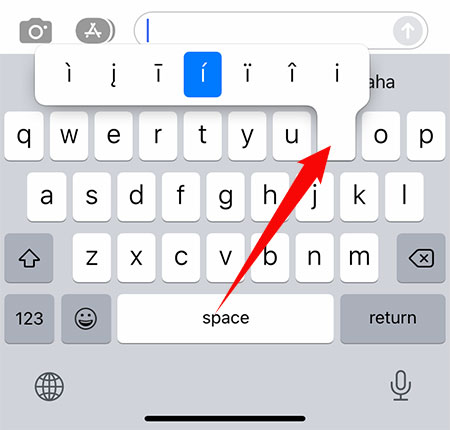
Just like Android phones, iOS devices like the iPhone and iPad have native support for accented characters. To type ì, í, î, or ï on your iPhone or iPad, simply long-press the “i” or “I” key. Choose your letter by moving your finger over it, and then stop pressing to insert the character into your document or application.
Insert ì, í, î, ï as HTML Code
Web designers, developers and programmers can incorporate accented characters into their websites and software. Below are the HTML codes for the various “i” with diacritical marks.
| Character | Name | HTML Code |
|---|---|---|
| ì | Small i with grave | ì |
| Ì | Capital I with grave | Ì |
| í | Small i with acute | í |
| Í | Capital I with acute | Í |
| î | Small i with circumflex | î |
| Î | Capital I with circumflex | Î |
| ï | Small i with umlaut or diaeresis | ï |
| Ï | Capital I with umlaut or diaeresis | Ï |
Copy and Paste I with an Accent Mark
If you’re just here to copy and paste the letter “i” with an accent mark, I’ve provided an easy and convenient way for you to do so. Just click the appropriate box and the character will be instantly copied to your clipboard. Go back to your document and paste your copied character by right-clicking with your mouse and selecting Paste, or by typing Ctrl + V.
I with Grave:
I with Acute:
I with Circumflex:
I with Umlaut or Diaeresis:
Parting Words
Thanks to keyboard shortcuts, it’s easy to type characters with diacritical marks despite their absence from standard computer keyboards. The only drawback is that these shortcuts are difficult to memorize.
Nevertheless, there are alternative methods for typing these characters that don’t rely on rote memory, such as using the Character Map. And if you don’t want to mess around with these methods, you can simply copy the character from this page.