


Online gaming has a way of making you question everything: your aim, your reaction time, your hardware. Then you check the ping counter and realize it was sitting at 180ms the entire match, and none of those other things mattered anyway.
That was my situation for longer than I care to admit. Not a dramatic lag that freezes the screen, but the creeping kind that adds just enough delay to make everything feel slightly off. Shots that should connect do not. Movements that should be smooth stutter for a frame. I kept blaming myself until I stopped and started looking at what was actually happening at the network and system levels.
Finding Smart Game Booster changed how I think about lag entirely. Here is what I learned from using it.
The Real Reason Standard Lag Fixes Do Not Work
Most people try the same list of fixes when lag hits, and most people find those fixes help inconsistently at best.
Lowering your graphics settings reduces GPU load but does nothing for your ping. Restarting your router clears temporary congestion but does not change the route your data takes to reach the game server. Closing a few background apps manually frees up some RAM, but leaves dozens of system services running that you would never know to close without a dedicated tool.
Lag is not a problem. It is two problems running at the same time, one on the network side and one on the hardware side, and treating only one while ignoring the other is why most fixes feel temporary. This Game Booster is built specifically to solve both together with a single action, which is why it worked where other approaches left me still losing matches to latency.
How I Set It Up and What Happened Next
Getting started was genuinely straightforward, and I had it running on my first game within a few minutes of installation.
Step 1: Open Smart Game Booster
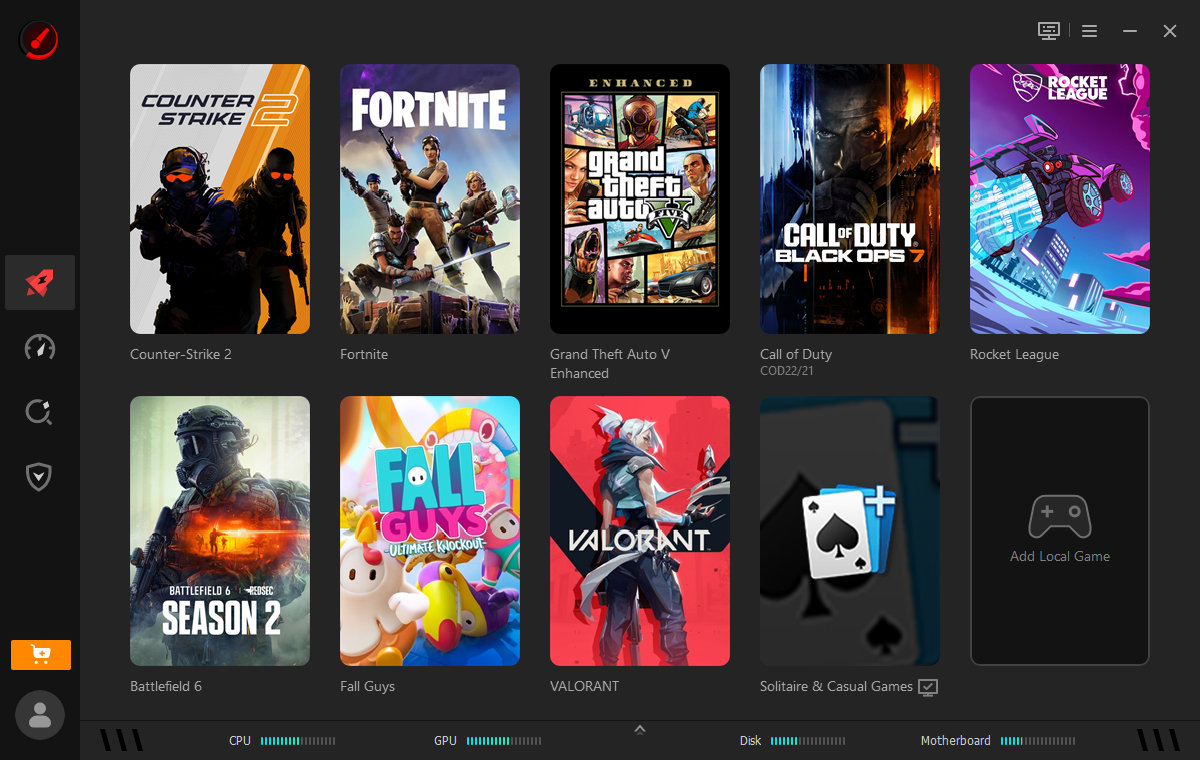
After downloading Smart Game Booster and running it on my Windows 11 PC. The interface is clean and gamer-focused. First, we can see that the homepage features many popular games, such as COD, CS:GO, and Valorant.
Step 2: Choose a Game to Boost
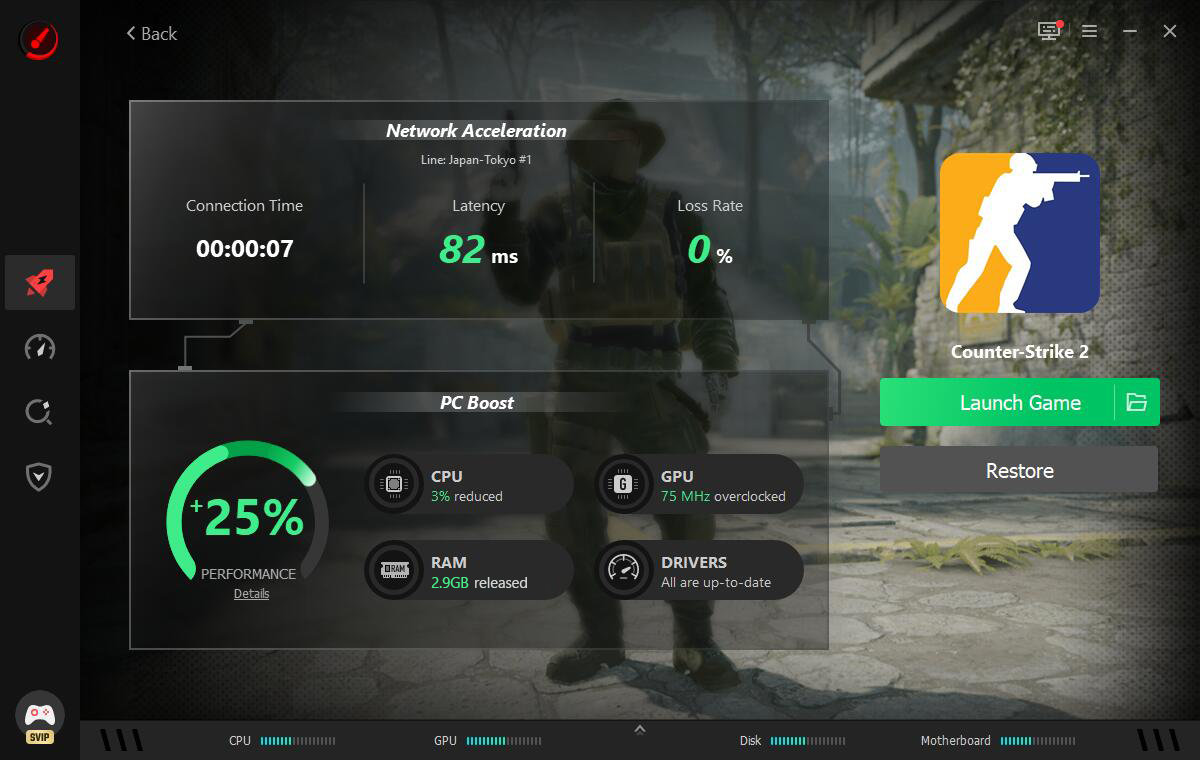
I selected the game I wanted to play, and the app began optimizing my PC hardware and internet connection simultaneously rather than one after the other. Super Boost overclocked my GPU and VRAM in the background, and it is really safe.
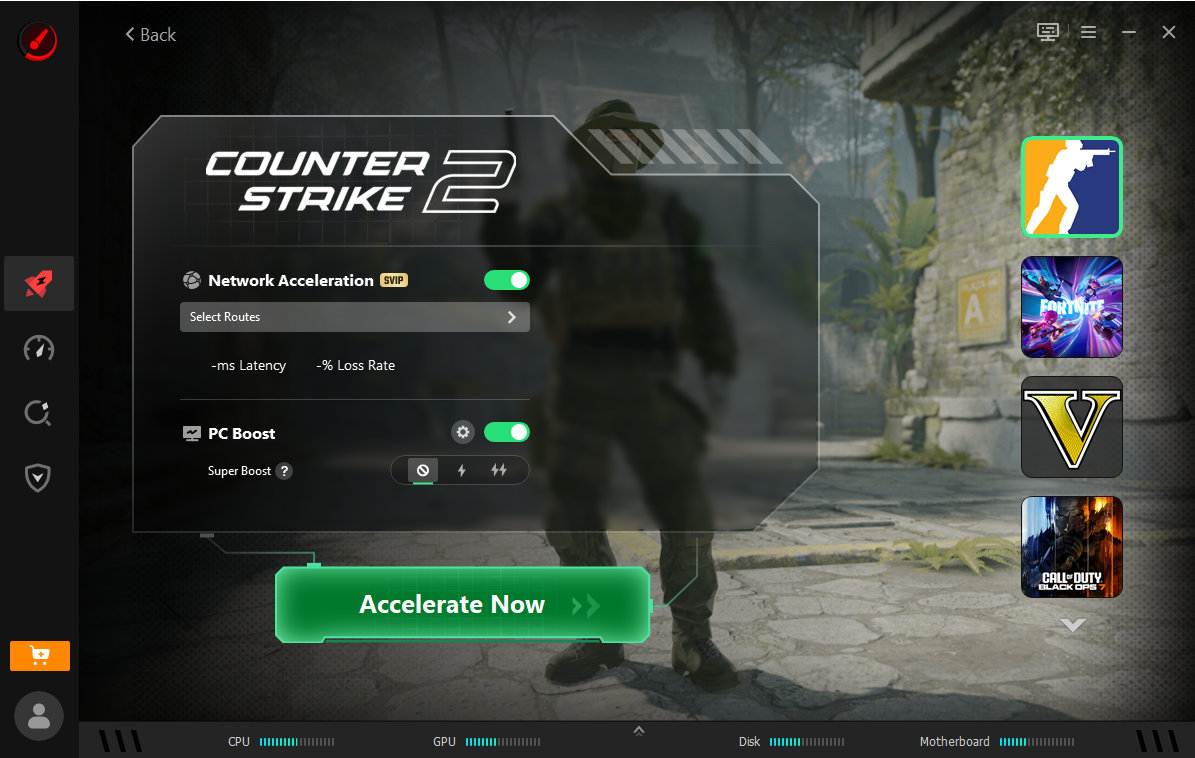
Step 3: Enjoy High FPS and Low Ping Gaming
From that point, Auto Boost handled everything automatically. It detected my game launch, activated Gaming Mode, and maintained optimization throughout the session without requiring me to do anything between matches.
What Is Actually Running Under the Hood
Knowing which features are doing what helped me understand why the results held up over time rather than just in the first session.
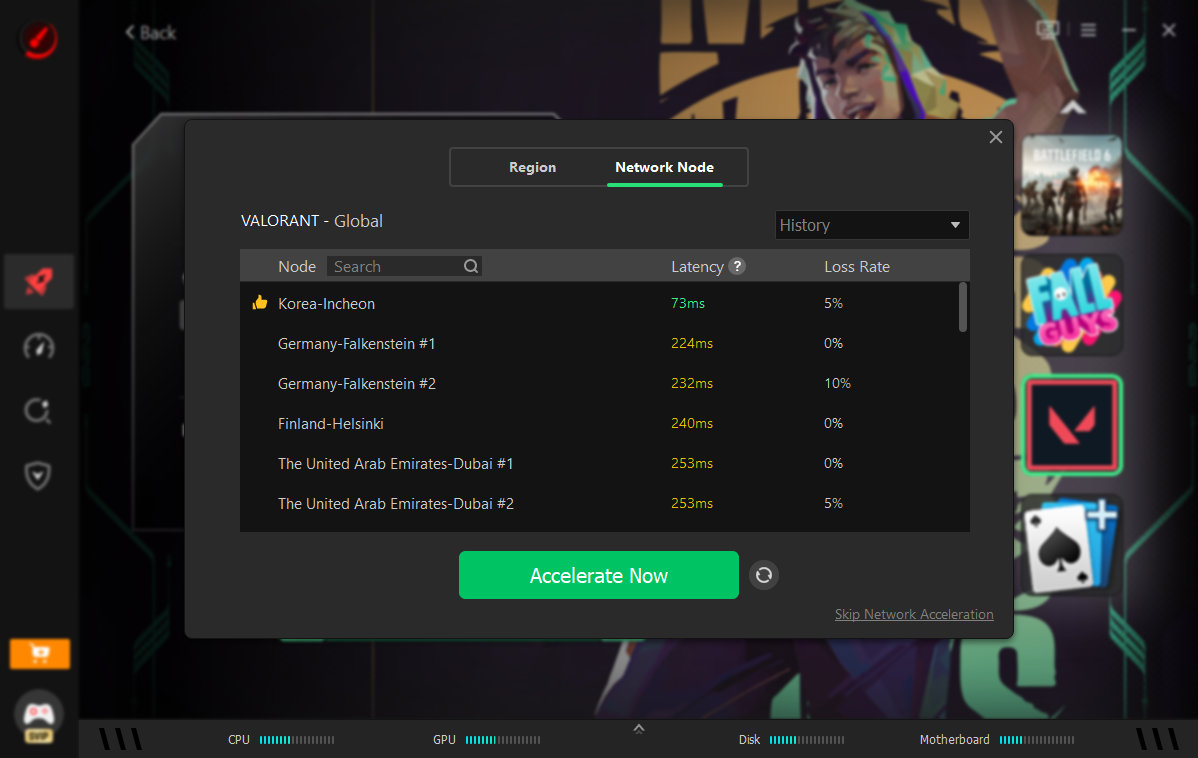
- Network Acceleration is the feature that most noticeably changed my peak-hour gaming. With more than 500 game acceleration servers worldwide, it routes traffic through dedicated game lines that reduce latency, minimize packet loss, and avoid congestion on shared routes during evening hours when everyone is online at the same time. It also bypasses regional restrictions, which opened up cross-region servers I had never been able to connect to reliably before.
- Super Boost handles the hardware side by overclocking the GPU and VRAM, boosting performance by up to 30%. This is where the FPS gains in more demanding titles actually come from, since the network fix alone does not address frame drops in GPU-intensive games.
- PC Boost goes one step further by disabling unnecessary background apps and services with a single click, freeing up CPU and RAM that were quietly consumed by processes unrelated to gaming.
- Auto Boost ties the whole system together by detecting game launches automatically and activating Gaming Mode instantly, so the optimization is already in place before the first match starts rather than something you remember to trigger after your first bad round.
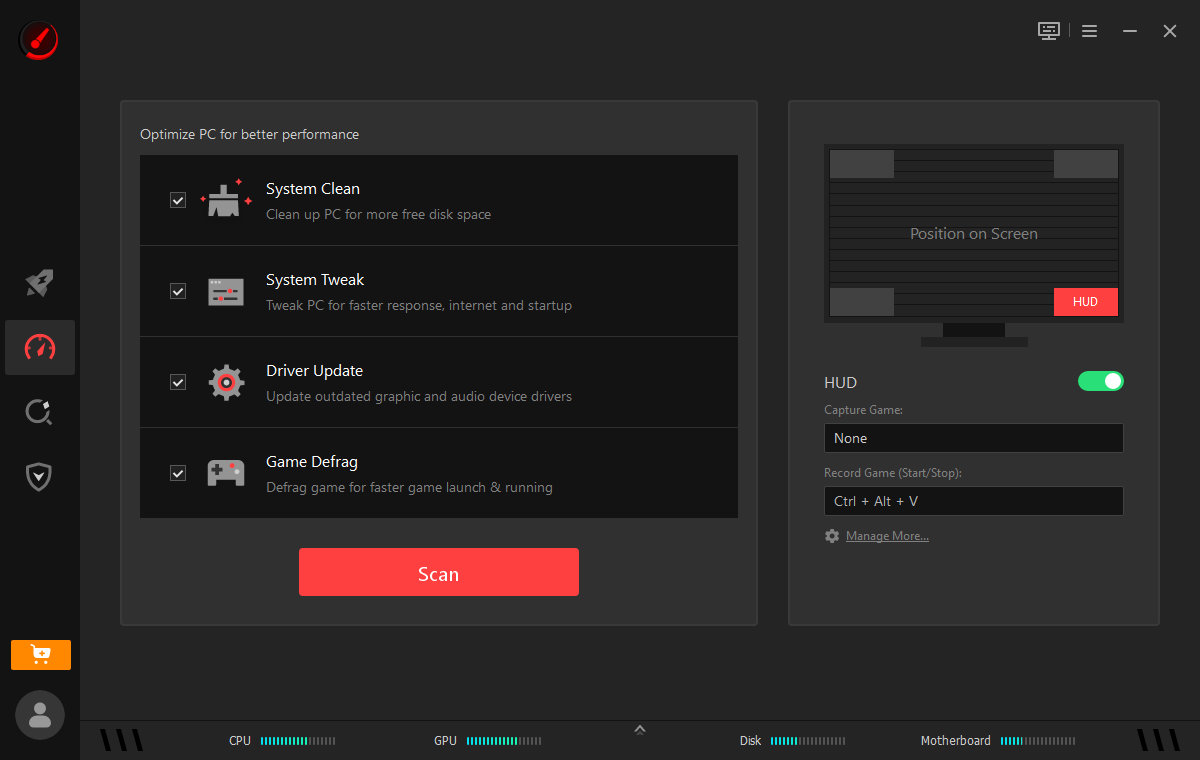
- Performance Tools handle the deeper system-level work through System Clean, System Tweak, Driver Update, and Game Defrag. These are not instant-fix features so much as the maintenance layer that keeps the hardware performing consistently over weeks of use rather than just on day one.
- Real-Time Monitor tracks hardware temperature and resource usage throughout each session and sends alerts before overheating starts affecting performance. I had thermal throttling quietly reducing my frame rate for months before I started monitoring it properly.
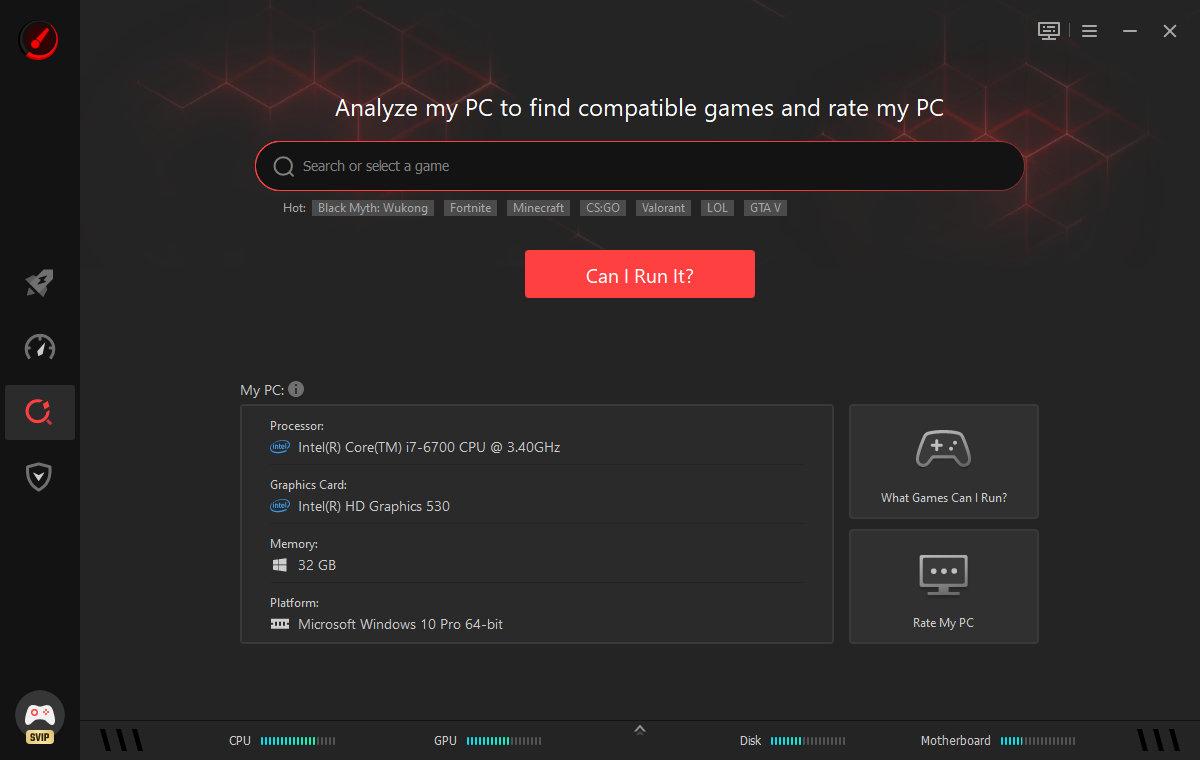
- Can I Run It covers more than 160,000 games alongside 3,000-plus GPU models and 9,000-plus CPU models, giving you an accurate compatibility check before buying a new title rather than discovering post-purchase that your rig cannot handle it.
- Guard provides security for your PC and game accounts, running a full system diagnostic that catches issues that would otherwise stay invisible until they cause a real problem.

What Worked Well
Using it consistently across multiple games over several weeks gave me a clear picture of where it genuinely delivers.
- Peak-hour ping became noticeably more stable, which is when it used to spike most on shared network routes.
- Auto Boost eliminated the manual optimization routine I used to run before every session, saving real time across dozens of gaming nights.
- One-click optimization that handles both hardware and network without needing two separate tools.
- The built-in customizable overlay can track live FPS, CPU/GPU temperatures, and usage rates without leaving the game.
- Safely overclock the GPU and VRAM for a risk-free performance upgrade.
Where It Falls Short
No tool fixes everything, and being honest about the limits is more useful than overselling the results.
- FPS gains are real but inconsistent across titles, with some games responding strongly and others showing only minor improvement, depending on what was limiting performance to begin with
- Network acceleration performance depends on your region and the game server infrastructure, so the reduction in ping will not be identical for every player in every location.
- Getting the most out of the manual settings beyond Auto Boost takes time to learn properly, and the interface assumes some familiarity with PC optimization concepts.
My Honest Verdict
What changed my mind about Game Booster was not a single session with impressive numbers. It was the fact that the improvement held across different games, different times of day, and different network conditions over several weeks. That consistency is harder to achieve than a one-time benchmark result, and it is what I had never managed to get from the manual fixes I was relying on before.
If lag has been affecting your matches and the standard advice has not held, running this on one game for a week is a more useful test than any benchmark screenshot.