


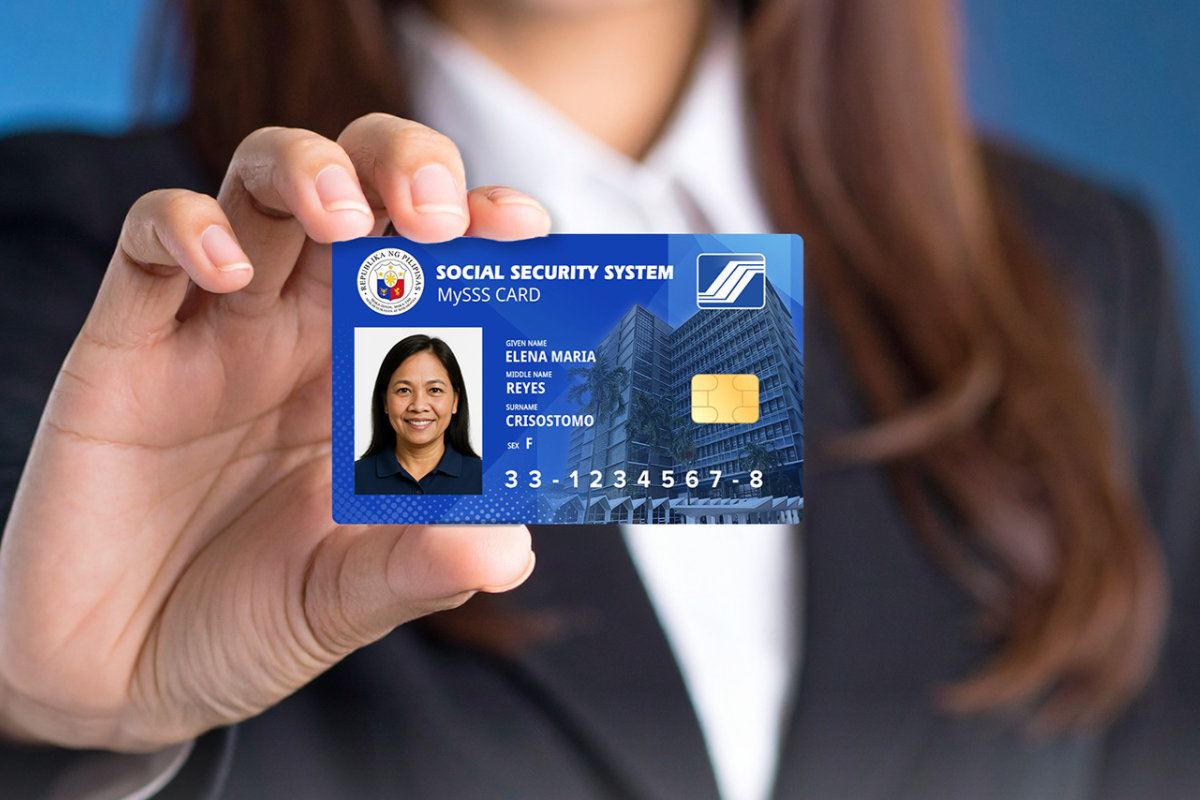
If you’ve been waiting for a better SSS ID card, the long wait is over. The Social Security System (SSS) has officially launched the new MySSS Card, a Visa-enabled debit card that doubles as your SSS identification document. It’s a massive upgrade from the old UMID card process, and the best part is that you can apply for it online through the My.SSS portal!
Unlike the UMID card, which required you to visit an SSS branch and wait for months before you can claim it, the MySSS Card application is exclusively done through the Internet. The card is issued by a Partner Financial Institution (PFI) – currently RCBC DiskarTech – so it also functions as an actual bank debit card that you can use for withdrawals, transfers, and even receiving your SSS benefits directly.
As a long-time SSS member and UMID cardholder, I’m really excited to get my hands on the new MySSS Card. Considering that UMID applications are currently on hold, those who are in need of a valid government-issued ID can apply for the new MySSS Card instead. It takes less than 30 minutes and you don’t even have to leave your house – all you need is a cellphone with an Internet connection.
Table of Contents
What Is the MySSS Card?
The MySSS Card is the SSS’s new all-in-one membership ID and financial card. It replaces the traditional SSS ID and builds on the UMID card concept, but with a modern twist: it’s a Visa debit card linked to a bank account under a Partner Financial Institution (PFI).
This means that the new MySSS Card can be used to:
- Receive SSS loan proceeds and benefit payments directly
- Make purchases anywhere Visa is accepted
- Withdraw cash from ATMs
- Serve as a valid government-issued photo ID
As of writing, the only PFI available is RCBC DiskarTech, the digital banking app of Rizal Commercial Banking Corporation. SSS has indicated that more PFIs will be added in the future, so stay tuned!
MySSS Card Requirements
Before you starting your MySSS Card application, make sure that you already have the following:
- An active My.SSS account – You need to be registered at the My.SSS member portal. If you don’t have an account yet, read this article to learn how to register for free (you must be an active SSS member).
- A valid Philippine National ID (PhilSys) – The MySSS Card application uses National ID eVerify authentication, so your PhilSys registration must already be complete. It’s not necessary to have a physical National ID card, as long as you’re already registered with PhilSys.
- An active email address – SSS will send your application confirmation and Transaction Number to your registered email address.
- Updated contact details – Your home address, mailing address, mobile number and email in the My.SSS portal must be current and updated, as these are used for verification and notifications.
Note: Make sure your name and date of birth match on both your SSS and National ID records. Otherwise, you need to update the information with the relevant agency.
How to Apply for the MySSS Card Online
Here’s the complete step-by-step process to apply for your new MySSS Card through the My.SSS portal.
Step 1: Log In to the My.SSS Portal
Go to the My.SSS portal at member.sss.gov.ph and log in using your user ID and password. If you’ve forgotten your password, click the Forgot Password link to reset it.
Step 2: Navigate to the MySSS Card Application Page
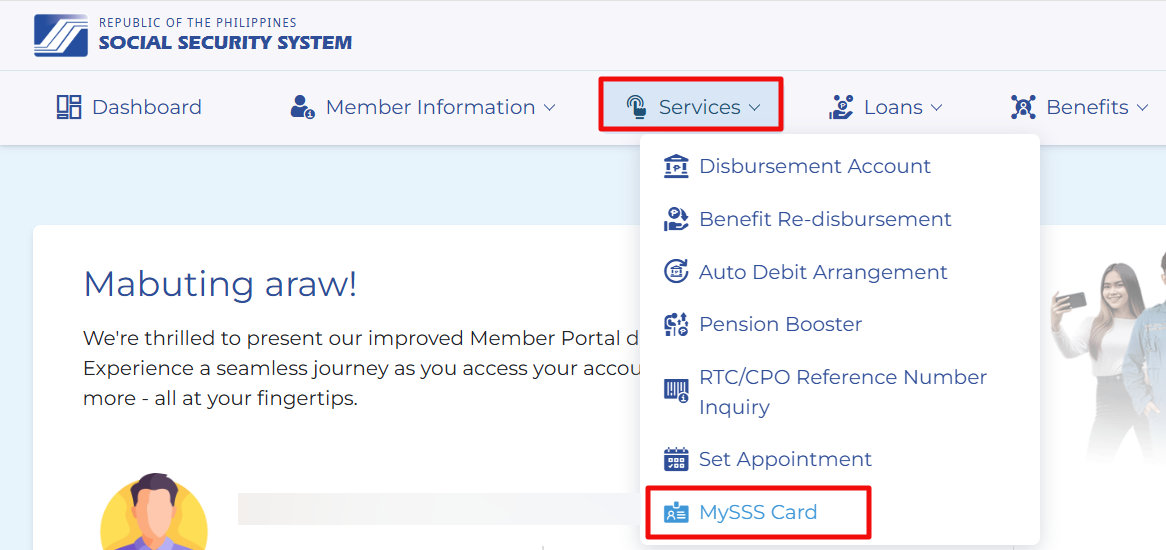
Once you’re logged in to your My.SSS account, look for the main navigation menu at the top of the page. Click Services, and then select MySSS Card from the dropdown menu.
Step 3: Review Your Contact Details
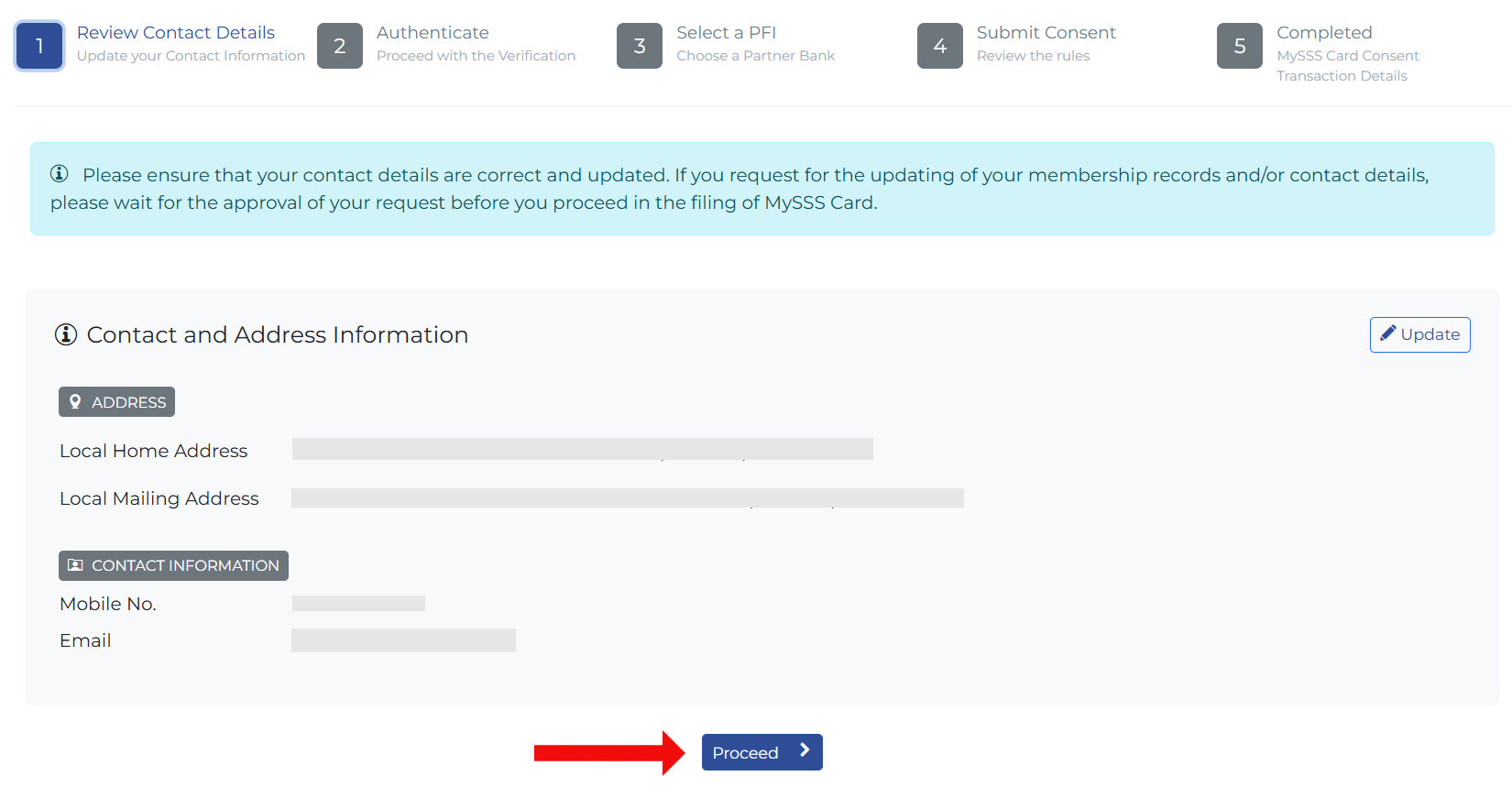
The system will display your registered contact details including your home and mailing addresses, mobile number, and email. Take a moment to check that all your contact information are correct and up to date.
If any of your contact details are incorrected or outdated, click Update to change them before continuing. You’ll need accurate contact details to receive your application confirmation.
If everything looks correct, click Proceed to move to the next step.
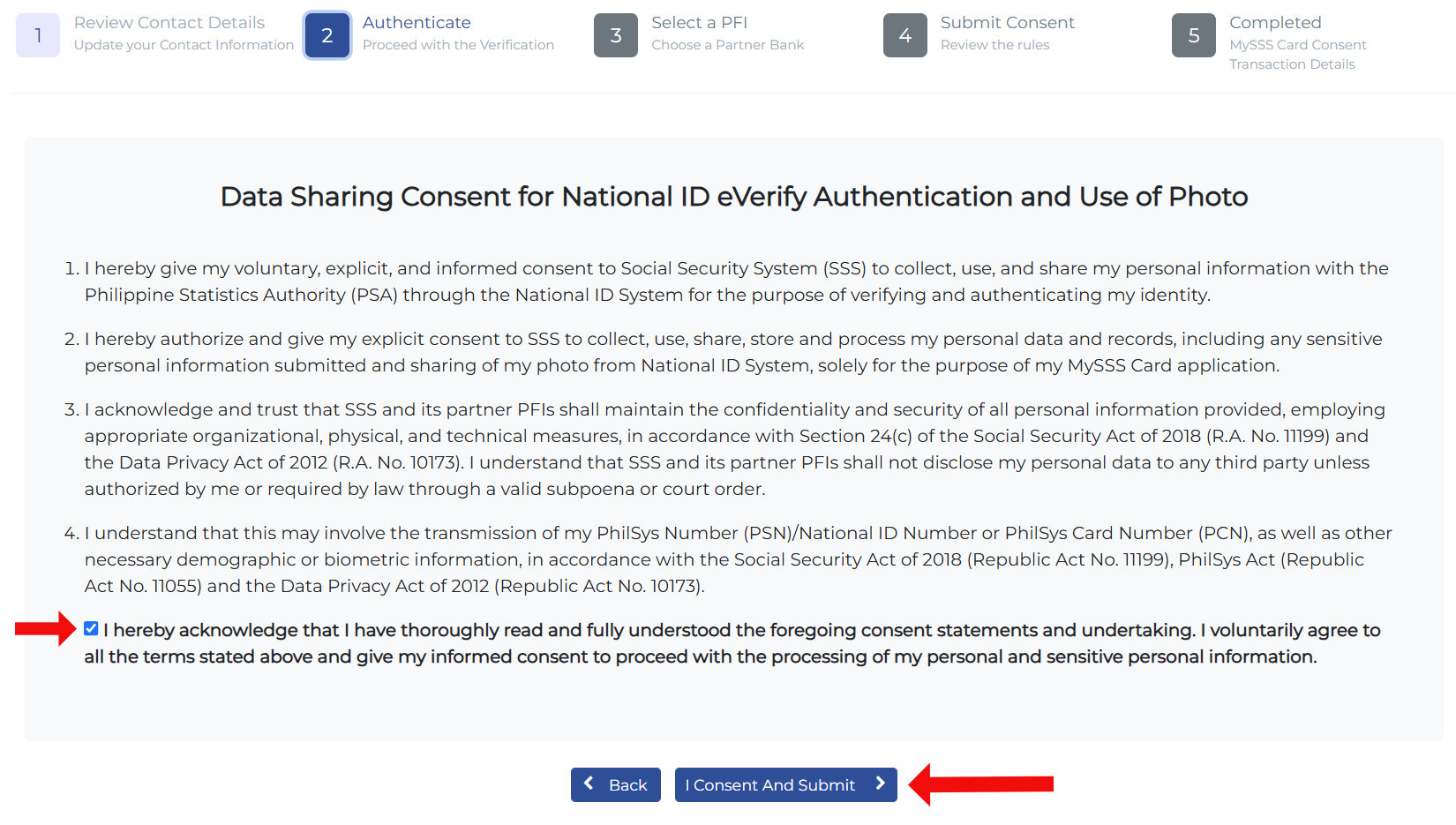
Step 4: Give Your Consent for National ID Verification
This is a very important step. SSS uses your Philippine National ID (PhilSys) to verify your identity through eVerify Authentication, so you need to give your explicit content to share your personal information with the agency.
Read through the Data Sharing Consent for National ID eVerify Authentication and Use of Photo carefully. Once you’ve read and understood the consent statement, tick the checkbox confirming that you’ve read it. Then click “I Consent And Submit” to proceed.
Step 5: Choose Your Partner Financial Institution (PFI)
After consenting to the National ID verification, you’ll be asked to choose your Partner Financial Institution (PFI), which is the bank that will issue and manage your MySSS Card account.
The available PFIs as of this update are RCBC DiskarTech and HelloMoney by AUB. Select your preferred PFI from the list, then click “Confirm Selected Bank/PFI” to continue.

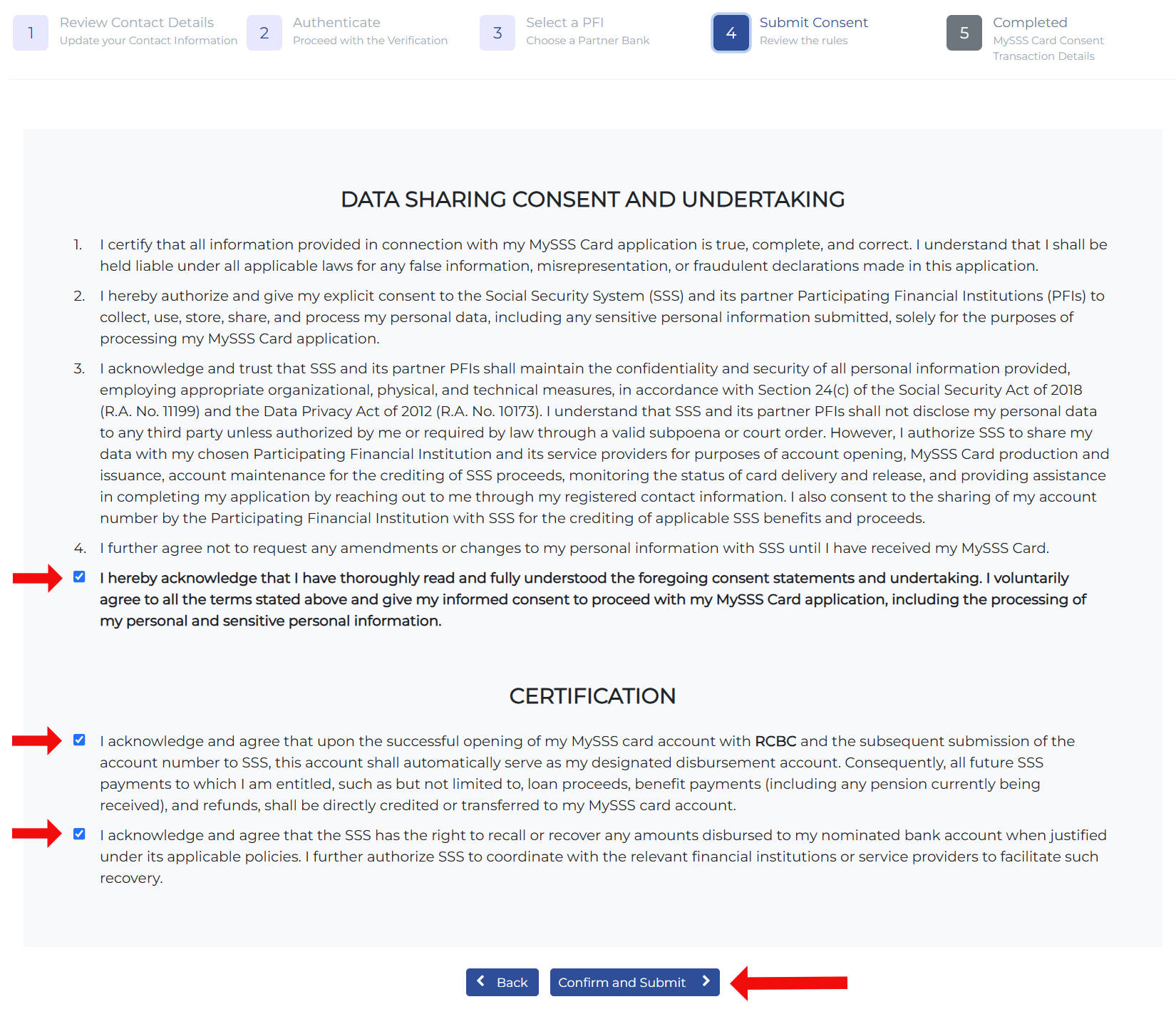
Step 6: Agree to the Data Sharing Consent and Undertaking, and Certification
This step involves reading through two important documents: Dat
- Data Sharing Consent and Undertaking – This statement explains how SSS and the PFI will share and use your personal data for the purposes of opening and managing your MySSS Card account.
- Certification – This is your declaration acknowledging and agreeing that your MySSS Card account will serve as your designated disbursement account upon successful opening.
Read both documents thoroughly. Tick all required checkboxes to confirm that you have read, understood, and agreed to each statement.
Once all boxes are checked, click “Confirm and Submit” to finalize your application.
Step 7: Take Note of your Transaction Number
If everything goes well, your MySSS Card application will be submitted and recorded in the SSS system. A confirmation screen will appear showing your Transaction Number – take note of this or take a screenshot, as you’ll need it to open your bank account.
Shortly after submitting, you’ll also receive a confirmation email at your registered email address. This email serves as your official record of your MySSS Card application, so check your inbox (and your spam folder, just in case) to make sure it arrived.

Step 8: Open Your Account with the PFI
Your MySSS Card application through the SSS portal is complete, but there’s one final step: opening your actual bank account with the PFI (in this case, RCBC DiskarTech).
To do this, download the DiskarTech app from Google Play (for Android) or the App Store (for iOS) and follow the account opening process. You’ll need to complete identity verification and other onboarding requirements within the DiskarTech app before your MySSS Card is fully activated and issued.
Once your DiskarTech account is successfully set up, RCBC will process the issuance of your physical MySSS Card. RCBC will notify you via SMS or through the DiskarTech app when your card is ready for pickup or delivery.
How to Cancel Your MySSS Card Application
Maybe you’ve decided that the new MySSS Card is not for you (or perhaps you have issues with opening a bank account). Is it possible to cancel your application?
Yes, you can easily cancel your MySSS Card application through the My.SSS portal. Just login to your account, navigate to Services and MySSS Card, and then click Cancel Submitted Consent.
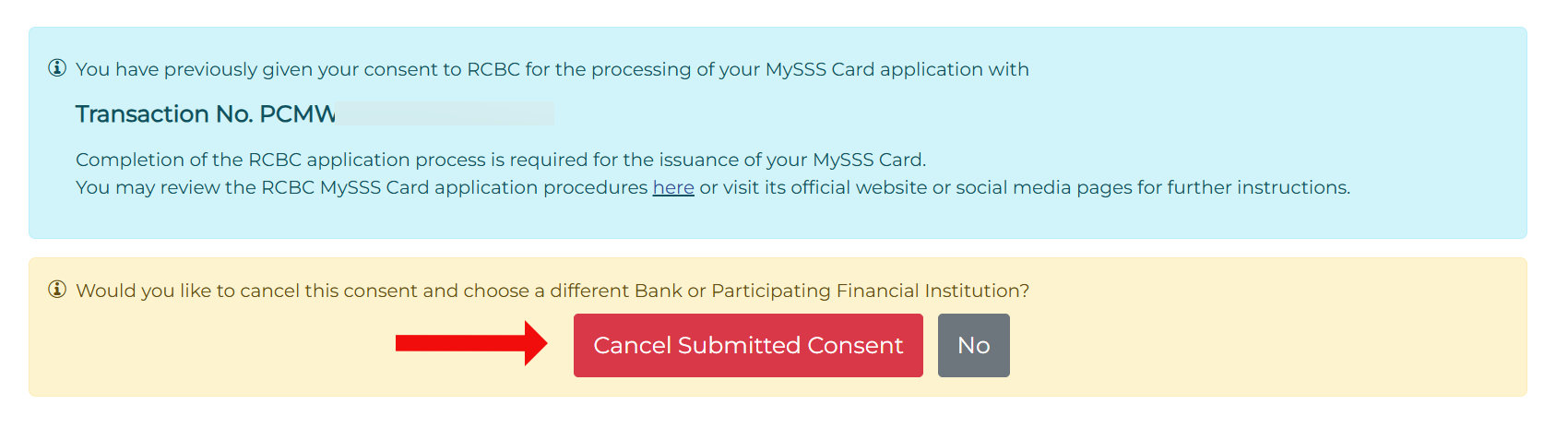
Your application will then be cancelled and you’re free to choose a different bank (if and when other PFIs are available).
Frequently Asked Questions
Who is eligible to apply for the MySSS Card?
Any active SSS member with an existing My.SSS online account can apply for the MySSS Card, provided they have already registered for a National ID (PhilSys).
Is the MySSS Card free?
Yes, the MySSS Card is provided free of charge by SSS. However, since it’s linked to a bank account, standard banking fees and terms may apply once the account is active.
Can I use the MySSS Card to receive my SSS benefits and loan proceeds?
Yes. The MySSS Card serves as a disbursement channel for SSS benefits, including sickness, maternity, and retirement benefits, as well as loan proceeds. Members who use the MySSS Card will have their payments credited directly to their linked bank account.
How long does it take to receive the physical MySSS Card?
If you’re residing in Metro Manila, you will received your MySSS Card within 15 working days after your account is successfully opened. If outside Metro Manila, you will receive it within 20 working days.
What will happen to my old UMID card?
Your existing UMID card remains valid as an official government-issued ID. The MySSS Card is a new, separate card. You’re not required to surrender your UMID when you apply for the MySSS Card.
Final Thoughts
The new MySSS Card is definitely one of the biggest improvements the SSS has made in recent years. Combining an official government ID with a functional debit card is a really useful upgrade, especially for SSS members who receive benefits regularly.
I hope this step-by-step guide helped you complete your MySSS Card application smoothly. If you found this useful, bookmark this page (press Ctrl + D on desktop or add it to your reading list on mobile) so you can refer back to it later. You can also share it with a friend or family member who needs help applying.