



Do you want to type the degree sign but you don’t know how? Don’t worry because we are here to teach you how to insert or type the degree symbol (°) on your computer or smartphone. We will also discuss the various ways to include the symbol in Microsoft Word and other software programs.
The degree symbol (or degree sign) is used to represent degrees of temperature, degrees of arc (in mathematics), hours (in medicine), and musical quality. If you want to show the temperature, you can use the degree sign instead of simply writing down the word “degree.” For example, you can write 35° F instead of 35 degrees F.
In mathematics, the degree sign is even more useful, especially when it comes to degrees of angular arc in geometry. Instead of writing 180-degree angle, you can write 180° angle. Not only you will save document space, it will also look more aesthetically pleasing.
While the degree sign is commonly used in science and mathematics, the symbol is not readily found in most computer keyboards. However, virtual keyboards on mobile devices (including the Android stock keyboard) usually come with a degree key. To type the degree symbol on your PC or laptop, you will have to use a keyboard shortcut combination.
Type the Degree Symbol on a Windows Keyboard
You might already be familiar with keyboard shortcuts for common computer operations such as copying text or printing documents. Well, you can also type symbols using a unique keyboard shortcut or what is sometimes called an “alt code” (because it uses the Alt key).
For Windows computers, the keyboard shortcut or alt code for the degree symbol is Alt + 0176.
To type the degree symbol using your Windows computer keyboard, hold down the Alt key and then type 0176 on the number pad (usually located at the rightmost portion of the keyboard). Don’t type the numbers above the letter keys; only type the numbers on the number pad while pressing the Alt key. The result is this: °.
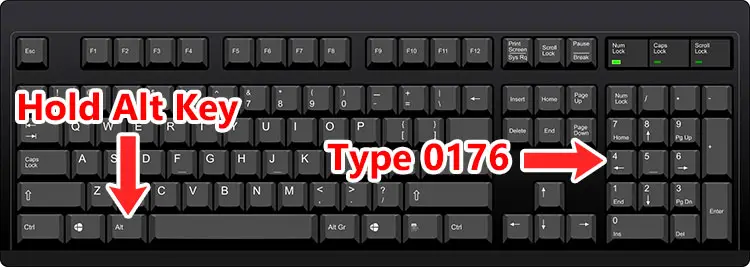
You can also use the keyboard shortcut Alt + 248. Hold down the Alt key and then type 248 on the number pad to insert the degree sign.
The beauty of this method is that it’s universal, which means that it works with all computer programs such as Microsoft Word, Microsoft Excel, Google Chrome, Notepad, and many more.
However, some keyboards (especially laptop ones) don’t have a number pad. If that’s the case, you can try other methods such as the character map. More on that later.
Type the Degree Symbol on a Mac Keyboard
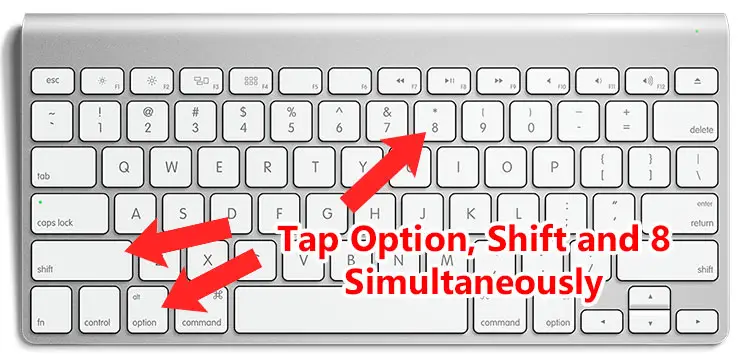
If you are a Mac user, you can type the degree sign by using the keyboard shortcut Option + Shift + 8. Press the Option, Shift and 8 keys simultaneously on your Mac keyboard.
Insert the Degree Symbol in Microsoft Word
The keyboard shortcut method works with Microsoft Word and other word processors, but you can also insert the degree sign directly in Word. This is useful if you can’t (or don’t want to) remember the keyboard shortcut (Alt + 0176) and you prefer an easy way to insert the symbol.
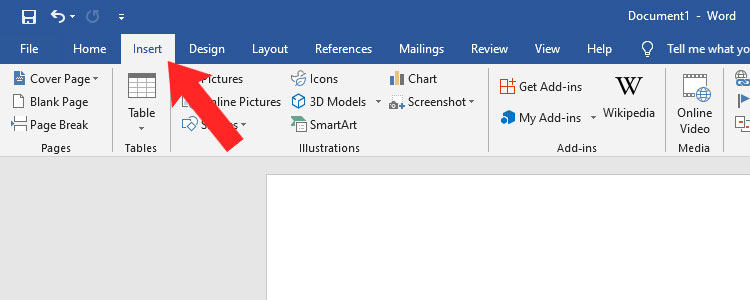
First, select the Insert tab (next to the Home tab) as shown in the screenshot below.
Next, click the Symbol button on the right side. After clicking it, select More Symbols.
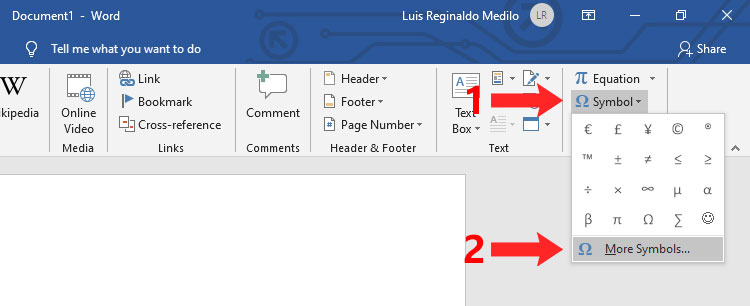
A popup dialog containing all the symbols in Word is now shown. What you will do is to find the degree sign so that you can insert it in Word.
The degree sign can be found much easier by selecting the subset where it belongs to. The Subset field is located above the symbols, right after the Font field. Select Latin-1 Supplement as the subset.
Select the degree sign ° to highlight it. You can see that its unicode name is Degree Sign. After highlighting the degree symbol, insert it into your Word document by clicking Insert.
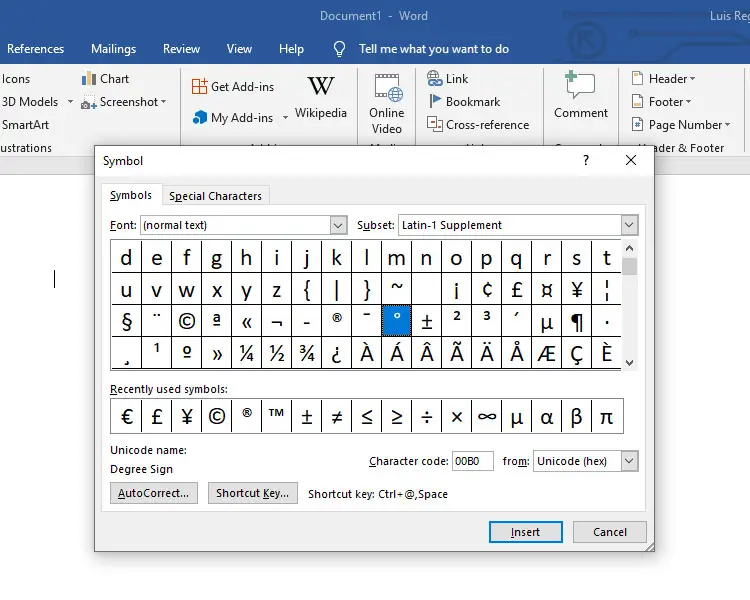
You can also assign a shortcut key for easier and more convenient insertion in your document. To do that, click the Shortcut Key button and choose a new keyboard combination. The default shortcut key for the degree sign in Word is Ctrl + @, Space.
To type the degree sign again, just select the Insert tab and click Symbol once again. There you will see the ° sign in the recently used symbols. You don’t need to click More Symbols unless the degree sign was replaced by other symbols.
This method is also applicable to Microsoft Excel. However, you can also use the keyboard shortcut Alt + 0176.
Type the Degree Symbol on Your Android Smartphone
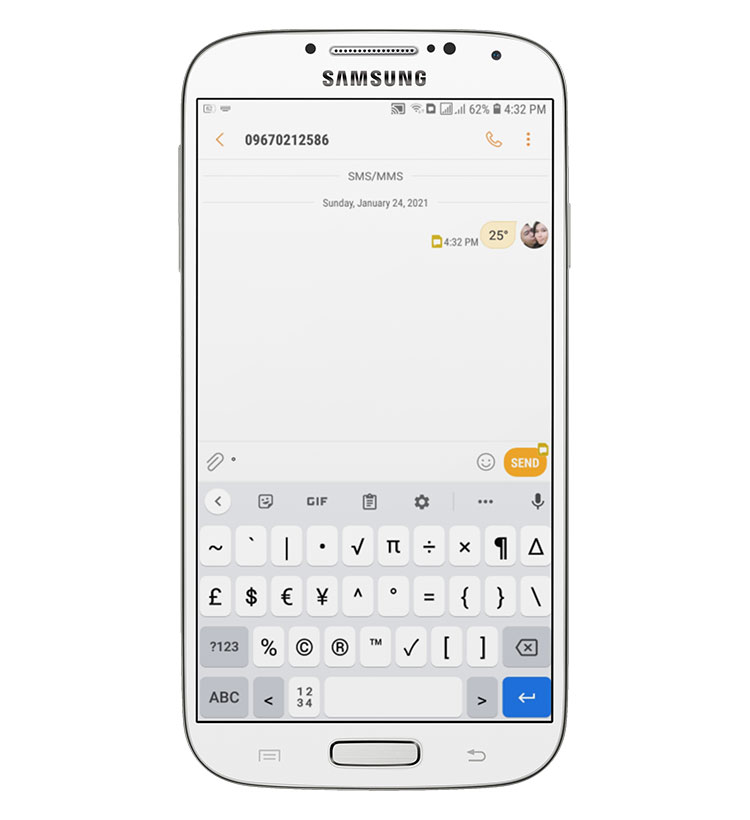
It’s easy to type the degree sign on your Android smartphone. Just switch to the number and symbols keypad by tapping ?123, and then look for the degree sign °. Tap the symbol to insert it into your message or document.
Type the Degree Symbol on the iPhone or iPad
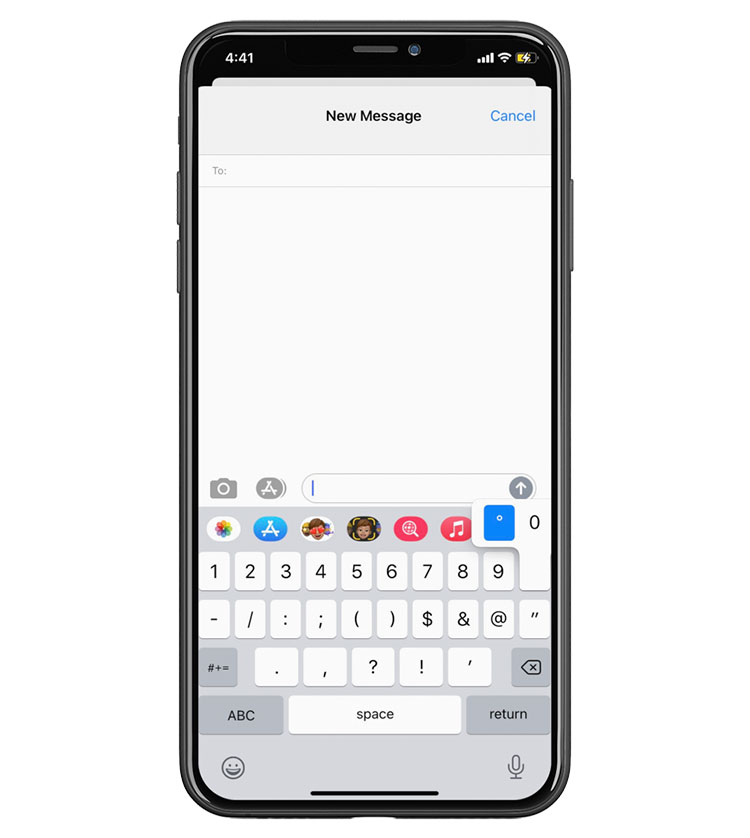
The degree sign can be found in the iOS keyboard, although it’s not shown by default.
To type the degree sign on your iPhone or iPad, first switch to the numerical keypad by tapping the 123 key, and then hold or long-press the 0 (zero) key. You will see a pop-up menu with the degree symbol. Swipe your finger over the ° symbol and then release to insert it.
Insert the Degree Sign Using Character Map
The Character Map is a handy little utility for searching and copying all the available characters and symbols in Windows. You can use it if your keyboard doesn’t have a numerical keypad.
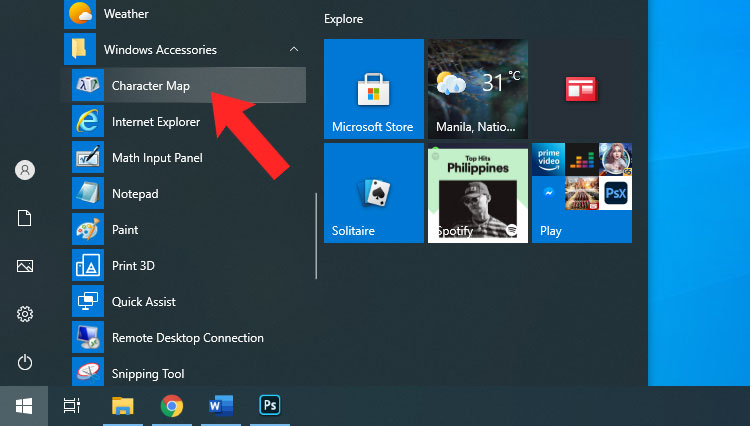
To start, click the Windows Start button on the bottom-left corner, go to Windows Accessories, and select Character Map.
On the Character Map dialog, look for the degree sign ° and select it. It’s located somewhere in the middle of the 6th row.
Click the Select button and then Copy. Go back to your document and paste the symbol by right-clicking and selecting Paste, or by tapping Ctrl + V.
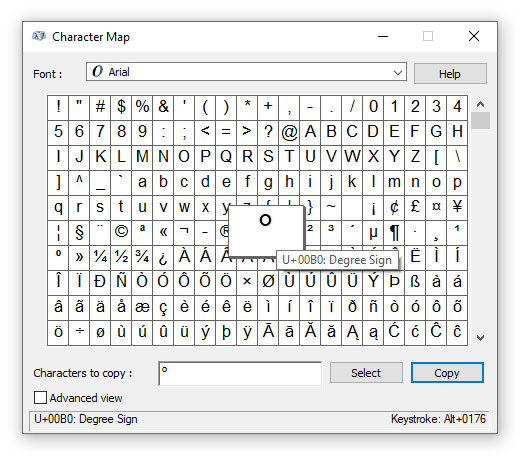
If you have trouble finding the degree symbol, check the “Advanced view” box and type “degree” in the search field. Click Search to reveal the degree sign in Character Map.
Insert the Degree Sign as HTML
Web designers, developers and programmers can insert the degree sign as HTML code. Just type ° to insert the ° symbol into your HTML document.
Degree Symbol Copy and Paste
In case you only want to copy the degree symbol and paste it into your document or application, we have provided an easy way to do it. Simply click the box below and the symbol will be copied to your clipboard!
To copy the symbol, place the cursor or pointer to where you want the symbol inserted, and then right-click and select Paste (Ctrl+V). On mobile, just long-press and select Paste.
Wrapping Up
If you have difficulties in typing the degree symbol using any of the methods we’ve discussed, you can take the easy way out and copy the symbol in this article. Highlight the symbol here ° and hit Ctrl + C to copy it, and then paste it on your document by pressing Ctrl + V. You can also right-click using your mouse and select Copy and then Paste.
That’s pretty much it. You’ve just learned how easy it is to type or insert the degree sign in Windows, Android, iOS and Mac. Remember that you can always copy and paste the degree sign on this page if you’re having trouble with our methods or if you can’t remember the keyboard shortcuts.