


If you’re a Converge subscriber and you’re still using the WiFi password printed at the back of your router, then it’s about time that you changed it. Learning how to change your Converge WiFi password takes only a few minutes of your time, and it’s one simple task that prevents strangers and neighbors from connecting to your Internet without your knowledge and permission.
There are several reasons why you need to change your WiFi password. Maybe you gave it to your cousin and it has quietly made the rounds in the neighborhood since then. Maybe your Internet connection feels slower and you suspect that someone is enjoying your WiFi for free. Or perhaps you just want a password that you can easily remember and share with visiting friends, instead of constantly checking your router for your login credentials.
Whatever your reason, you can easily change your Converge WiFi password through your router’s admin dashboard; no need to tinker with your router or call Converge customer service. In this step-by-step tutorial, I’ll teach you how to change your Converge WiFi password using your computer or smartphone, as well as how to strengthen your wireless network while you’re at it. The router I used for this guide is the Huawei OptiXstar EG8041X6-10, which is the unit provided by Converge during installation.
Table of Contents
What You Need Before You Start
Before we begin, make sure that you’re connected to the exact Converge WiFi network whose password you want to change. The admin dashboard is only accessible through your own network, so you can’t login from your office or a coffee shop somewhere. You can use your smartphone to do this, but I recommend using a laptop or desktop computer because the admin interface is not particularly friendly to small screens.
You’ll also need the admin username and password, which are different from your WiFi name and password. The admin password is what you use to login and manage your router and configure the network settings, while the WiFi password is what your devices use to join the network.
For Huawei routers issued by Converge, the default admin credentials are:
- Admin IP address: 192.168.100.1
- Username: root
- Password: adminHW
The default Converge WiFi password can be found on the sticker at the bottom or back of your router. It’s usually labeled as WLAN Key and located below the default SSIDs (WiFi names). Be sure to take a photo of that sticker as your quick and handy reference.
How to Change Your Converge WiFi Password via Fast Setting (Recommended)
Fast Setting is a guided, three-step wizard in the Huawei admin dashboard that lets you change both the 2.4 GHz and 5 GHz WiFi passwords on a single screen. This is the quickest and easiest way to change your Converge WiFi password without getting confused by the advanced settings.
Step 1: Connect to the Converge WiFi network
The first thing you should do is to connect your computer or smartphone to the Converge WiFi network that you want to modify. The default WiFi network name usually starts with “Converge_2.4GHz” or “Converge_5GHz.”
If you have a spare LAN cable (Converge normally provides one as part of the installation kit), you can plug it directly into the router and connect your computer or laptop to the LAN network. No password is necessary for this wired connection, so you won’t get automatically disconnected when you change your WiFi password.
Step 2: Open 192.168.100.1 in your browser
Launch your web browser (e.g., Google Chrome), and type 192.168.100.1 in the address bar. You can also go directly to http://192.168.100.1 if your browser can’t access the admin dashboard for some reason.
Step 3: Log in with the admin username and password
The Huawei login page will now appear. Enter root as the User Name and adminHW as the Password, then click Log In.
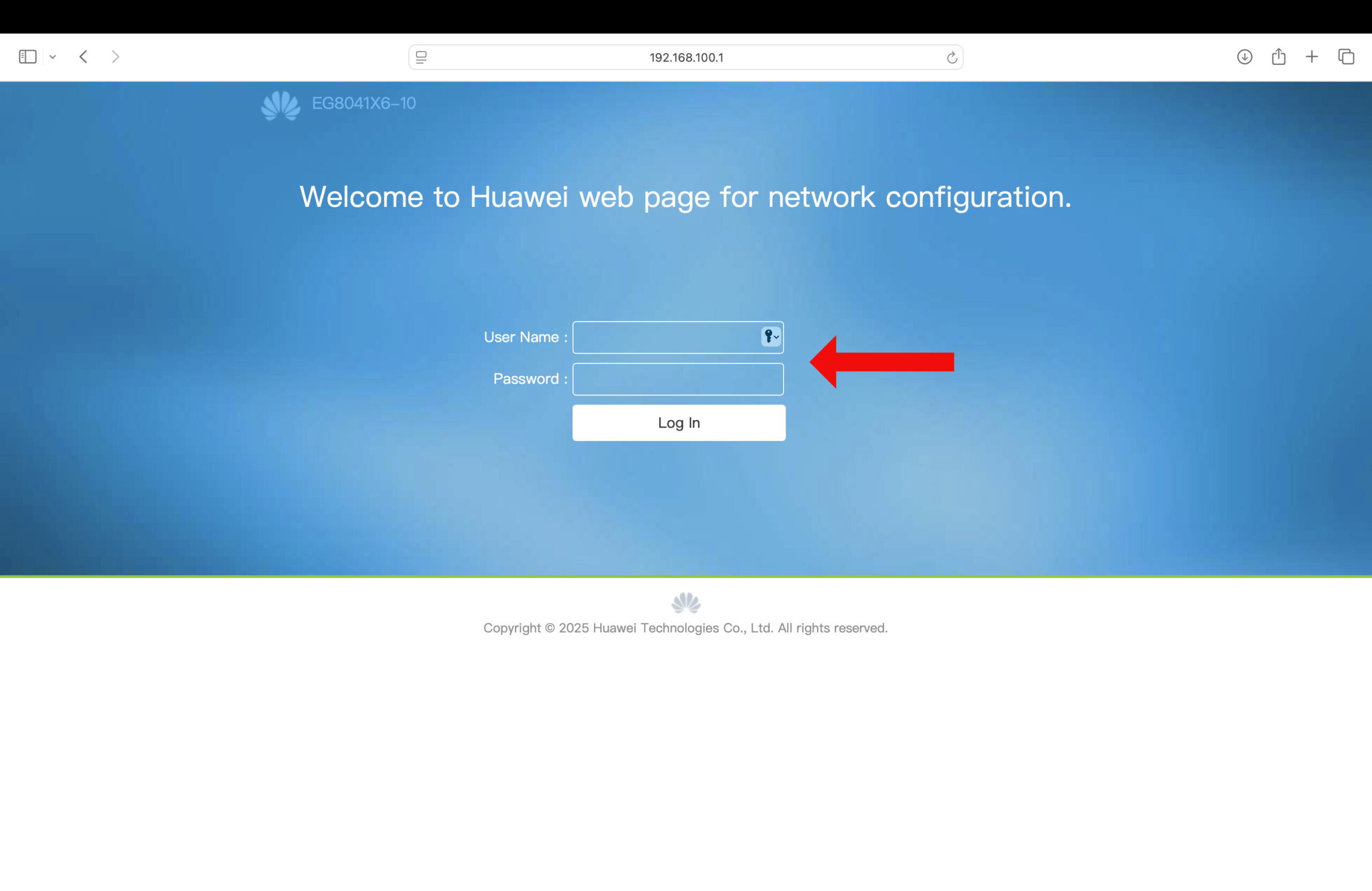
Note: These are the admin login credentials, not your WiFi name and password. If the default combination doesn’t work, someone may have already changed it, or your router may have a different set of login credentials.
Step 4: Click “Fast Setting”
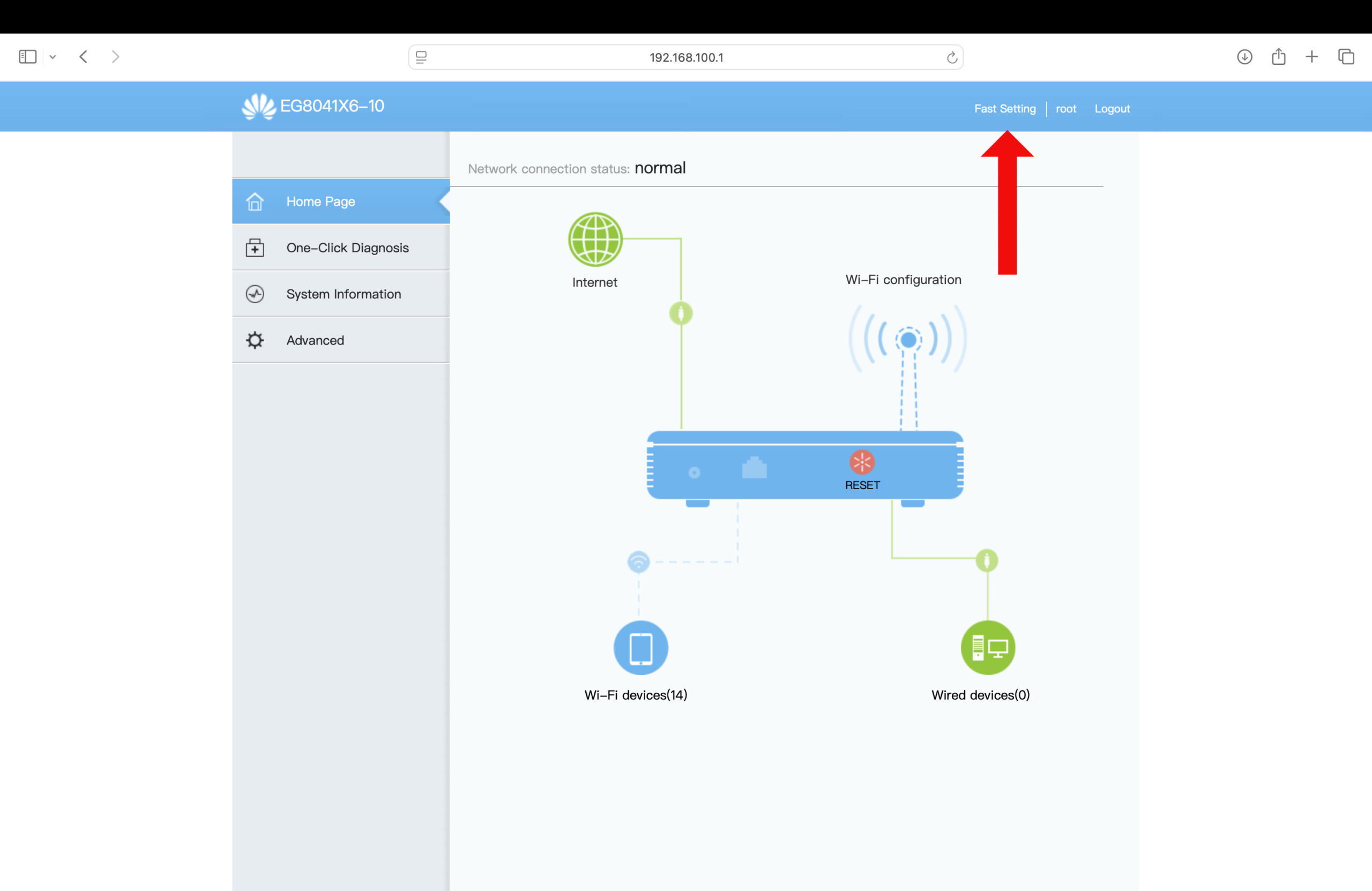
You’re now inside your Converge router dashboard. You should see the network connection status along with a diagram of your connected WiFi and wired devices.
Click Fast Setting at the upper right portion of the page.
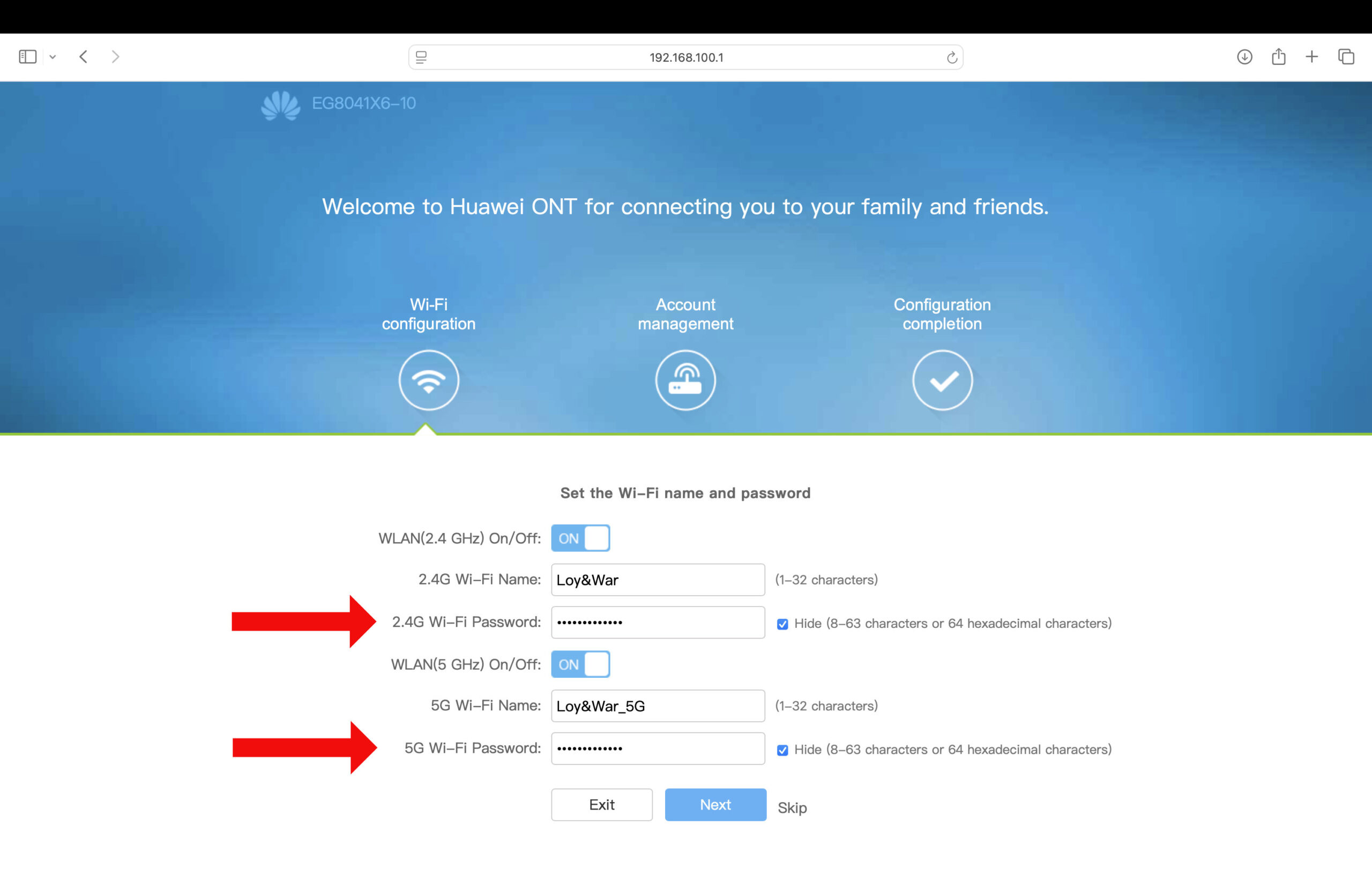
Step 5: Set your new WiFi name and password
The Wi-Fi configuration screen will appear with fields for both frequency bands. Type your new password in the “2.4G Wi-Fi Password” field and again in the “5G Wi-Fi Password” field. You can also rename your WiFi networks using the “2.4G Wi-Fi Name” and “5G Wi-Fi Name” fields.
Your password must be 8 to 63 characters long. If you want to see what you’re typing, uncheck the Hide box next to the password field. Click Next when you’re done.
Step 6: Change your admin login password (optional but recommended)
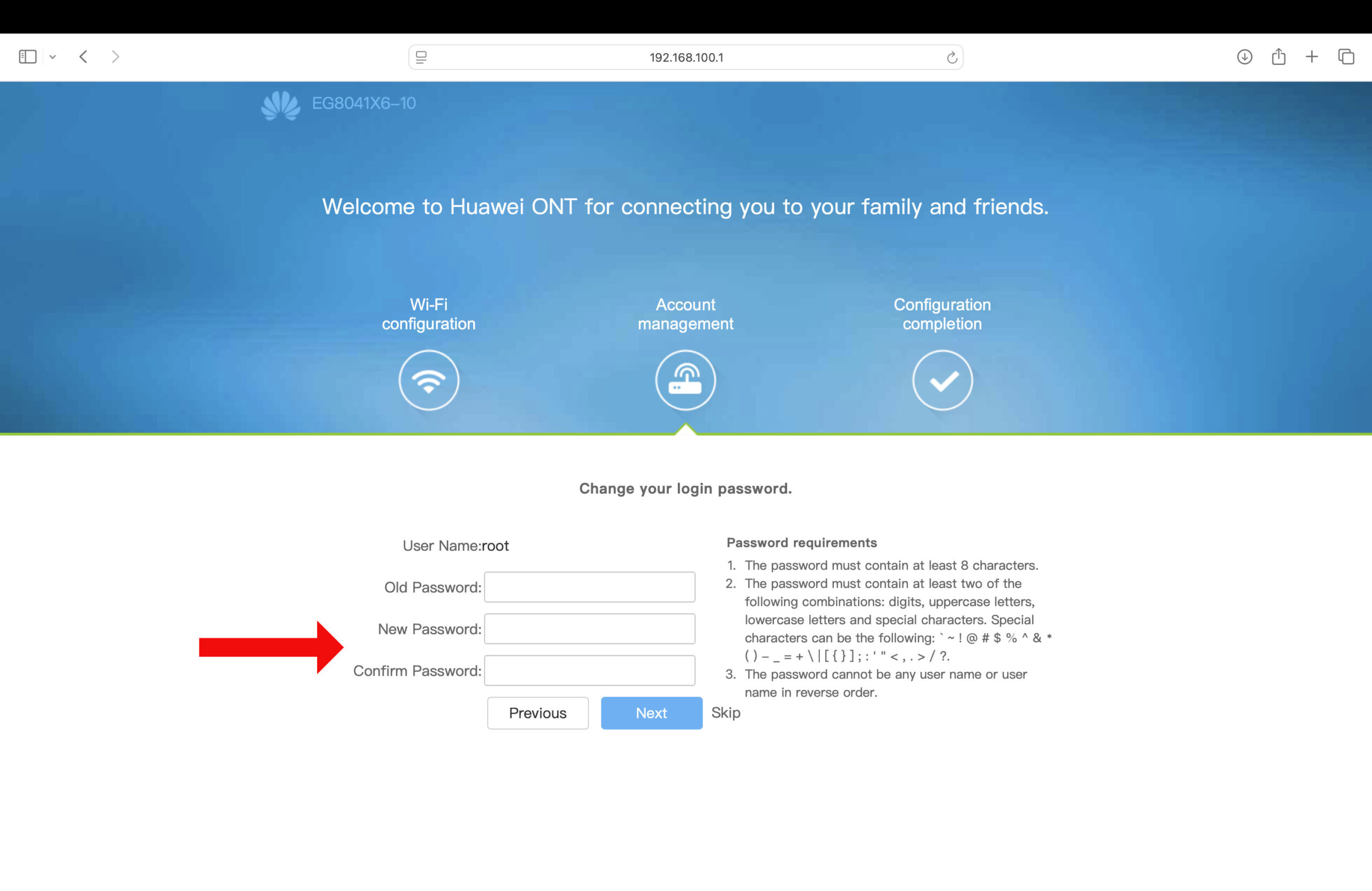
The next screen asks you to change the admin login password for the router. I highly recommend doing this to prevent other people from logging in to your admin dashboard and changing the settings.
Enter your current password in the Old Password field, then type your new one in both the New Password and Confirm Password fields. Take note of the password requirements on the right.
Click Next to apply your changes.
Step 7: Finish the setup
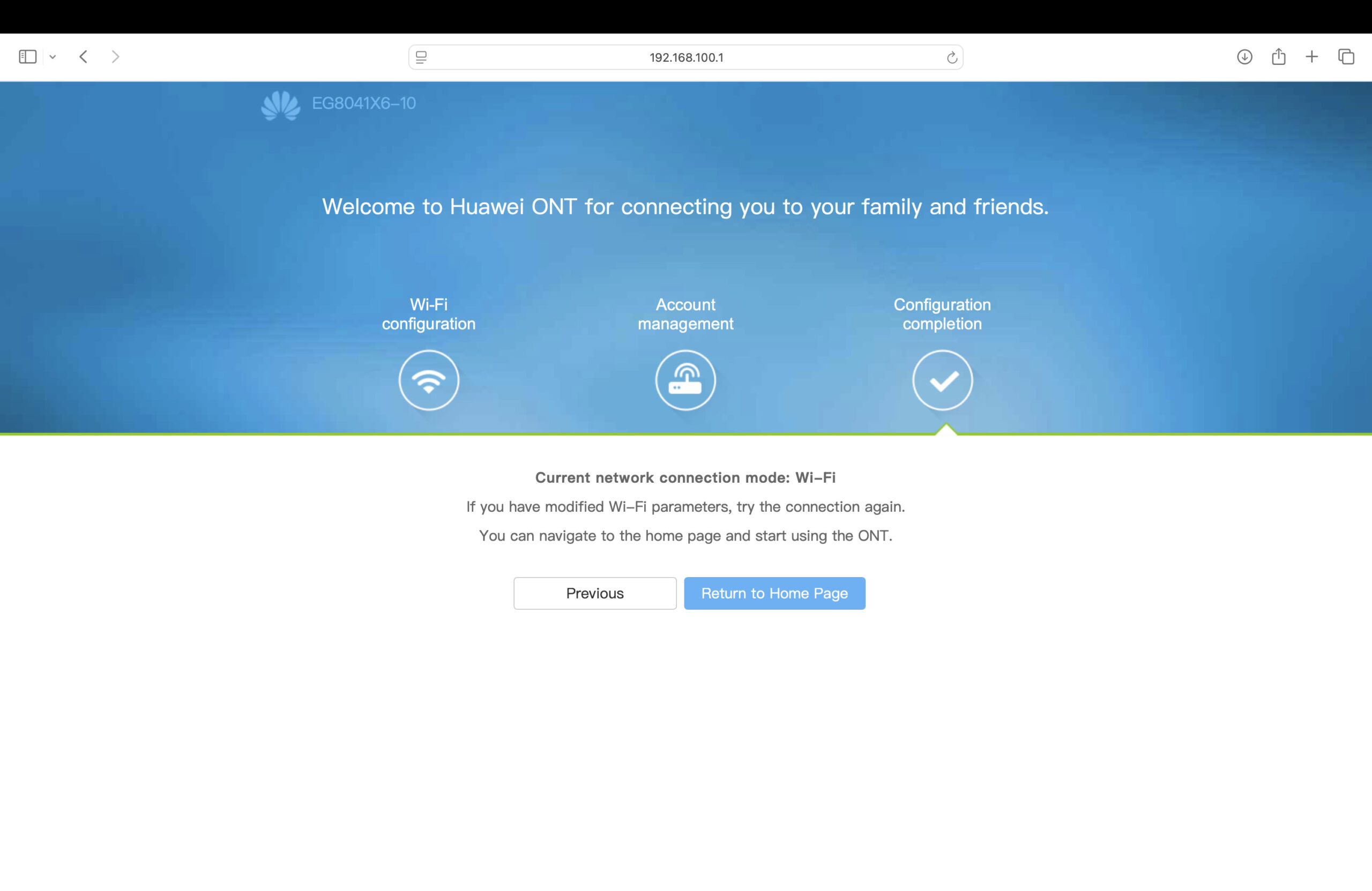
The Configuration completion screen confirms that your changes have been applied. Click Return to Home Page to go back to the dashboard.
Step 8: Reconnect using your new WiFi password
At this point, your device will most likely be disconnected from the WiFi. That’s completely normal because the network credentials that it memorized are no longer valid.
To reconnect, just open your WiFi settings, forget the old network, and join again using the new password. Do the same for every device in your household.
How to Change Your Converge WiFi Password via Advanced Settings
If Fast Setting doesn’t open, or if it doesn’t save your changes, you can modify your Converge WiFi password through the Advanced menu instead. This method takes more time, but it also gives you access to the security settings that are not shown in Fast Setting.
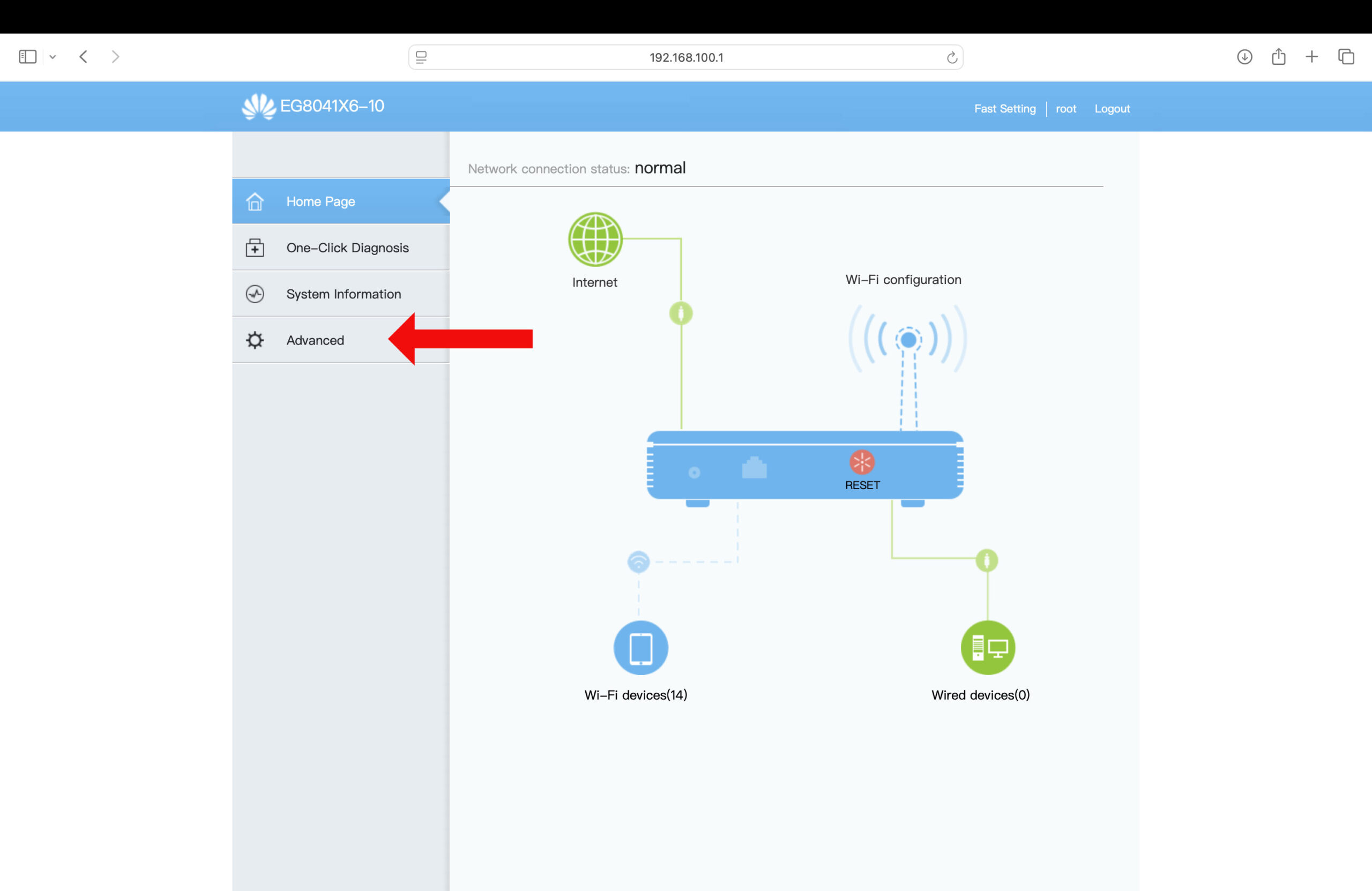
Step 1: Click “Advanced” on the sidebar
On the Converge admin dashboard, look at the left sidebar menu and click Advanced. This opens the full configuration tree with all the advanced settings.
Step 2: Open the WLAN settings
Click WLAN to expand the wireless LAN section. You’ll see several entries, including basic and advanced network settings for both the 2.4 GHz and 5 GHz bands.
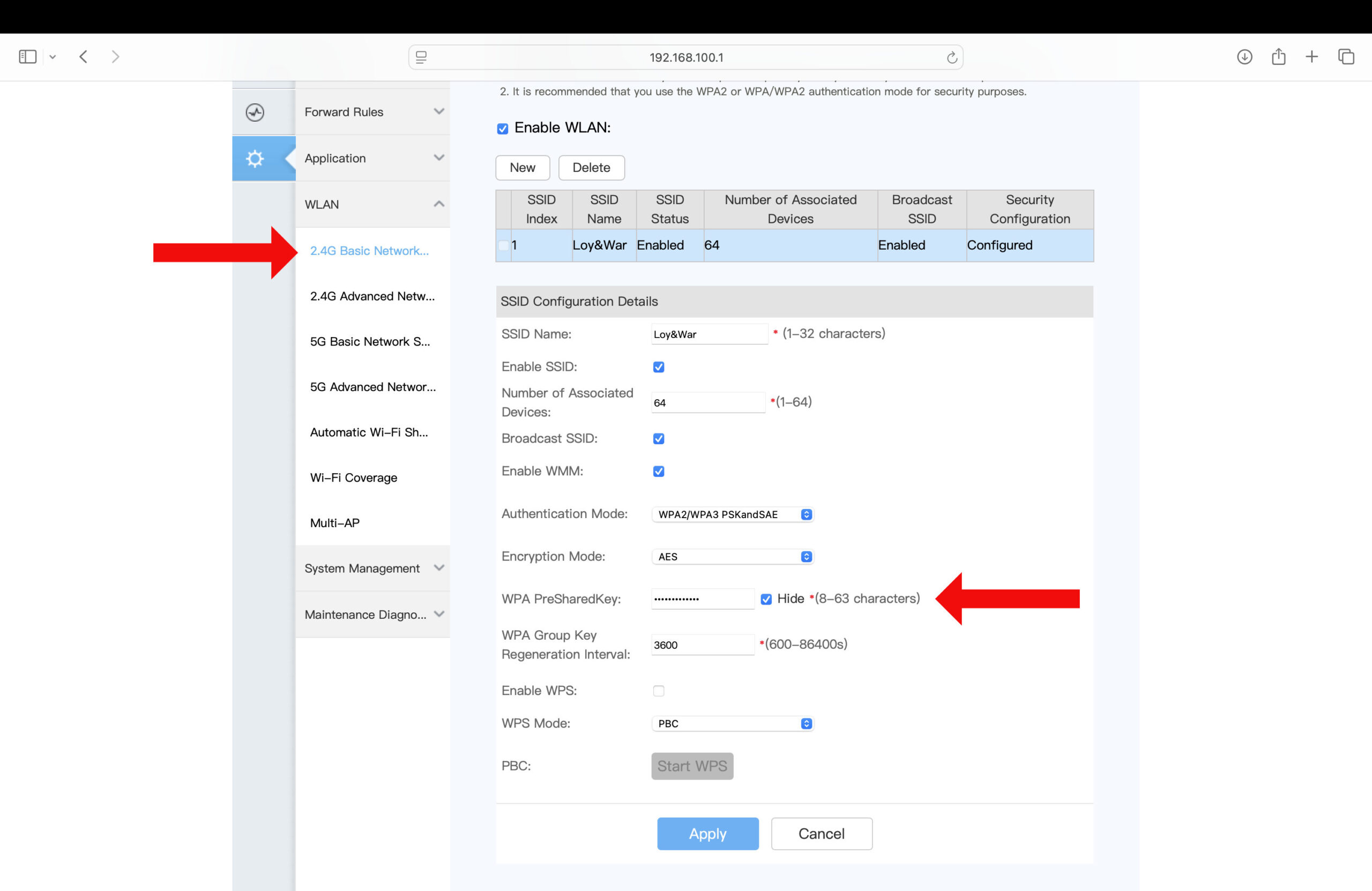
Step 3: Click “2.4G Basic Network Settings”
Select 2.4G Basic Network Settings. The SSID Configuration Details panel will appear on the right side of the screen, showing your current network name, the number of associated devices, and your security configuration.
Step 4: Enter your new WiFi password
Type your new WiFi password in the WPA PreSharedKey field. You may uncheck the Hide box to see what you’re typing.
Step 5: Strengthen your WiFi security (optional)
While you’re configuring your network settings, take the opportunity to strengthen your WiFi security. This is optional but worth spending a minute or two, so that your WiFi network doesn’t get flagged as having “weak security.”
I recommend applying these security settings (find them above the WPA PreSharedKey field):
- Authentication Mode: WPA2/WPA3 PSKandSAE
- Encryption Mode: AES
WPA3 is the current wireless security standard, and the combined WPA2/WPA3 setting keeps newer devices on the stronger protocol while older ones can still connect over WPA2. AES (short for Advanced Encryption Standard), on the other hand, is considered as the most secure encryption method that is widely used in online banking and messaging.
Step 6: Click “Apply”
Once you’re done entering your new WiFi password, click Apply to save your changes.
You’ll be disconnected once the new settings take effect, which again is completely normal. Reconnect using your new WiFi password.
Step 7: Repeat the process for the 5 GHz network
Go back to Advanced > WLAN and click 5G Basic Network Settings this time, then repeat the steps to change your Converge WiFi password. The 5 GHz band is a separate network with its own SSID and its own password, so changing one doesn’t change the other.
Tip: To reduce the inconvenience of getting disconnected, change the password first for the band you’re not connected to. For example, if you’re connected to the 5 GHz network, change the password for the 2.4 GHz network first (and vice versa). That way, you stay logged in to the admin dashboard for as long as possible instead of getting disconnected halfway through.
Frequently Asked Questions
What is the Converge default WiFi password?
Your default Converge WiFi password is printed on the sticker at the bottom or back of your router, and is usually labeled as WLAN Key. It’s a randomly generated string that’s unique to your unit.
What is the Converge default admin username and password?
For Huawei routers provided by Converge, the default admin username is root and the default password is adminHW. If neither works, the password may have been changed. Try performing a hard reset of your router to revert to the default admin password.
What should I do if I forgot my Converge admin password?
If you can’t log in to the admin page at all, you can perform a hard reset of your router by pressing the Reset button at the side of the unit for about 5 seconds, or until the lights blink and the device restarts. Take note that a factory reset wipes every custom setting, including your WiFi name and password. After resetting your router, you can login to the admin dashboard using the default username and password.
Do I need to change both the 2.4 GHz and 5 GHz passwords?
Yes, if you want both networks to use the same password. The 2.4 GHz and 5 GHz bands are treated as two separate wireless networks with their own names and passwords, so changing one doesn’t affect the other. The Fast Setting handles both on a single screen, while the Advanced Setting method requires you to configure them one at a time.
Why won’t the page at 192.168.100.1 open?
The most common reason is that your device isn’t actually connected to your own Converge network. If you’ve already confirmed that you’re connected and it still won’t load, type http://192.168.100.1 (with the “http” prefix), or try a different browser or open it in incognito mode.
My devices keep reconnecting with the old WiFi password. What should I do?
Your phone or computer is remembering the previous credentials and trying them automatically. To resolve this issue, open your device’s WiFi settings, forget or remove the network, and then reconnect to the network. You’ll have to do this on every device that was connected before the password change.
What if my Converge router looks different from the screenshots?
Converge has issued several router models over the years, and not all of them have the Huawei interface shown in this guide. If your unit is a ZTE or a FiberHome, the admin page is usually at 192.168.1.1 instead of 192.168.100.1, and the WiFi password is typically found under a Network or Wireless section rather than under WLAN. The concept stays the same across every router model: find the field labeled “WPA PreSharedKey” or “WPA Passphrase” (or simply “Password”), type your new password, and apply the change. Default credentials vary by model, so check the sticker on your router first.
Wrapping Up
Changing your Converge WiFi password is definitely one of the most important things you can do to protect your home WiFi network. It takes no more than a few minutes and a little bit of patience, but the benefits are worth it.
Between the two methods above, Fast Setting is what I normally recommend since it handles both 2.4 and 5 GHz bands at once. However, the Advanced Settings route is worth learning because that’s where you’ll find the authentication and encryption settings that actually harden your network against intruders.
We hope that this guide helped you change your Converge WiFi password without the stress and hassle. If you have any questions and concerns, contact the Converge customer service hotline at (02) 8667-0850, or just leave a comment below.